> ## Documentation Index
> Fetch the complete documentation index at: https://docs.release0.com/llms.txt
> Use this file to discover all available pages before exploring further.
# Authentication
> Learn how to generate and use API tokens for secure authentication with Release0's protected endpoints.
Some API endpoints are protected and require authentication using an API token.
## Generate a token
1. Navigate to your agent dashboard ([https://release0.com/](https://release0.com/)).
2. **Access your API Keys**\
Navigate to your **Account Settings** located at the bottom left corner of the dashboard.
3. **Create a new API Key**
* Click the **Create API Key** button.
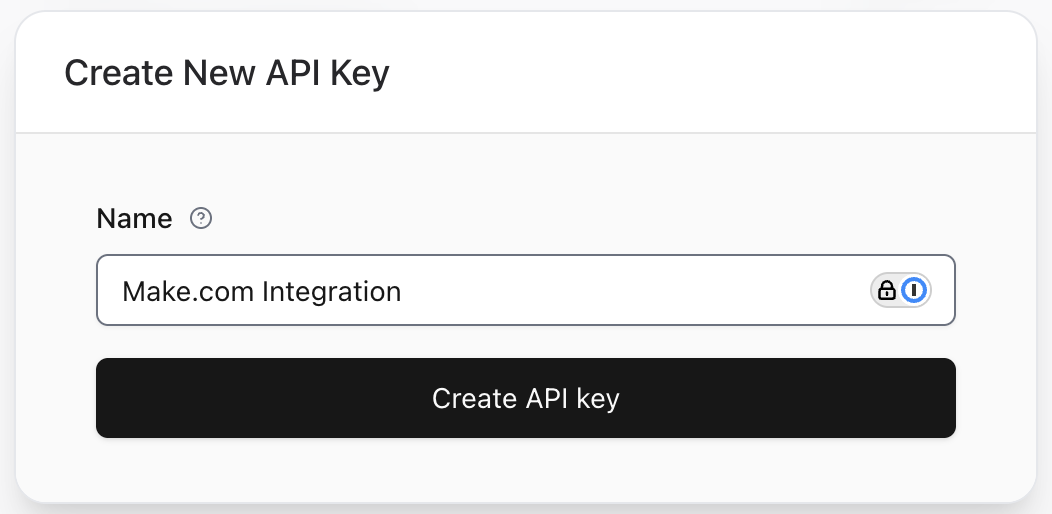
* A modal will appear where you can input a name for your key (e.g., `Make.com Integration`).
* After naming your key, click **Create API Key** to generate it.
 ## Use your token
You can authenticate by adding an `Authorization` header to all your HTTP calls. The `Authorization` header should be formatted as follows: `Authorization: Bearer ` (replace `` with the token you generated).
### Example:
```sh theme={null}
curl -L -X GET 'https://release0.com/api/agents/:agentId/results' \
-H 'Accept: application/json' \
-H 'Authorization: Bearer myAwesomeToken'
```
> **Note**: Replace `:agentId` with the specific Agent ID and `myAwesomeToken` with your API token.
## Use your token
You can authenticate by adding an `Authorization` header to all your HTTP calls. The `Authorization` header should be formatted as follows: `Authorization: Bearer ` (replace `` with the token you generated).
### Example:
```sh theme={null}
curl -L -X GET 'https://release0.com/api/agents/:agentId/results' \
-H 'Accept: application/json' \
-H 'Authorization: Bearer myAwesomeToken'
```
> **Note**: Replace `:agentId` with the specific Agent ID and `myAwesomeToken` with your API token.