> ## Documentation Index
> Fetch the complete documentation index at: https://docs.release0.com/llms.txt
> Use this file to discover all available pages before exploring further.
# How to generate QR Code for sharing your Agent
> Learn how to generate an Agent QR Code in Release0 to quickly share your chatbot with users. This guide covers customization options, download formats, and best practices for using QR codes in marketing and support.
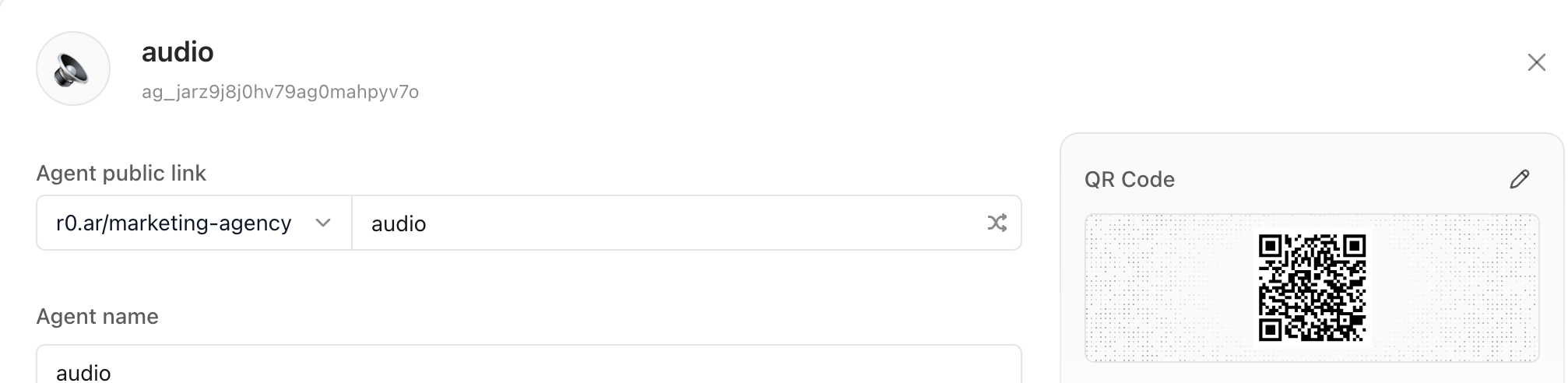
Each agent has a unique QR code generated automatically for easy sharing and access.
### How to Access the QR Code
1. Go to the agent's **Configuration** section by clicking on the agent's name in the left sidebar.
* Alternatively, you can access it from the **Agent Settings** dialog by clicking on the top right corner of the agent card in the workspace view.
2. Scroll to the **QR Code** area.
3. Click the pencil icon 🖊️ to open customization options.
 ### Customization Options
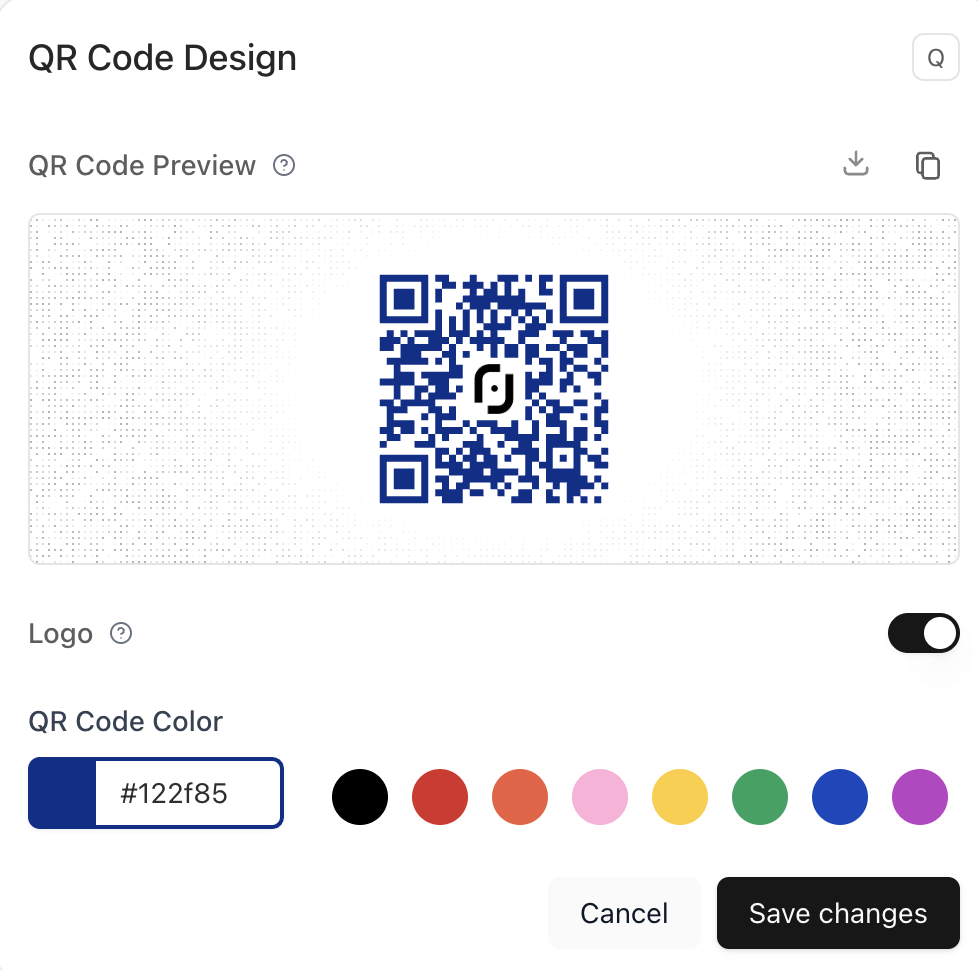
* Change the QR code color.
* Remove the Release0 icon from the center of the QR code — *this feature is available for paid plans only*.
* Live preview available in the customization dialog.
### Customization Options
* Change the QR code color.
* Remove the Release0 icon from the center of the QR code — *this feature is available for paid plans only*.
* Live preview available in the customization dialog.
 ### Download
You can download the QR code as a **PNG** to use in printed materials, packaging, or social media.
> The QR code will automatically regenerate if your agent’s public URL changes.
### Download
You can download the QR code as a **PNG** to use in printed materials, packaging, or social media.
> The QR code will automatically regenerate if your agent’s public URL changes.