> ## Documentation Index
> Fetch the complete documentation index at: https://docs.release0.com/llms.txt
> Use this file to discover all available pages before exploring further.
# How to use the Play Audio element
> Learn how to use the Play Audio element to enhance user interactions with audio files or URLs.
The **Play Audio** Agent Dialog element allows you to play a recorded audio file for your users. This element supports both uploading audio files and pasting audio file URLs.
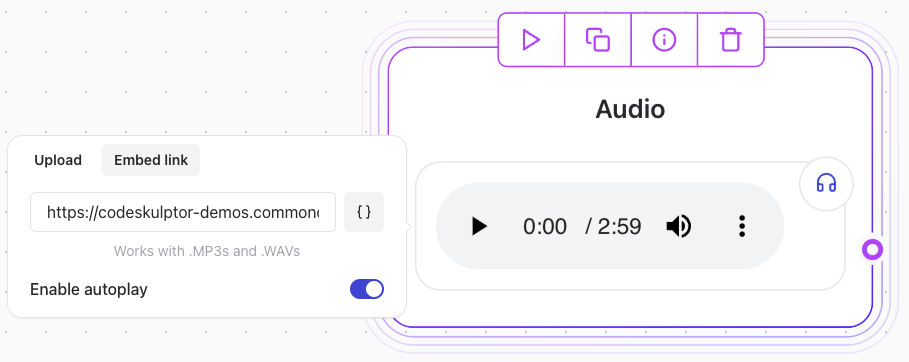 ## Key Features
* **Upload Audio**: Add an audio file directly from your device.
* **Paste URL**: Use a URL to reference an audio file hosted online.
## Troubleshooting
### The First Audio element Does Not Autoplay
* This behavior is expected due to browser policies.
* Most web browsers require the user to interact with the page (e.g., click or scroll) before audio can play automatically.
### Audio Not Playing
* The issue is likely caused by a malformed audio file.
* To resolve this:
* Ensure the audio file is correctly encoded.
* Test by downloading the file and playing it locally on your computer.
* Re-encode the file if necessary using an audio editing tool or converter.
## Supported Formats
* Common formats such as `.mp3`, `.wav`, and `.ogg` are widely supported.
* Ensure compatibility with your users' devices and browsers.
## Example Usage
### Uploading an Audio File
* Click the **Upload** button in the element configuration.
* Select the desired audio file from your device.
### Pasting an Audio URL
Locate your audio file URL and paste it into the element.
```markdown theme={null}
https://example.com/audio-file.mp3
```
## Key Features
* **Upload Audio**: Add an audio file directly from your device.
* **Paste URL**: Use a URL to reference an audio file hosted online.
## Troubleshooting
### The First Audio element Does Not Autoplay
* This behavior is expected due to browser policies.
* Most web browsers require the user to interact with the page (e.g., click or scroll) before audio can play automatically.
### Audio Not Playing
* The issue is likely caused by a malformed audio file.
* To resolve this:
* Ensure the audio file is correctly encoded.
* Test by downloading the file and playing it locally on your computer.
* Re-encode the file if necessary using an audio editing tool or converter.
## Supported Formats
* Common formats such as `.mp3`, `.wav`, and `.ogg` are widely supported.
* Ensure compatibility with your users' devices and browsers.
## Example Usage
### Uploading an Audio File
* Click the **Upload** button in the element configuration.
* Select the desired audio file from your device.
### Pasting an Audio URL
Locate your audio file URL and paste it into the element.
```markdown theme={null}
https://example.com/audio-file.mp3
```