> ## Documentation Index
> Fetch the complete documentation index at: https://docs.release0.com/llms.txt
> Use this file to discover all available pages before exploring further.
# How to use the Embed Content element
> Learn how to use the Embed Content element in Release0 to display websites, videos, PDFs, and other external content directly inside your chatbot. This guide covers setup, supported formats, and tips for creating rich, interactive user experiences
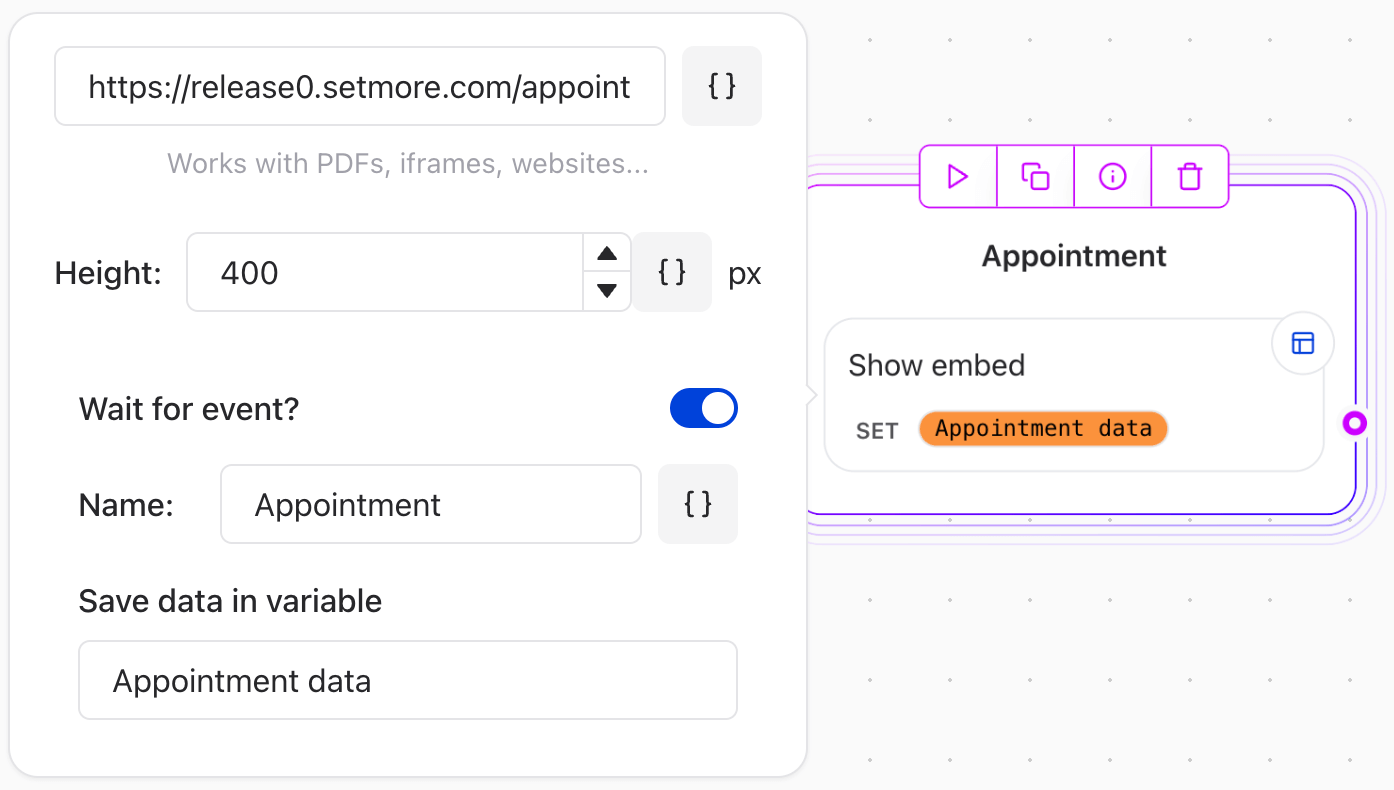
The **Embed Agent Dialog element** enables you to display websites, iframes, or specific embedded content, such as videos or PDFs, directly to your users.
 ## Key Features
* **Embed Websites and Videos**:\
Paste a URL (e.g., YouTube, Vimeo, mp4, or other embeddable content).\
Note: Some websites may not allow embedding. If you see a blank space, the website likely prohibits embedding.
* **Embed PDFs from Google Drive**:\
Select the PDF file on Google Drive.\
Right-click > **Preview** > **More actions** > **Open in a new window**.\
Click **More actions** > **Embed item**.\
Copy the embed code and paste it into the Embed Agent Dialog element configuration.
* **Wait for Event**:\
Use this option if you own the website being embedded and want to continue the agent flow only after a specific event is dispatched from the embedded content.
To send an event from the embedded website to the bot:
```javascript theme={null}
window.parent.postMessage(
{ name: 'My event', data: 'Custom data passed to the Agent variable' },
'*'
);
```
You can define the name of the event, it needs to match what you’ve set in the Embed Agent Dialog element configuration.
## Key Features
* **Embed Websites and Videos**:\
Paste a URL (e.g., YouTube, Vimeo, mp4, or other embeddable content).\
Note: Some websites may not allow embedding. If you see a blank space, the website likely prohibits embedding.
* **Embed PDFs from Google Drive**:\
Select the PDF file on Google Drive.\
Right-click > **Preview** > **More actions** > **Open in a new window**.\
Click **More actions** > **Embed item**.\
Copy the embed code and paste it into the Embed Agent Dialog element configuration.
* **Wait for Event**:\
Use this option if you own the website being embedded and want to continue the agent flow only after a specific event is dispatched from the embedded content.
To send an event from the embedded website to the bot:
```javascript theme={null}
window.parent.postMessage(
{ name: 'My event', data: 'Custom data passed to the Agent variable' },
'*'
);
```
You can define the name of the event, it needs to match what you’ve set in the Embed Agent Dialog element configuration.