> ## Documentation Index
> Fetch the complete documentation index at: https://docs.release0.com/llms.txt
> Use this file to discover all available pages before exploring further.
# How to use the Show Image element
> Discover how to use the Show Image element in Release0 to display pictures, GIFs, and stock images in your chatbot. This guide explains how to upload, link, and configure images to create engaging, visually rich conversations.
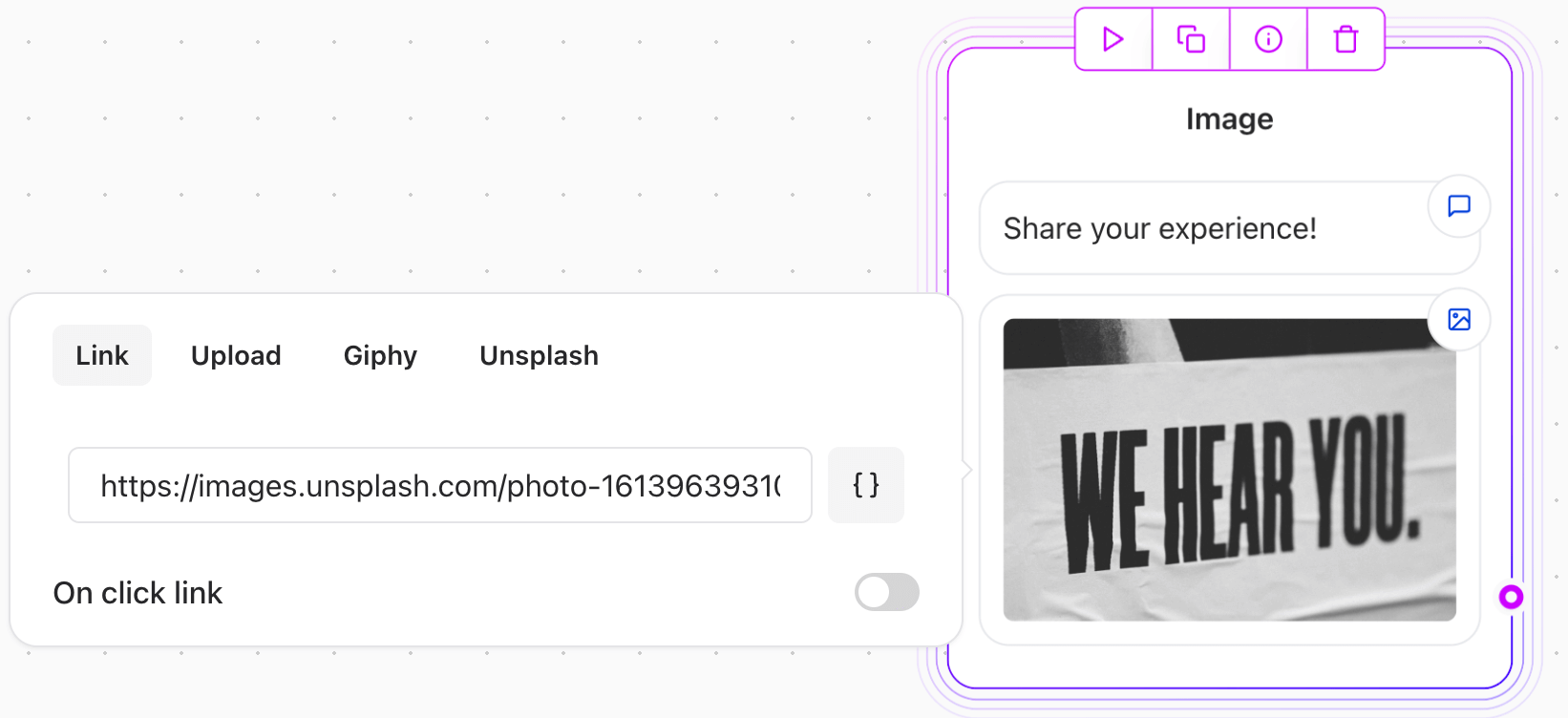
The **Show image** Agent Dialog element allows you to display an image to your users. This element supports various ways of adding images, providing flexibility and convenience.
 ## Features
* **Upload an Image**: Directly upload an image from your device.
* **Paste a URL**: Add an image by pasting its URL.
* **GIF Integration**: Choose a GIF using the native **Giphy** integration.
* **Stock Images**: Search and select images from **Unsplash** directly within the interface.
###
## Features
* **Upload an Image**: Directly upload an image from your device.
* **Paste a URL**: Add an image by pasting its URL.
* **GIF Integration**: Choose a GIF using the native **Giphy** integration.
* **Stock Images**: Search and select images from **Unsplash** directly within the interface.
###
 ## Use Cases
* Display visual content to enhance user engagement.
* Provide graphical explanations or illustrations.
* Use GIFs for dynamic and interactive messaging.
## Example Configuration
1. **Uploading an Image**:
* Click on the "Upload" button.
* Select an image from your device.
* The image will appear in the Agent Dialog element.
2. **Pasting a URL**:
* Copy the URL of the desired image.
* Paste it into the provided field.
* Ensure the URL points to a valid image format (e.g., `.jpg`, `.png`, `.gif`).
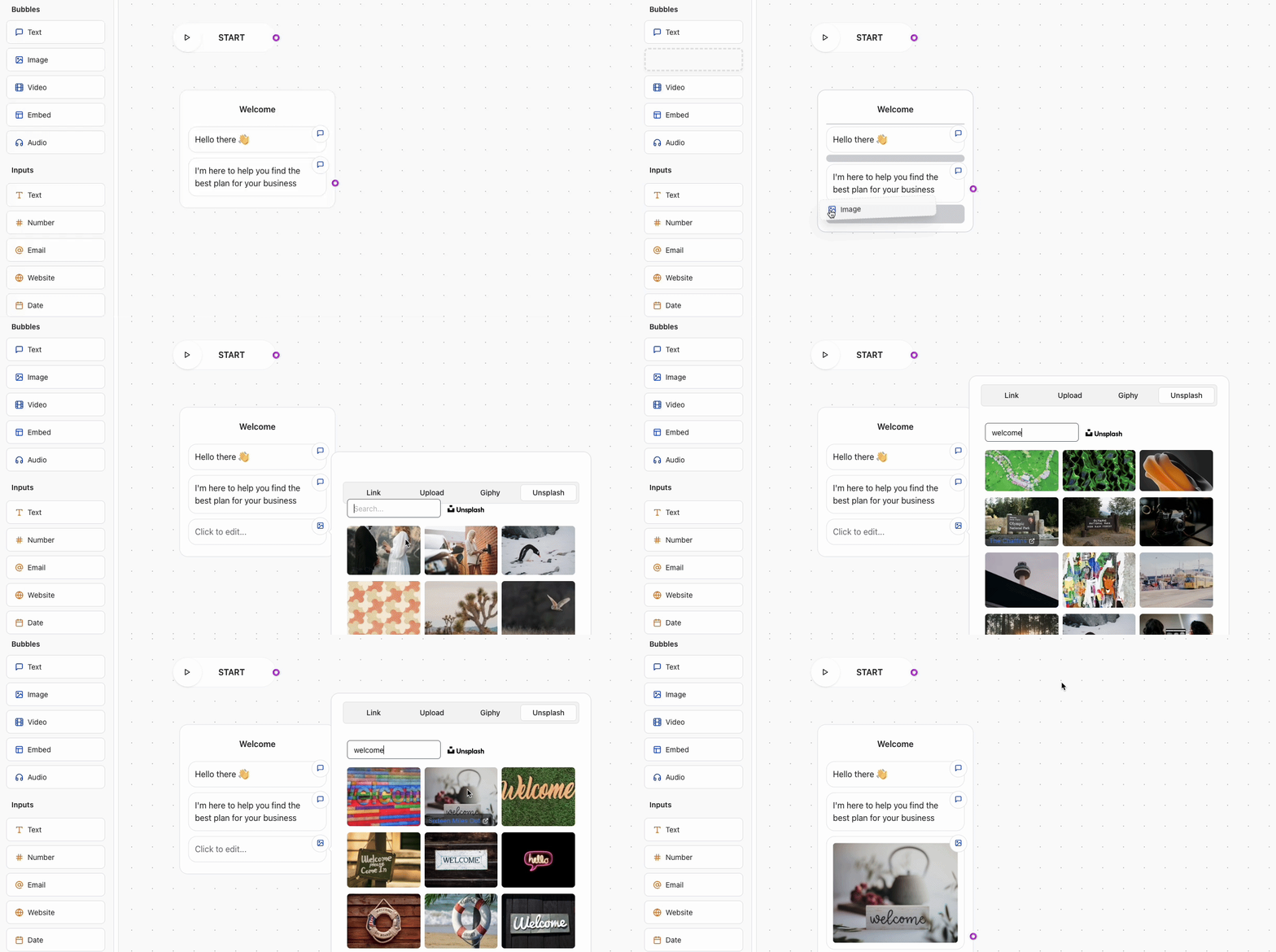
3. **Using Giphy or Unsplash**:
* Click on the Giphy or Unsplash option.
* Search for a keyword (e.g., "celebration").
* Select the desired image or GIF to include
## Use Cases
* Display visual content to enhance user engagement.
* Provide graphical explanations or illustrations.
* Use GIFs for dynamic and interactive messaging.
## Example Configuration
1. **Uploading an Image**:
* Click on the "Upload" button.
* Select an image from your device.
* The image will appear in the Agent Dialog element.
2. **Pasting a URL**:
* Copy the URL of the desired image.
* Paste it into the provided field.
* Ensure the URL points to a valid image format (e.g., `.jpg`, `.png`, `.gif`).
3. **Using Giphy or Unsplash**:
* Click on the Giphy or Unsplash option.
* Search for a keyword (e.g., "celebration").
* Select the desired image or GIF to include