> ## Documentation Index
> Fetch the complete documentation index at: https://docs.release0.com/llms.txt
> Use this file to discover all available pages before exploring further.
# How to integrate Release0 with OpenRouter
> Learn how to configure OpenRouter for chat completions, enabling your chatbot to utilize various AI models seamlessly.
This guide explains how to configure a chat completion flow with any of the available GPT models in OpenRouter.
## 1. Configuring OpenRouter element
1. Open an account with OpenRouter
2. Navigate to the **API Keys** section and click on create a new API key
3. Copy the API key and paste it in the OpenRouter element
### Steps:
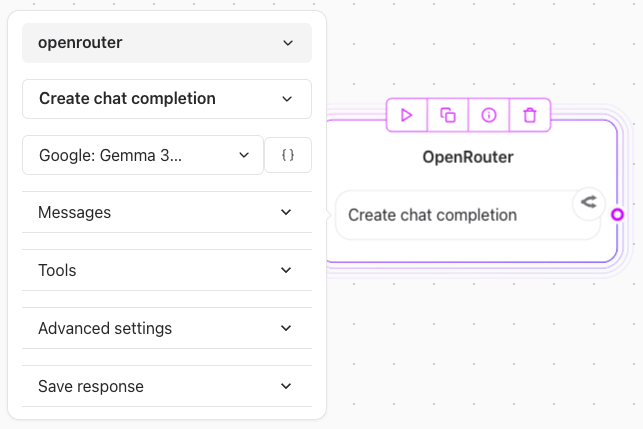
1. **Select Model**: For example you can use a free model like `Google Gemma 3`.
2. **Provide Messages**:
* Create a variable for storing **chat history** (e.g., `Chat history`).
* Append user and assistant messages sequentially to ensure conversational context.
 #### Example Chat Flow:
* **User Input**: `{{User Message}}` (Captured via a “user input text” element).
* **Assistant Reply**: `{{Assistant Message}}` (Generated by the OpenRouter element).
**Set Variables**:
* Define the variable for appending the assistant response (`Append {{Assistant Message}} in Chat history`).
#### Example Chat Flow:
* **User Input**: `{{User Message}}` (Captured via a “user input text” element).
* **Assistant Reply**: `{{Assistant Message}}` (Generated by the OpenRouter element).
**Set Variables**:
* Define the variable for appending the assistant response (`Append {{Assistant Message}} in Chat history`).