> ## Documentation Index
> Fetch the complete documentation index at: https://docs.release0.com/llms.txt
> Use this file to discover all available pages before exploring further.
# How to integrate your Agent with Make.com
> Learn how to integrate Make.com scenarios into your agent flow for enhanced automation and data handling.
The **Make.com** integration element allows you to trigger a scenario at a specific moment in your flow and return data to enhance automation.
## Prerequisites
* An active account on [Make.com](https://www.make.com).
1. **Access your API Keys**\
Navigate to your **Account Settings** located at the bottom left corner of the dashboard.
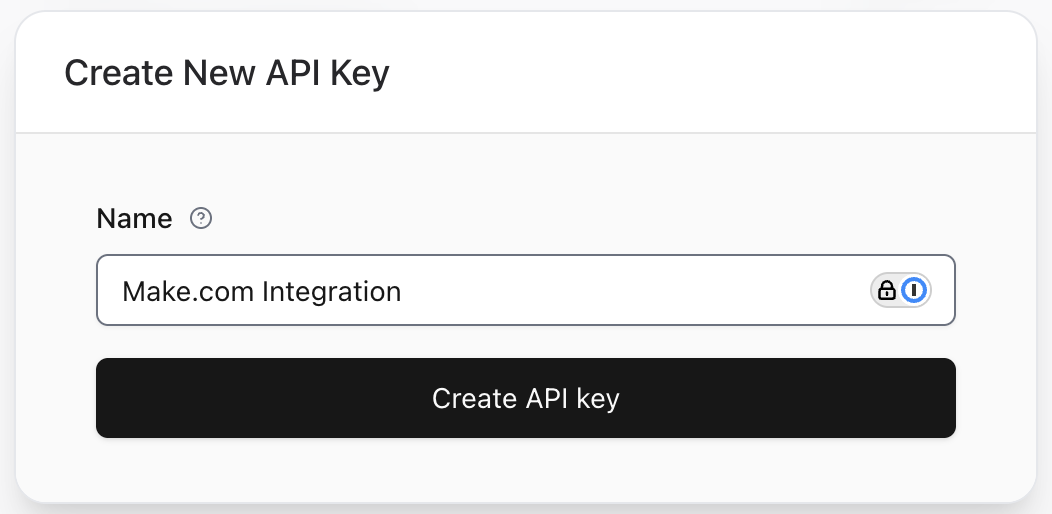
2. **Create a new API Key**
* Click the **Create API Key** button.
* A modal will appear where you can input a name for your key (e.g., `Make.com Integration`).
* After naming your key, click **Create API Key** to generate it.
3. **Open Make.com and configure the Release0 module**
* Go to [Make.com](https://www.make.com)
* Create a new scenario or open an existing one.
* Click on the **+** icon to add a new module.
* Search for **Release0** in the module search bar.
* Select the **Release0** app from the list.
* Choose the **Watch Agents** action.
* Click **Create a connection** to begin the setup.
4. **Enter your Release0 API Key in Make**
* In the connection dialog, input:
* **Name**: A name for your connection (e.g., `Release0 Integration`).
* **API Key**: The API key you generated in Release0.
* **Agent ID**: The ID of the agent you want to connect to. You can find this in your agent's settings on Release0.
* **element ID**: The ID of the element where your Make.com integration is located.
5. **Save the connection**\
Click **Save** to finalize the integration.
6. **Test the connection**
### Validation and Testing
Before deploying your Make.com integration, ensure:
* The scenario on Make.com is active and properly configured.
* The Make.com element triggers the scenario as expected.
* Returned data is validated and correctly utilized in your flow.
 3. **Open Make.com and configure the Release0 module**
* Go to [Make.com](https://www.make.com)
* Create a new scenario or open an existing one.
* Click on the **+** icon to add a new module.
* Search for **Release0** in the module search bar.
* Select the **Release0** app from the list.
* Choose the **Watch Agents** action.
* Click **Create a connection** to begin the setup.
4. **Enter your Release0 API Key in Make**
* In the connection dialog, input:
* **Name**: A name for your connection (e.g., `Release0 Integration`).
* **API Key**: The API key you generated in Release0.
* **Agent ID**: The ID of the agent you want to connect to. You can find this in your agent's settings on Release0.
* **element ID**: The ID of the element where your Make.com integration is located.
5. **Save the connection**\
Click **Save** to finalize the integration.
6. **Test the connection**
### Validation and Testing
Before deploying your Make.com integration, ensure:
* The scenario on Make.com is active and properly configured.
* The Make.com element triggers the scenario as expected.
* Returned data is validated and correctly utilized in your flow.
3. **Open Make.com and configure the Release0 module**
* Go to [Make.com](https://www.make.com)
* Create a new scenario or open an existing one.
* Click on the **+** icon to add a new module.
* Search for **Release0** in the module search bar.
* Select the **Release0** app from the list.
* Choose the **Watch Agents** action.
* Click **Create a connection** to begin the setup.
4. **Enter your Release0 API Key in Make**
* In the connection dialog, input:
* **Name**: A name for your connection (e.g., `Release0 Integration`).
* **API Key**: The API key you generated in Release0.
* **Agent ID**: The ID of the agent you want to connect to. You can find this in your agent's settings on Release0.
* **element ID**: The ID of the element where your Make.com integration is located.
5. **Save the connection**\
Click **Save** to finalize the integration.
6. **Test the connection**
### Validation and Testing
Before deploying your Make.com integration, ensure:
* The scenario on Make.com is active and properly configured.
* The Make.com element triggers the scenario as expected.
* Returned data is validated and correctly utilized in your flow.