> ## Documentation Index
> Fetch the complete documentation index at: https://docs.release0.com/llms.txt
> Use this file to discover all available pages before exploring further.
# How to integrate your Agent with Meta Pixel
> Learn how to use the Pixel element to track user interactions and events with Meta Pixel in your chatbot agents.
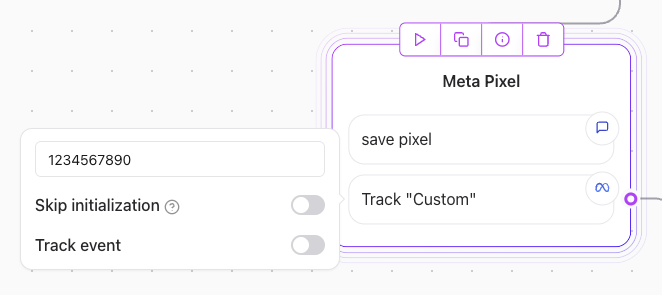
The **Pixel** Integration element allows you to seamlessly track user interactions and events by embedding a Meta Pixel into your Agent's flow. Here's how it works and how to configure it.
***
## **How the Pixel element Works**
When a **Pixel element** is added to your flow:
1. **Initialization**:\
The Meta Pixel is initialized, and a `PageView` event is automatically tracked as soon as the page loads.
 2. **Event Tracking**:\
Specific events, such as a form submission or a button click, are tracked when the element is executed.
## **Configuration Steps**
### 1. **Finding my Meta Pixel ID**
* Go to your [Meta Events Manager](https://www.facebook.com/events_manager/) and select the Pixel you want to use.
* Copy the **Pixel ID** from the settings page.
### 2. **Adding the Pixel ID**
* Enter your **Meta Pixel ID** (e.g., `73627907634`) into the input field in the configuration box.
* This ID connects your Agent flow to your Meta Ads account for event tracking.
### 3. **Event Tracking**
* Toggle the **"Track event"** option to enable event tracking.
* Specify the event name (e.g., `Lead`) in the dropdown or input field.
* Optionally, click **Add parameter** to pass additional data (like user information) with the event.
### 4. **How to check if the Pixel is working**
* Use the [Meta Events Manager](https://www.facebook.com/events_manager/) to verify that your Pixel is firing correctly.
* Select your Pixel and navigate to the **Test Events** tab.
* Check for the `PageView` event in the **Events Received** section for any custom events you have set up.
2. **Event Tracking**:\
Specific events, such as a form submission or a button click, are tracked when the element is executed.
## **Configuration Steps**
### 1. **Finding my Meta Pixel ID**
* Go to your [Meta Events Manager](https://www.facebook.com/events_manager/) and select the Pixel you want to use.
* Copy the **Pixel ID** from the settings page.
### 2. **Adding the Pixel ID**
* Enter your **Meta Pixel ID** (e.g., `73627907634`) into the input field in the configuration box.
* This ID connects your Agent flow to your Meta Ads account for event tracking.
### 3. **Event Tracking**
* Toggle the **"Track event"** option to enable event tracking.
* Specify the event name (e.g., `Lead`) in the dropdown or input field.
* Optionally, click **Add parameter** to pass additional data (like user information) with the event.
### 4. **How to check if the Pixel is working**
* Use the [Meta Events Manager](https://www.facebook.com/events_manager/) to verify that your Pixel is firing correctly.
* Select your Pixel and navigate to the **Test Events** tab.
* Check for the `PageView` event in the **Events Received** section for any custom events you have set up.
 ## **Example Use Case**
### Flow Example:
| Step | Description |
| ----------------- | ------------------------------------------ |
| Hi there! | The Agent greets the user. |
| What's your name? | The Agent asks for the user's name. |
| Collect Name | User inputs their name, which is stored. |
| Track Lead | Tracks the event "Lead" with user details. |
### Event Tracking:
In the example image:
* **Pixel ID**: `73627907634` is used.
* The `Lead` event is tracked whenever the element is executed.
* Optional parameters can include user data (e.g., `Name` or `Email`).
## **Best Practices**
* **Test Your Pixel**: Use the [Meta Events Manager](https://www.facebook.com/events_manager/) to ensure the Pixel is working and events are logged correctly.
* **Unique Event Names**: Use descriptive and unique event names to avoid confusion in tracking.
* **Add Parameters**: Include user data, such as `Name` or `Email`, to make your event tracking more insightful.
## **Example Use Case**
### Flow Example:
| Step | Description |
| ----------------- | ------------------------------------------ |
| Hi there! | The Agent greets the user. |
| What's your name? | The Agent asks for the user's name. |
| Collect Name | User inputs their name, which is stored. |
| Track Lead | Tracks the event "Lead" with user details. |
### Event Tracking:
In the example image:
* **Pixel ID**: `73627907634` is used.
* The `Lead` event is tracked whenever the element is executed.
* Optional parameters can include user data (e.g., `Name` or `Email`).
## **Best Practices**
* **Test Your Pixel**: Use the [Meta Events Manager](https://www.facebook.com/events_manager/) to ensure the Pixel is working and events are logged correctly.
* **Unique Event Names**: Use descriptive and unique event names to avoid confusion in tracking.
* **Add Parameters**: Include user data, such as `Name` or `Email`, to make your event tracking more insightful.