> ## Documentation Index
> Fetch the complete documentation index at: https://docs.release0.com/llms.txt
> Use this file to discover all available pages before exploring further.
# How to integrate your Agent with Segment
> Send events to Twilio’s Segment and trigger workflows using your chatbot agent. Learn how to configure the Segment element, find your Write Key, and use actions like Identify, Alias, Event, and Page.
The **Segment** element enables you to send events to **Twilio’s Segment** and trigger workflows. It utilizes the Segment Analytics Node.js library to send server-side events, ensuring compatibility with non-web browser devices.
## How to Find Your Write Key
To locate your **Write Key**, follow these steps:
1. Navigate to your Segment dashboard.
2. Click on the **Sources** tab.
3. Select the desired source and click the **API Keys** button to retrieve the key.
## Actions Overview
### Identify User
Use this action to identify a user in Segment.
#### Required Parameters:
* **User ID**: A unique identifier for the user.
* **Email**: The email address of the user.
#### Optional:
* **Traits**: A set of user-specific traits (e.g., name, location).
### Alias
This action allows you to alias a user in Segment, linking two user identities.
#### Required Parameters:
* **Previous ID**: The old identifier for the user.
* **User ID**: The new identifier for the user.
### Event
Track an event in Segment using this action.bun install
#### Required Parameters:
* **Event Name**: The name of the event (e.g., "Order Completed").
* **User ID**: The identifier of the user triggering the event.
#### Optional:
* **Properties**: A set of event-specific properties (e.g., order ID, amount).
### Page
Send a page view event to Segment using this action.
#### Required Parameters:
* **Agent Name**: The name of the agent or application initiating the event.
#### Optional:
* **Category**: A category name for the page.
* **Properties**: Additional properties related to the page view.
### How to Configure the Segment element
1. **Add the Segment element**:\
Drag and drop the Segment element into your flow.
2. **Configure the element**:
* Click on the Segment element to open the configuration panel.
* Enter your **Write Key** in the designated field.
* Select the desired action (Identify, Alias, Event, or Page).
* Fill in the required parameters and any optional ones as needed.
3. **Test the element**:
* Use the **Test** button to send a test event to Segment.
* Check the Segment dashboard to verify the event was received successfully.
* You can use the [Segment Debugger](https://segment.com/docs/connections/sources/debugger/) to validate the events sent.
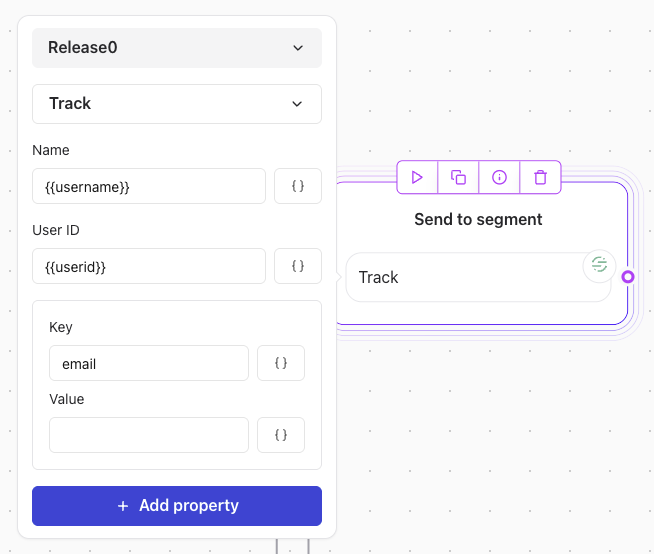
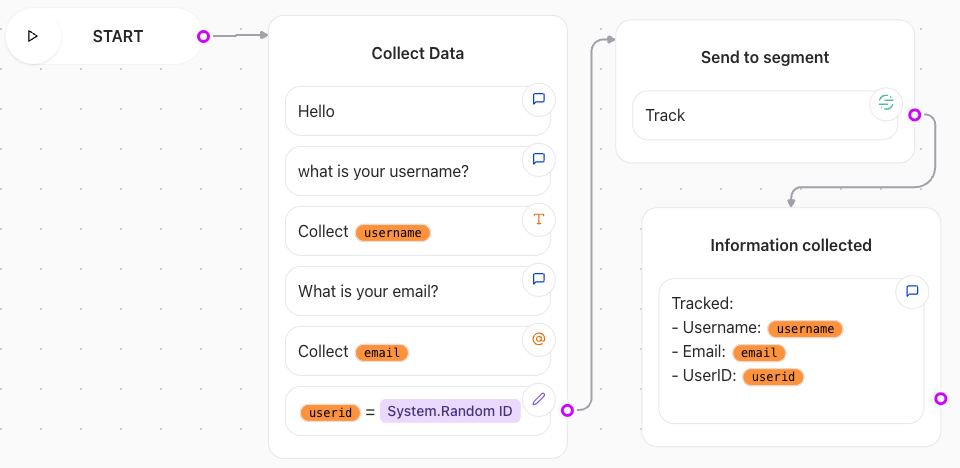
In the following example, we will configure the **Track** action to send user information to Segment.
* Create a new element group and collect user data (Name, Username, and Email).
* We can use a random variable to create a random userID.
* Add user input elements to collect user data.
* Add the Segment element and select the **Track** action.
* Fill in the required parameters:
* **User ID**: Use the variable that holds the random user ID.
* **Email**: Use the variable that holds the user’s email address.
 Here is an overview of a simple flow that collects user data and sends it to Segment using the **Track** action.
 Once configured, the Segment element will send the user information to Segment using the **Identify** action.
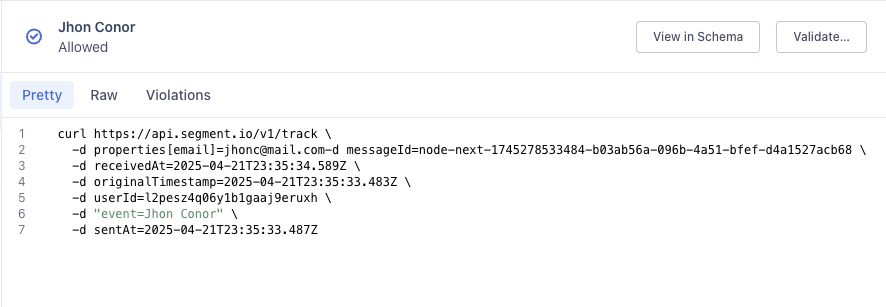
 When we run the scenario, the Segment element will send the user information to Segment using the **Track** action.
And once we check the Segment dashboard, we can see the event was received successfully.
When we run the scenario, the Segment element will send the user information to Segment using the **Track** action.
And once we check the Segment dashboard, we can see the event was received successfully.
 If we check the source debugger, we can see the event details and the properties sent to Segment.
 ### Validation and Testing
Before deployment:
* Verify your **Write Key** is correctly configured.
* Test each action with valid parameters to ensure proper functionality.
* Use [Segment’s Debugger](https://segment.com/docs/connections/sources/debugger/) to validate the events sent.
### Validation and Testing
Before deployment:
* Verify your **Write Key** is correctly configured.
* Test each action with valid parameters to ensure proper functionality.
* Use [Segment’s Debugger](https://segment.com/docs/connections/sources/debugger/) to validate the events sent.