> ## Documentation Index
> Fetch the complete documentation index at: https://docs.release0.com/llms.txt
> Use this file to discover all available pages before exploring further.
# How to use the Delay element
> The Delay element pauses conversations for a set duration, enhancing flow timing and emphasizing key points. Ideal for creating natural pacing in dialogues.
The **Delay** element allows you to pause the conversation for a set number of seconds. This feature can be used to:
* **Emphasize key points** by pausing after a message.
* **Ensure clarity** by giving users time to read before redirection or interaction.
* **Enhance flow timing** in cases where immediate transitions may feel abrupt.
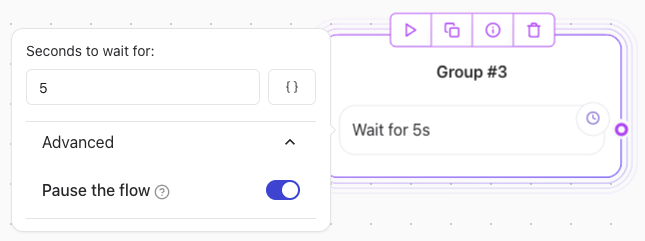 ## Features of the **Delay** element
### 1. **Duration**
* You can specify the duration (in seconds) for the pause.
* Example:
* Short pauses (1–2 seconds): To make interactions feel natural.
* Longer pauses (3–5 seconds): To give users time to process important messages.
### 2. **Pause the Flow**
* Enabling **Pause the Flow** prevents agent from processing subsequent elements until the pause ends.
* Use this option when:
* You want to **delay** executing long-running actions.
* You need to **control the display** of multiple messages before moving to the next action.
## When to Use the **Delay** element
### Appropriate Use Cases
* **Highlighting Key Messages**: Pause after delivering a crucial message to ensure it is read.
* **Before Redirection**: Add a delay before redirecting users to an external URL or action.
* **For Visual Effects**: Create natural conversation pacing in dialogue-heavy flows.
### Misuses to Avoid
* **Excessive Pauses**: Long or frequent pauses can frustrate users and disrupt the experience.
* **General Typing Speed Control**: Adjust this through **[Typing Emulation Settings](/theme/overview)**, not the **Delay** element.
***
## Best Practices
1. **Keep Pauses Brief**: Limit pauses to under 5 seconds to maintain engagement.
2. **Test User Experience**: Simulate interactions to ensure pauses enhance, rather than hinder, flow.
3. **Combine with [Typing Emulation Settings](/theme/overview)**: Use together for natural pacing in dialogues.
## Features of the **Delay** element
### 1. **Duration**
* You can specify the duration (in seconds) for the pause.
* Example:
* Short pauses (1–2 seconds): To make interactions feel natural.
* Longer pauses (3–5 seconds): To give users time to process important messages.
### 2. **Pause the Flow**
* Enabling **Pause the Flow** prevents agent from processing subsequent elements until the pause ends.
* Use this option when:
* You want to **delay** executing long-running actions.
* You need to **control the display** of multiple messages before moving to the next action.
## When to Use the **Delay** element
### Appropriate Use Cases
* **Highlighting Key Messages**: Pause after delivering a crucial message to ensure it is read.
* **Before Redirection**: Add a delay before redirecting users to an external URL or action.
* **For Visual Effects**: Create natural conversation pacing in dialogue-heavy flows.
### Misuses to Avoid
* **Excessive Pauses**: Long or frequent pauses can frustrate users and disrupt the experience.
* **General Typing Speed Control**: Adjust this through **[Typing Emulation Settings](/theme/overview)**, not the **Delay** element.
***
## Best Practices
1. **Keep Pauses Brief**: Limit pauses to under 5 seconds to maintain engagement.
2. **Test User Experience**: Simulate interactions to ensure pauses enhance, rather than hinder, flow.
3. **Combine with [Typing Emulation Settings](/theme/overview)**: Use together for natural pacing in dialogues.