> ## Documentation Index
> Fetch the complete documentation index at: https://docs.release0.com/llms.txt
> Use this file to discover all available pages before exploring further.
# How to use the Buttons Choice element
> Allow users to select predefined options with single or multiple-choice configurations and dynamic item lists in your chatbot agent.
The **Buttons Choice** User Input element allows you to present predefined options to your users. This element supports both single-choice and multiple-choice inputs and can dynamically display options based on variables.
## Key Features
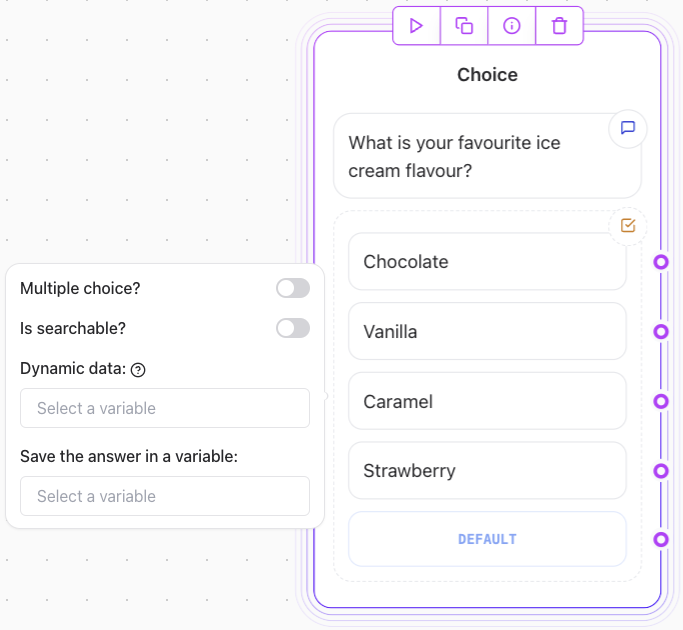
### Single Choice
* Users can select one option from a list.
* Each choice can be linked to a specific path in your flow for direct branching.
* Use the **Default** path to handle cases where no specific path is linked to the selected option.
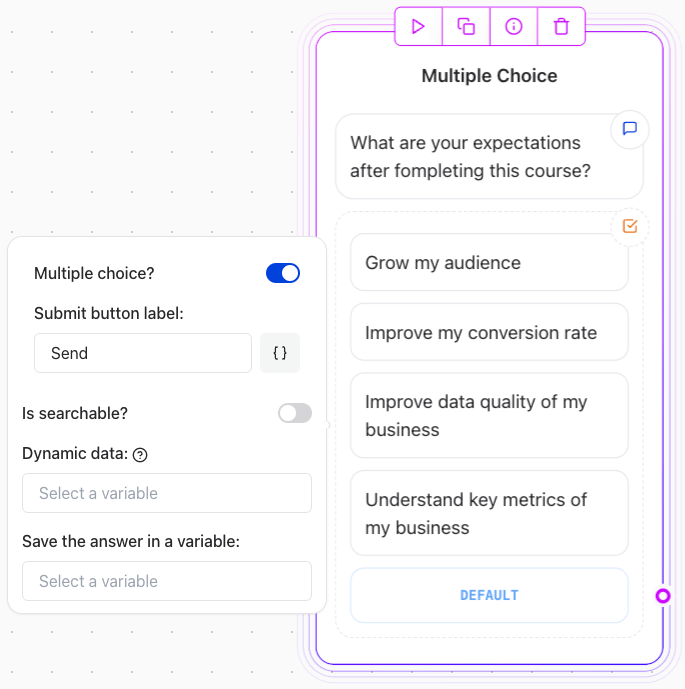
 ### Multiple Choice
* Allows users to select multiple options at once.
* The selections can be saved in a variable for further processing or conditional responses.
### Multiple Choice
* Allows users to select multiple options at once.
* The selections can be saved in a variable for further processing or conditional responses.
 ### Dynamic Items
* Dynamically populate the list of options using a variable.
* This feature is useful for displaying lists sourced from external data, such as Google Sheets or APIs.
* Ensure the variable contains a list of values before using it in the element.
### Adding an "Other" Button
* Include an "Other" button to let users provide an answer that isn’t listed in the predefined options.
* Connect the "Other" button to a [Text](/editor/elements/user-inputs/text) Input element to collect custom input.
## How to Configure
### Single Choice Example
1. Add a **Buttons Choice** Input element.
2. Define the options (e.g., "Option 1," "Option 2").
3. Link each choice to a specific path in your flow.
4. Set a **Default** path for fallback handling.
### Multiple Choice Example
1. Enable the **Multiple Choice** option.
2. Define the list of options.
3. Save the user’s selections in a variable for further use.
### Dynamic Items Example
1. Populate a variable with a list of items (e.g., from Google Sheets).
2. In the element configuration, select the variable containing the list.
3. The options will be dynamically displayed to users.
### Adding an "Other" Button
1. Add an **Other** button to the list of predefined choices.
2. Connect the "Other" button to a **Text** Input element.
3. Collect and process the user’s custom input.
### Different Replies Based on Multiple Choices
1. Save the user’s selections in a variable.
2. Add a **Condition** Logic element to check the value of the variable.
3. Define different paths and responses based on the user’s selections.
## Example Use Cases
1. **Single Choice**:
* "What would you like to do?"
* Option 1: "Have more info."
* Option 2: "Navigate to the app."
* Option 3: "Ask a question."
2. **Multiple Choice**:
* "What are you interested in?"
* New Car Purchase
* Sell my Car
* Service my Car
* Refinance my Car Loan
* Other
3. **Dynamic Items**:
* Populate a list of services from Google Sheets (e.g., \["Refinance my Car Loan", "Sales", "Service"]).
4. **"Other" Button**:
* Allow users to provide a custom response outside predefined options.
### Dynamic Items
* Dynamically populate the list of options using a variable.
* This feature is useful for displaying lists sourced from external data, such as Google Sheets or APIs.
* Ensure the variable contains a list of values before using it in the element.
### Adding an "Other" Button
* Include an "Other" button to let users provide an answer that isn’t listed in the predefined options.
* Connect the "Other" button to a [Text](/editor/elements/user-inputs/text) Input element to collect custom input.
## How to Configure
### Single Choice Example
1. Add a **Buttons Choice** Input element.
2. Define the options (e.g., "Option 1," "Option 2").
3. Link each choice to a specific path in your flow.
4. Set a **Default** path for fallback handling.
### Multiple Choice Example
1. Enable the **Multiple Choice** option.
2. Define the list of options.
3. Save the user’s selections in a variable for further use.
### Dynamic Items Example
1. Populate a variable with a list of items (e.g., from Google Sheets).
2. In the element configuration, select the variable containing the list.
3. The options will be dynamically displayed to users.
### Adding an "Other" Button
1. Add an **Other** button to the list of predefined choices.
2. Connect the "Other" button to a **Text** Input element.
3. Collect and process the user’s custom input.
### Different Replies Based on Multiple Choices
1. Save the user’s selections in a variable.
2. Add a **Condition** Logic element to check the value of the variable.
3. Define different paths and responses based on the user’s selections.
## Example Use Cases
1. **Single Choice**:
* "What would you like to do?"
* Option 1: "Have more info."
* Option 2: "Navigate to the app."
* Option 3: "Ask a question."
2. **Multiple Choice**:
* "What are you interested in?"
* New Car Purchase
* Sell my Car
* Service my Car
* Refinance my Car Loan
* Other
3. **Dynamic Items**:
* Populate a list of services from Google Sheets (e.g., \["Refinance my Car Loan", "Sales", "Service"]).
4. **"Other" Button**:
* Allow users to provide a custom response outside predefined options.