> ## Documentation Index
> Fetch the complete documentation index at: https://docs.release0.com/llms.txt
> Use this file to discover all available pages before exploring further.
# How to use the Request Payment element
> Collect payments seamlessly within your chatbot workflow using Stripe integration. This guide covers setup, configuration, and dynamic pricing options.
The **Request Payment** User Input element allows you to collect payments seamlessly within your workflow by integrating Stripe. This element supports various payment methods and allows customization for test or live environments.
## Setting Up Stripe Integration
### **1. Connect Stripe Account**
To use the **Request Payment** Input element, you must first connect your Stripe account:
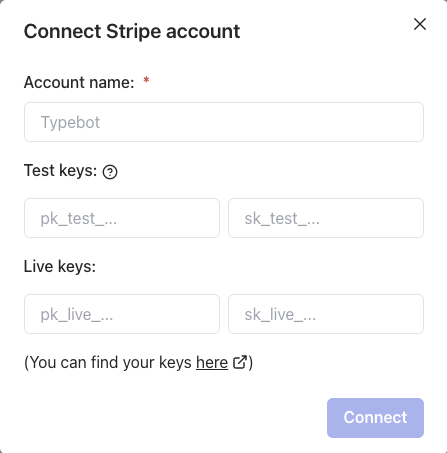
1. Click **Select an account** > **Connect new**.
2. In the popup configuration:
* **Account Name**: Enter any name of your choice (does not need to match your Stripe account).
* **Test Keys**:
* Find your test keys here: [Stripe Test Keys](https://dashboard.stripe.com/test/apikeys).
* These keys are used for testing purposes during preview. You can use a test card to simulate payments.
* Example test card: `4242 4242 4242 4242` with any future expiration date and any CVC.
* The test keys (test mode) will be used only when launching your workflow in preview mode. The published link will use the live keys.
* **Live Keys**:
* Find your live keys here: [Stripe Live Keys](https://dashboard.stripe.com/apikeys).
* These keys will be used for published workflows. Only the published link will use the live keys.
> **Note**: If you want to use **test keys** in a published agent, also enter them in the **live key** fields.
 ### **2. Test Payments**
* Use test cards from Stripe to simulate successful or failed payments.
* Test card details can be found here: [Stripe Test Cards](https://docs.stripe.com/testing?testing-method=card-numbers#cards).
## Input Configuration
Once your Stripe account is connected, configure the Request Payment element:
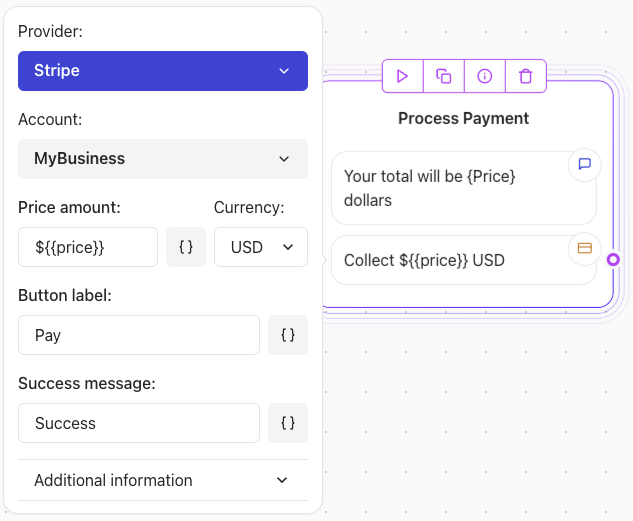
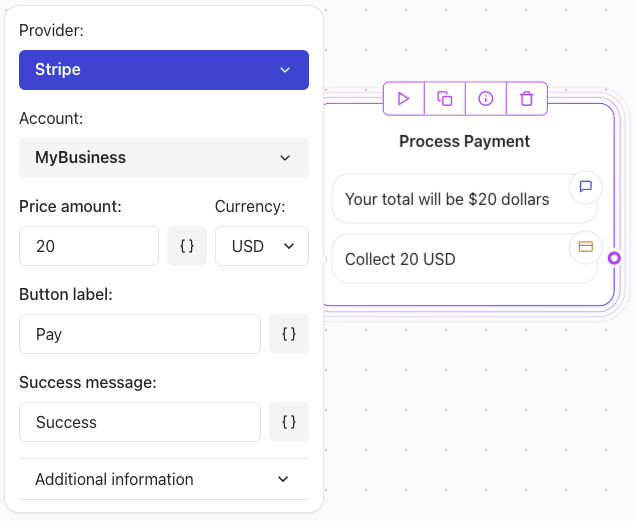
1. **Price Amount**: Specify the amount to charge.
2. **Currency**: Select the currency (e.g., USD, EUR).
3. **Button Label**: Customize the button text (e.g., "Pay", "Checkout").
4. **Success Message**: Set a confirmation message for successful payments.
### **2. Test Payments**
* Use test cards from Stripe to simulate successful or failed payments.
* Test card details can be found here: [Stripe Test Cards](https://docs.stripe.com/testing?testing-method=card-numbers#cards).
## Input Configuration
Once your Stripe account is connected, configure the Request Payment element:
1. **Price Amount**: Specify the amount to charge.
2. **Currency**: Select the currency (e.g., USD, EUR).
3. **Button Label**: Customize the button text (e.g., "Pay", "Checkout").
4. **Success Message**: Set a confirmation message for successful payments.
 ### Enabling Payment Methods
Ensure you enable the payment methods you'd like to use in your Stripe dashboard:
* Visit [Payment Methods Settings](https://dashboard.stripe.com/settings/payment_methods).
* Enable methods such as:
* Cards
* Apple Pay
* Google Pay
* Alipay
* WeChat Pay, etc.
### **2. Using Dynamic Pricing**
For workflows where the amount may vary:
* Link the **Price Amount** field to a variable or formula.
* Example: `$[total_amount]` for dynamically calculated totals.
### Enabling Payment Methods
Ensure you enable the payment methods you'd like to use in your Stripe dashboard:
* Visit [Payment Methods Settings](https://dashboard.stripe.com/settings/payment_methods).
* Enable methods such as:
* Cards
* Apple Pay
* Google Pay
* Alipay
* WeChat Pay, etc.
### **2. Using Dynamic Pricing**
For workflows where the amount may vary:
* Link the **Price Amount** field to a variable or formula.
* Example: `$[total_amount]` for dynamically calculated totals.