> ## Documentation Index
> Fetch the complete documentation index at: https://docs.release0.com/llms.txt
> Use this file to discover all available pages before exploring further.
# How to use the Date element
> Collect date or date-time inputs from users with customizable formats and native date pickers. Ideal for scheduling and event management in your chatbot agent.
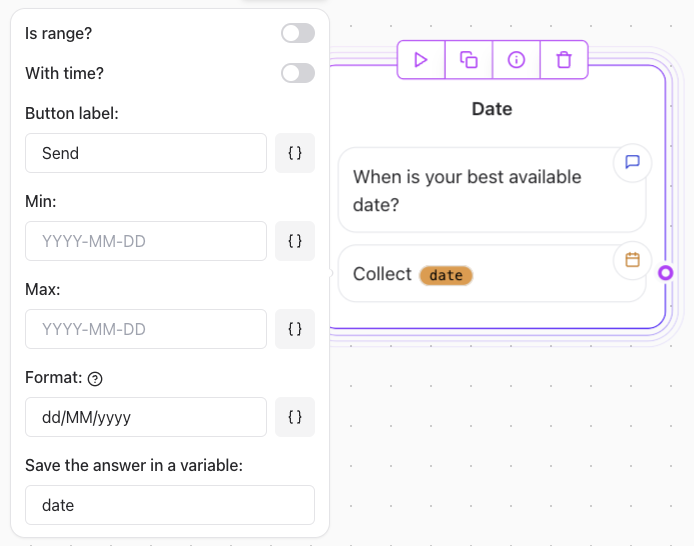
The **Date** User Input element is used to collect date or date-time inputs from users. It allows flexibility in selecting a specific date, a range, or including time details.
 ## Key Features
* **Native Date Picker**:
* The input element uses the native date picker of the user’s browser and device.
* The appearance varies depending on the platform. For example, on Firefox, it uses a standard native date input interface.
* **Customizable Date Format**:
* Customize the displayed and stored date format using the **date-fns** library.
* Supports a wide range of formatting tokens.
## Example Formats
Here are examples of commonly used date formats:
* `yyyy-MM-dd`: Example: `2025-01-02`
* `yyyy-MM-dd HH:mm:ss`: Example: `2025-01-02 14:30:00`
* `dd/MM/yy`: Example: `02/01/25`
* `dd/MM/yyyy HH:mm:ss`: Example: `02/01/2025 14:30:00`
* `d.MM.yy`: Example: `2.01.25`
## How to Configure
**Set Date Input Type**:
* **Is Range?**: Allow users to select a start and end date.
* **With Time?**: Extend the input to include time (e.g., hours and minutes).
**Define Date Format**:
* Use the **Format** setting to apply your preferred format.
* Refer to the [date-fns format documentation](https://date-fns.org/docs/format) for additional tokens and examples.
##### Example Prompts
* "Please select your preferred appointment date."
* "Choose a date range for your booking."
* "Enter the date and time for the event (format: `dd/MM/yyyy HH:mm`)."
> **Note**: While you can specify how the date will be saved and handled in the system, the actual display format may vary based on the user's browser and device settings. Always test your date inputs across different platforms to ensure a consistent user experience. While you can specify a format (e.g., `dd/MM/yyyy`), users may see a different format depending on their browser or device settings (e.g., `MM/dd/yyyy`). The date will still be stored in the format you defined.
## Key Features
* **Native Date Picker**:
* The input element uses the native date picker of the user’s browser and device.
* The appearance varies depending on the platform. For example, on Firefox, it uses a standard native date input interface.
* **Customizable Date Format**:
* Customize the displayed and stored date format using the **date-fns** library.
* Supports a wide range of formatting tokens.
## Example Formats
Here are examples of commonly used date formats:
* `yyyy-MM-dd`: Example: `2025-01-02`
* `yyyy-MM-dd HH:mm:ss`: Example: `2025-01-02 14:30:00`
* `dd/MM/yy`: Example: `02/01/25`
* `dd/MM/yyyy HH:mm:ss`: Example: `02/01/2025 14:30:00`
* `d.MM.yy`: Example: `2.01.25`
## How to Configure
**Set Date Input Type**:
* **Is Range?**: Allow users to select a start and end date.
* **With Time?**: Extend the input to include time (e.g., hours and minutes).
**Define Date Format**:
* Use the **Format** setting to apply your preferred format.
* Refer to the [date-fns format documentation](https://date-fns.org/docs/format) for additional tokens and examples.
##### Example Prompts
* "Please select your preferred appointment date."
* "Choose a date range for your booking."
* "Enter the date and time for the event (format: `dd/MM/yyyy HH:mm`)."
> **Note**: While you can specify how the date will be saved and handled in the system, the actual display format may vary based on the user's browser and device settings. Always test your date inputs across different platforms to ensure a consistent user experience. While you can specify a format (e.g., `dd/MM/yyyy`), users may see a different format depending on their browser or device settings (e.g., `MM/dd/yyyy`). The date will still be stored in the format you defined.