> ## Documentation Index
> Fetch the complete documentation index at: https://docs.release0.com/llms.txt
> Use this file to discover all available pages before exploring further.
# How to use the Upload File element
> Enable users to upload files during chatbot interactions with flexible configurations and storage options. This guide covers setup, customization, and file size limits.
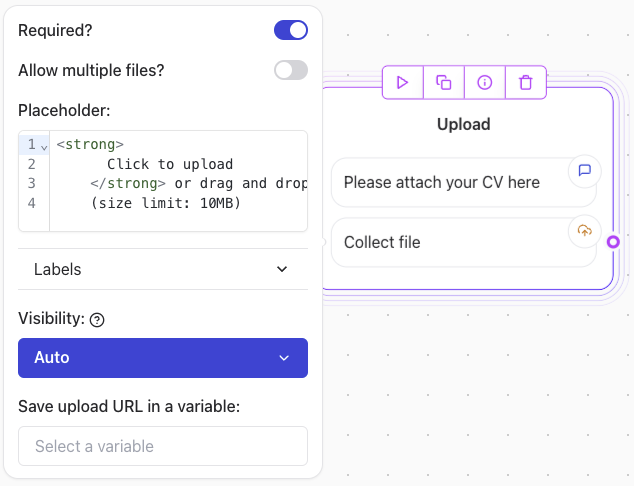
The **Upload File** User Input element allows users to upload files during their interaction. This element is highly flexible, supporting single or multiple file uploads, HTML placeholders, and configurable visibility settings.
 ## Configuration Steps
### 1. Allow Multiple Files
* Enable the **Allow multiple files?** option if you want users to upload more than one file.
### 2. Customize the Button Label
* Define the text for the upload button in the **Button label** field.
* **Examples**:
* "Upload"
* "Submit Files"
### 3. Save Uploaded URLs
* Use the **Save upload URLs in a variable** field to store the uploaded file URLs.
* This ensures the file links are available for later use in your workflow.
## File Size Limit
* Each uploaded file has a fixed size limit of **10MB**.
* For larger files:
* Instruct users to upload their files to a cloud storage service (e.g., Google Drive, Dropbox).
* Use a **Text** Input element to collect the shared links.
## Other ways to upload files
Alternatively, you can allow your agent to collect images or documents using the **[Text User Input element](./text)**. To do this, enable the **Allow attachments** toggle within the element settings.
## Configuration Steps
### 1. Allow Multiple Files
* Enable the **Allow multiple files?** option if you want users to upload more than one file.
### 2. Customize the Button Label
* Define the text for the upload button in the **Button label** field.
* **Examples**:
* "Upload"
* "Submit Files"
### 3. Save Uploaded URLs
* Use the **Save upload URLs in a variable** field to store the uploaded file URLs.
* This ensures the file links are available for later use in your workflow.
## File Size Limit
* Each uploaded file has a fixed size limit of **10MB**.
* For larger files:
* Instruct users to upload their files to a cloud storage service (e.g., Google Drive, Dropbox).
* Use a **Text** Input element to collect the shared links.
## Other ways to upload files
Alternatively, you can allow your agent to collect images or documents using the **[Text User Input element](./text)**. To do this, enable the **Allow attachments** toggle within the element settings.
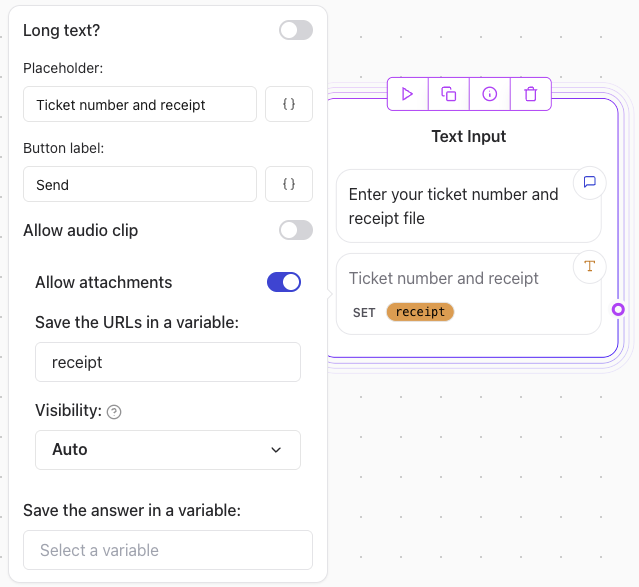
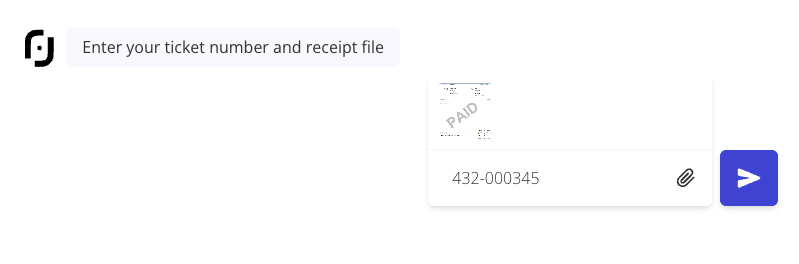 > **Note**: For this method to work make sure you add a **variable** in the **Save the URLs in a variable** option.