> ## Documentation Index
> Fetch the complete documentation index at: https://docs.release0.com/llms.txt
> Use this file to discover all available pages before exploring further.
# Limit Agents flow access with Password element
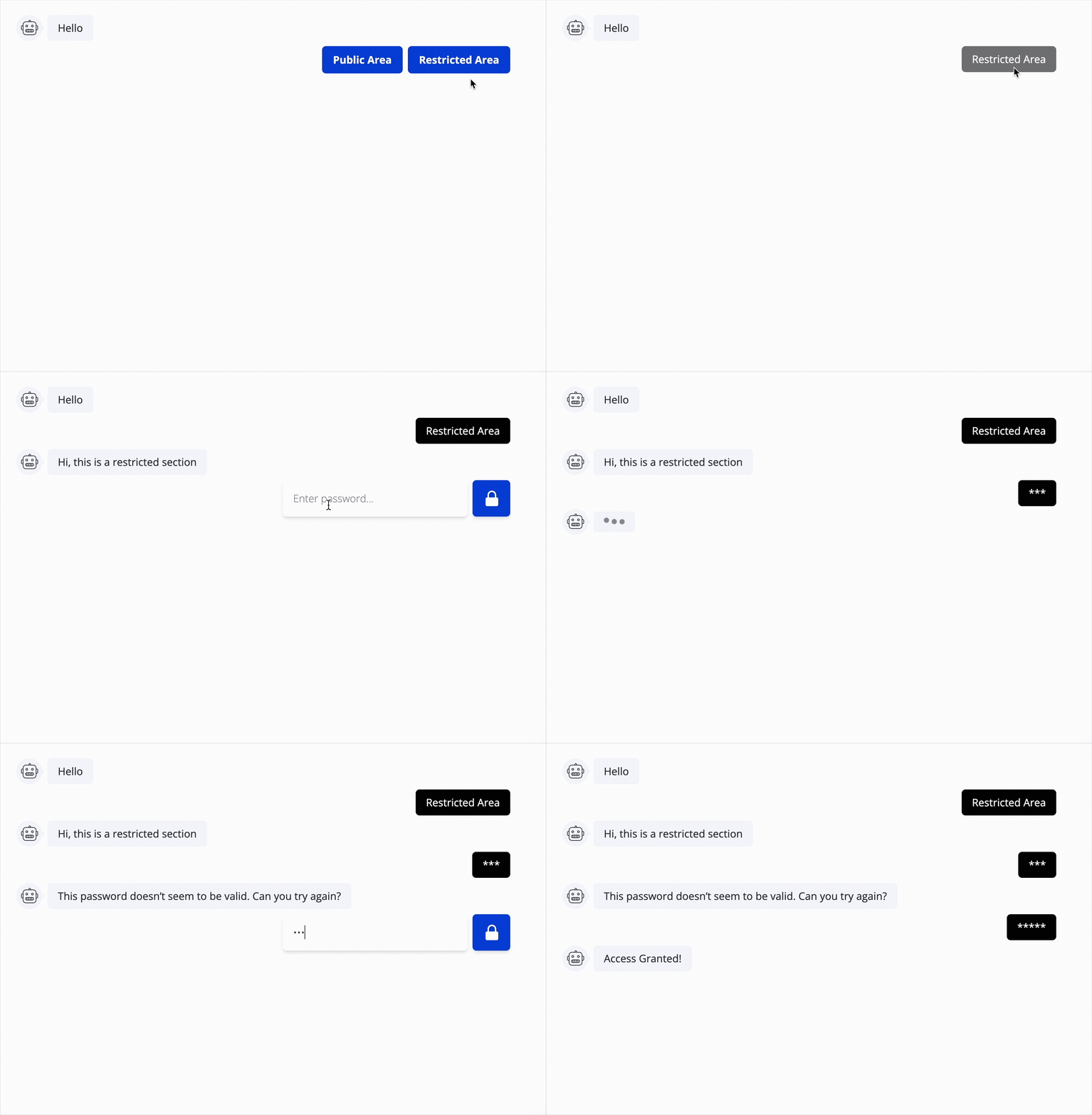
> The Password User Input element allows you to restrict access to parts of your agent flow by requiring users to enter a password. This is useful for protecting sensitive information or features within your chatbot.
The **Password** User Input element allows you to restrict access to parts of your agent flow by requiring users to enter a password. This is useful for protecting sensitive information or features within your chatbot.
Unlike the [Password Agent Restriction](/editor/agent-settings/agent-password) that completely prevents unauthorized users from accessing the agent, this element allows you to control access to specific flows or information within the agent.
 ## Key Features
* **Required field**: Ensures users must enter a password to proceed.
* **Placeholder**: Customizable prompt to guide users (e.g., "Enter your password").
* **Retry message**: Customizable message displayed when the user enters an incorrect password.
* **Button label**: Customizable button text for the submission action.
* **Passwords**: You can set specific password(s) that users must enter to proceed.
* **Save selected passwords in Variable**: Save the entered password in a specified variable for further processing
## How It Works
1. The element renders a password input field.
2. Users must enter the correct password to proceed.
3. If the entered password matches one of the configured passwords, the flow continues.
4. If the password is incorrect, the user sees a retry message and can attempt to enter the password again.
5. The entered password can be saved in a variable for later use in the flow.
## Setup Instructions
1. **Add the Password Input element**:
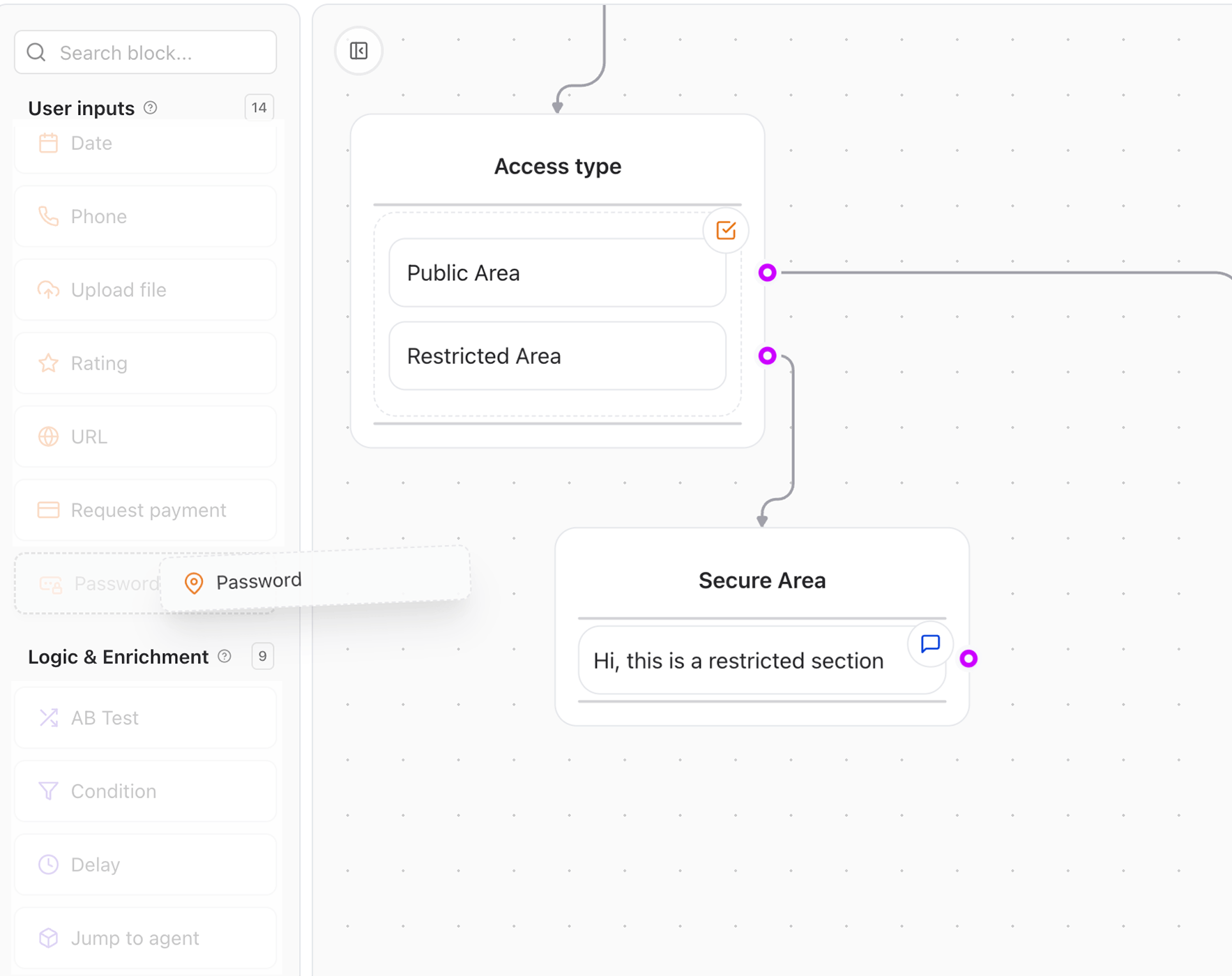
* Drag and drop the **Password** input element into your flow.
* Configure the **Prompt** to ask users for their password (e.g., "Please enter your password to continue").
## Key Features
* **Required field**: Ensures users must enter a password to proceed.
* **Placeholder**: Customizable prompt to guide users (e.g., "Enter your password").
* **Retry message**: Customizable message displayed when the user enters an incorrect password.
* **Button label**: Customizable button text for the submission action.
* **Passwords**: You can set specific password(s) that users must enter to proceed.
* **Save selected passwords in Variable**: Save the entered password in a specified variable for further processing
## How It Works
1. The element renders a password input field.
2. Users must enter the correct password to proceed.
3. If the entered password matches one of the configured passwords, the flow continues.
4. If the password is incorrect, the user sees a retry message and can attempt to enter the password again.
5. The entered password can be saved in a variable for later use in the flow.
## Setup Instructions
1. **Add the Password Input element**:
* Drag and drop the **Password** input element into your flow.
* Configure the **Prompt** to ask users for their password (e.g., "Please enter your password to continue").
 2. **Configure the Password element**:
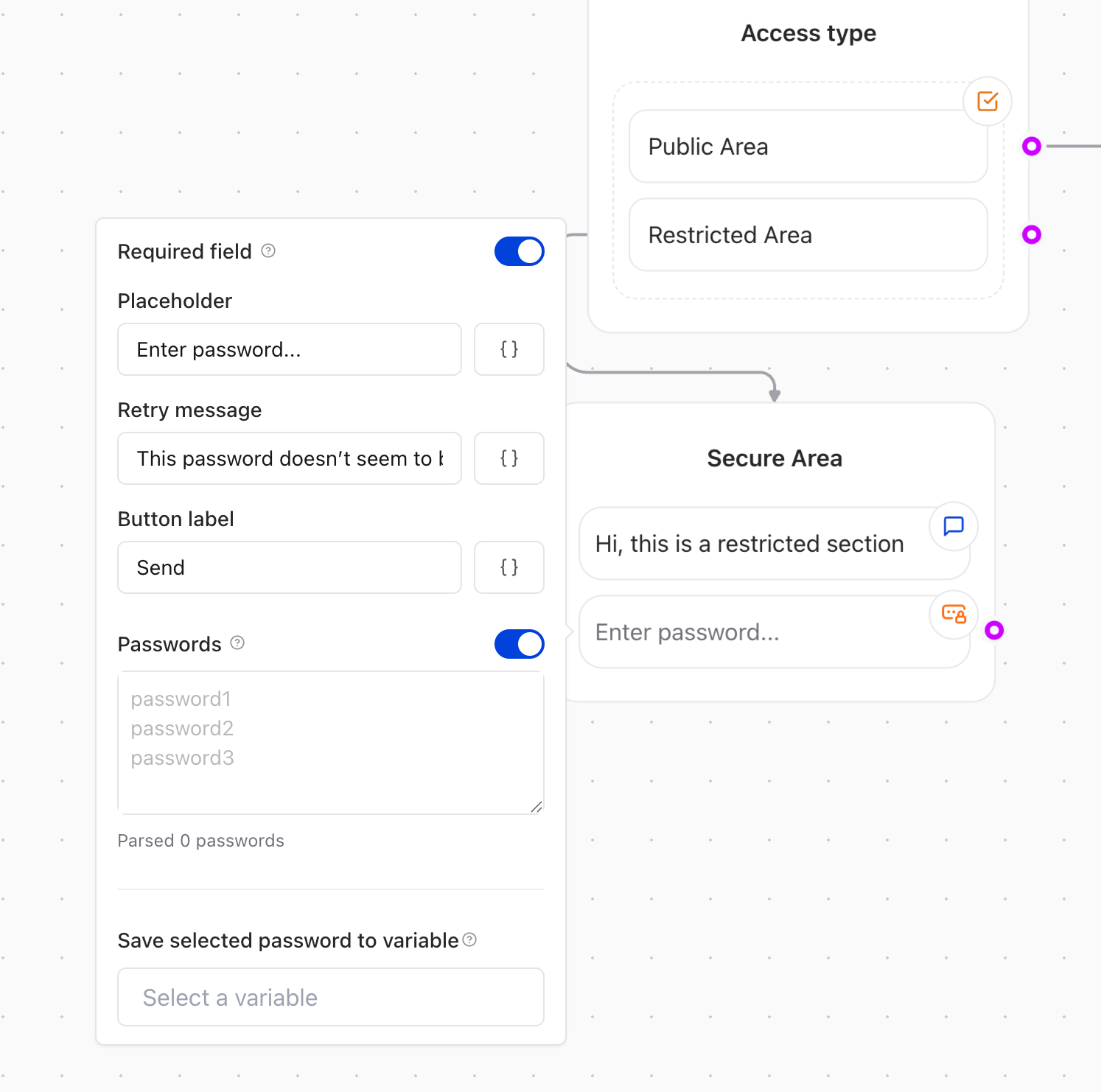
* **Placeholder**: Set a prompt like "Enter your password".
* **Button Label**: Customize the button text (e.g., "Submit").
* **Passwords**: Add the specific password(s) that users must enter to proceed.
* **Retry Message**: Customize the message displayed when the user enters an incorrect password (e.g., "Incorrect password, please try again").
* **Save Password in Variable**:
* Assign a variable name to store the entered password for later use in the flow.
2. **Configure the Password element**:
* **Placeholder**: Set a prompt like "Enter your password".
* **Button Label**: Customize the button text (e.g., "Submit").
* **Passwords**: Add the specific password(s) that users must enter to proceed.
* **Retry Message**: Customize the message displayed when the user enters an incorrect password (e.g., "Incorrect password, please try again").
* **Save Password in Variable**:
* Assign a variable name to store the entered password for later use in the flow.
 3. **Test the Password element**:
* Run your agent and test the password input element to ensure it behaves as expected.
## Example Use Cases
* **Restricted Content**: Use the Password element to protect sensitive information or features within your chatbot
* **Member-Only Areas**: Require users to enter a password to access exclusive content or services.
* **Authentication**: Implement a simple authentication mechanism for users to access specific flows or actions within the agent.
3. **Test the Password element**:
* Run your agent and test the password input element to ensure it behaves as expected.
## Example Use Cases
* **Restricted Content**: Use the Password element to protect sensitive information or features within your chatbot
* **Member-Only Areas**: Require users to enter a password to access exclusive content or services.
* **Authentication**: Implement a simple authentication mechanism for users to access specific flows or actions within the agent.