> ## Documentation Index
> Fetch the complete documentation index at: https://docs.release0.com/llms.txt
> Use this file to discover all available pages before exploring further.
# How to use the Graph view in Release0
> Visually design conversation flows by arranging and connecting elements in the graph editor to create dynamic and interactive chatbot experiences. Learn how to start a flow, add elements, and use gestures for efficient navigation.
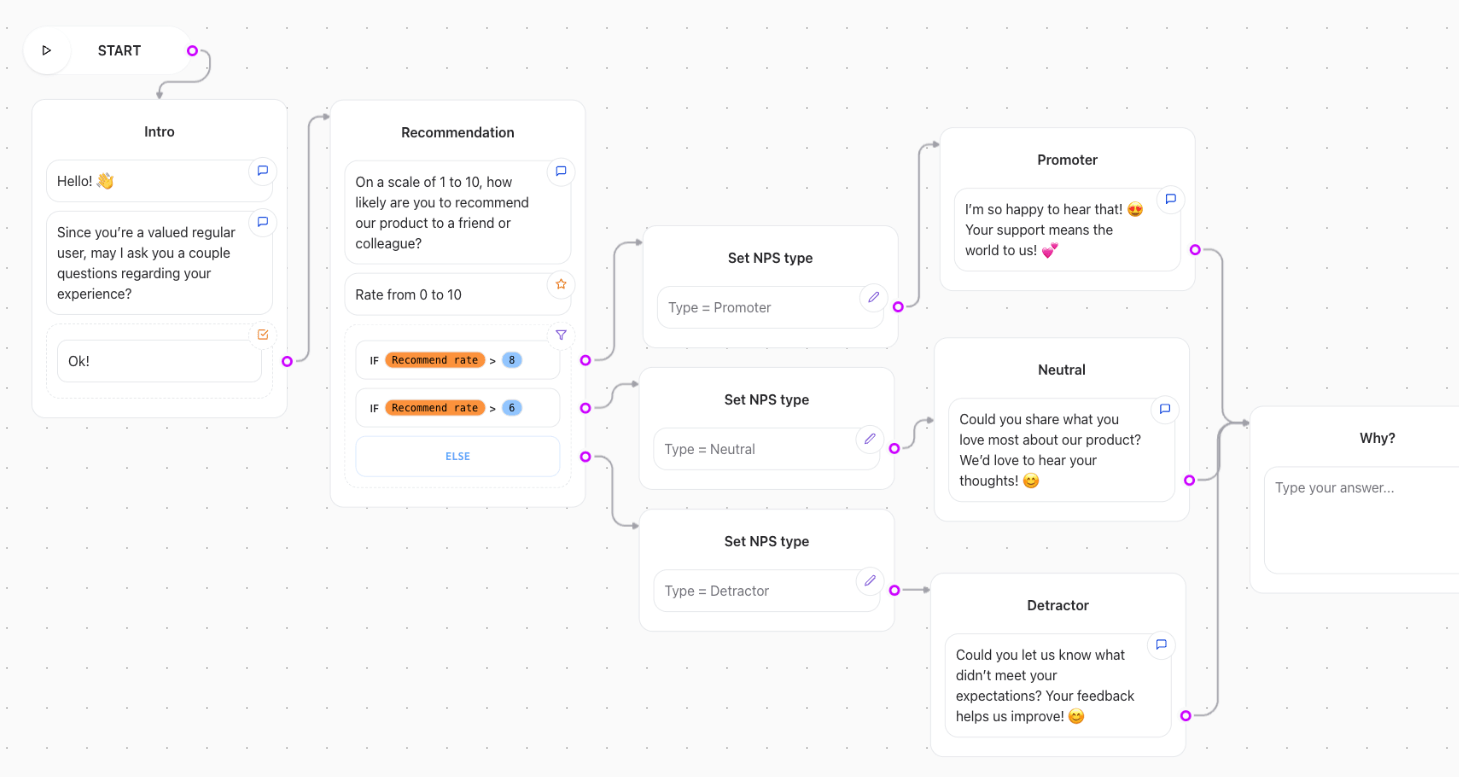
The Graph is where you arrange your conversation flow and connect the Agent [elements](./elements/overview) together.
It provides a visual representation of how the conversation will progress, allowing you to see the connections between different elements and how they interact with each other.
 ## Starting a Flow
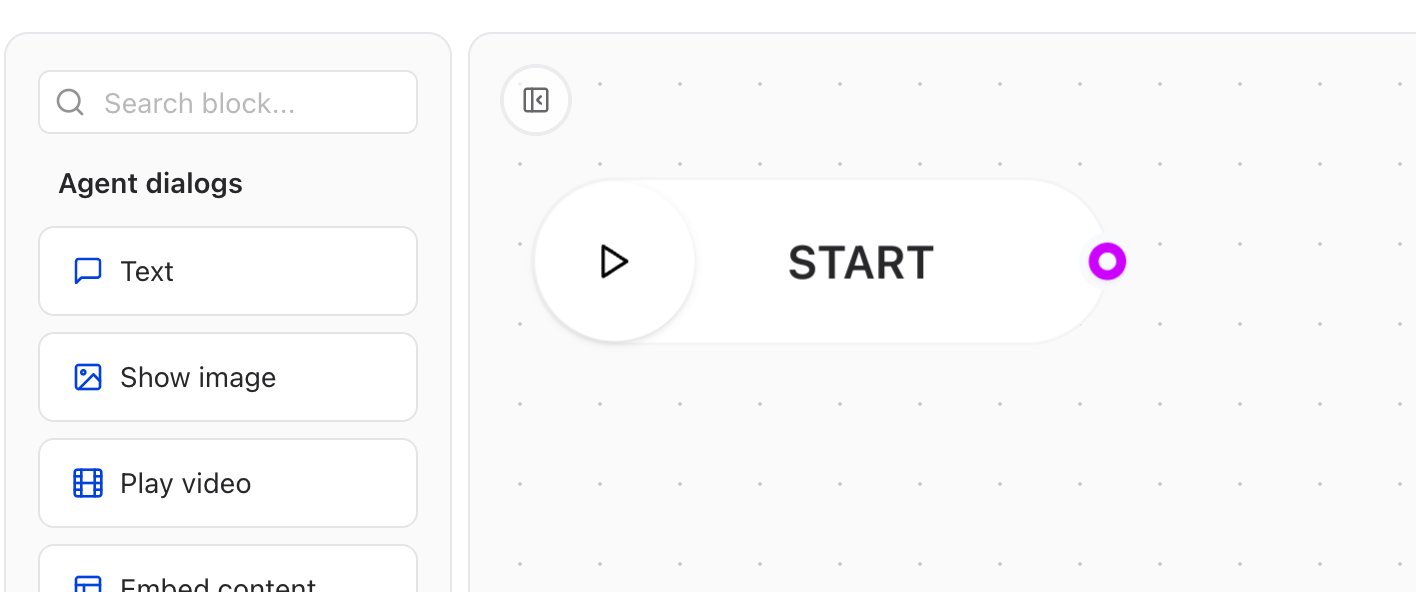
It all begins with a **Start element** element, which is the entry point of your flow. From there, you can add various elements to create a dynamic and interactive conversation experience.
## Starting a Flow
It all begins with a **Start element** element, which is the entry point of your flow. From there, you can add various elements to create a dynamic and interactive conversation experience.
 ## Adding elements
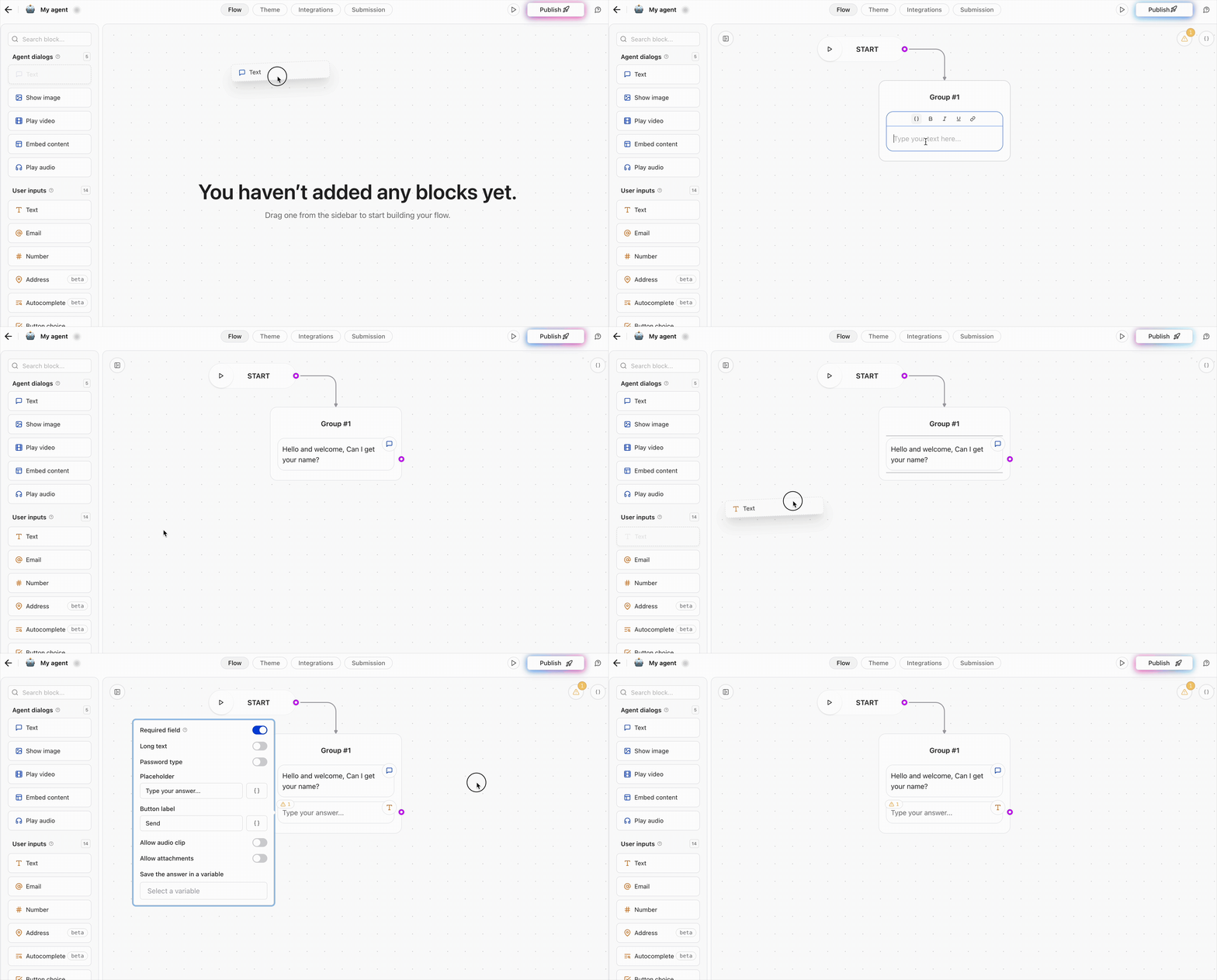
You can then drag and drop elements from the left sidebar directly onto the graph.
Connect elements by clicking on the small circles at their edges. This creates a line that indicates the direction of the conversation flow.
To delete a element, select it and press the `Delete` key, or click the element and choose the `Delete` icon from the element menu.
You can move elements by dragging them to new positions on the graph to reorganize your conversation flow as needed.
## Adding elements
You can then drag and drop elements from the left sidebar directly onto the graph.
Connect elements by clicking on the small circles at their edges. This creates a line that indicates the direction of the conversation flow.
To delete a element, select it and press the `Delete` key, or click the element and choose the `Delete` icon from the element menu.
You can move elements by dragging them to new positions on the graph to reorganize your conversation flow as needed.
 ## Gestures
In the user preferences, under the `Graph Gestures` section, you can choose between `Mouse` and `Trackpad` gestures.
### Mouse
**Select**: `Shift` + `Left click` drag
**Zoom**: `Ctrl` + `Mouse wheel`
**Pan**: `Left click` drag or `Mouse wheel` for vertical pan and `Shift` + `Mouse wheel` for horizontal pan
### Trackpad
**Select**: `Click` + drag
**Zoom**: Pinch
**Pan**: Use two finger
## Gestures
In the user preferences, under the `Graph Gestures` section, you can choose between `Mouse` and `Trackpad` gestures.
### Mouse
**Select**: `Shift` + `Left click` drag
**Zoom**: `Ctrl` + `Mouse wheel`
**Pan**: `Left click` drag or `Mouse wheel` for vertical pan and `Shift` + `Mouse wheel` for horizontal pan
### Trackpad
**Select**: `Click` + drag
**Zoom**: Pinch
**Pan**: Use two finger