> ## Documentation Index
> Fetch the complete documentation index at: https://docs.release0.com/llms.txt
> Use this file to discover all available pages before exploring further.
# How to publish an Agent in Release0
> Step-by-step guide to publish your agent and make it accessible to the public in Release0. Learn how to configure your agent's public link, path, and name, and understand the importance of publishing for visibility and interaction.
While you initially create your Agent, it is in a **draft** state. This means that only you can see it and interact with it. To make your Agent available to the public, you need to **Publish** it.
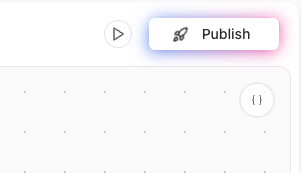 Once you *Publish* your Agent, its **public URL** will become active, allowing you to share it with anyone and start collecting responses.
> **Note**: Any changes you make to the Agent will not be visible to users unless you click the **Publish** button again.
### Publishing Your Agent
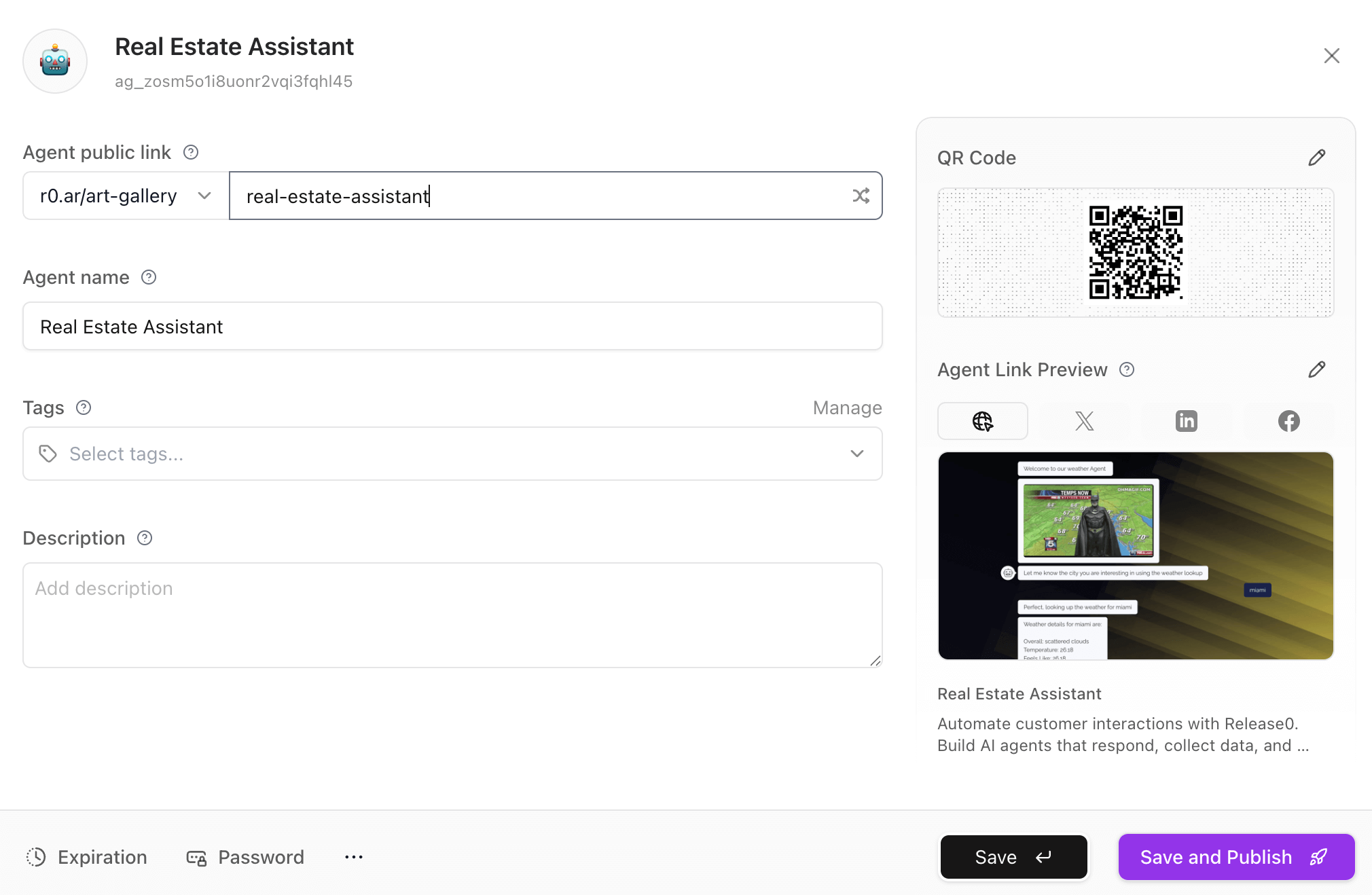
Once you click on the **Publish** button, you will be directed to the **agent configuration** dialog. Here, you can set the following options regarding your agents publication:
* Agent public link. Here you can select the public domain and define the unique URL for your agent. You can use the default domain or connect your own. Plesae see the [Custom Domain](/workspace/customDomains) documentation for more details.
* Agent path. This is the unique path for your agent. It will be used in the public URL of your agent. For example, if you set the path to `my-agent`, the public URL will be `https://r0.ar/my-agent`. Please make sure not to use spaces or special characters in the path exceprt for dashes.
* Agent name. This is the name of your agent. It will be used in the public web of your agent. For example you can set the name to `My Agent`, and it will be displayed as `My Agent` in the public web of your agent.
> Note: There are additional settings you can configure in the **Agent Configuration** dialog. For more information on these settings, please refer to the [Agent Configuration](/editor/agent-settings/agent-settings) documentation.
> If you are bringing your own custom domain, your agent link do not use a **[workspace slug](/workspace/general#workspace-slug)**. The slug is only used for the domains provided by Release0 (e.g. `release0.ar/your-slug/agent`).
After making the necessary changes to your agent settings, you can click on **Save and Publish**, and your Agent will be published and available to the public. You will see a confirmation message indicating that your Agent has been successfully published.
Once you *Publish* your Agent, its **public URL** will become active, allowing you to share it with anyone and start collecting responses.
> **Note**: Any changes you make to the Agent will not be visible to users unless you click the **Publish** button again.
### Publishing Your Agent
Once you click on the **Publish** button, you will be directed to the **agent configuration** dialog. Here, you can set the following options regarding your agents publication:
* Agent public link. Here you can select the public domain and define the unique URL for your agent. You can use the default domain or connect your own. Plesae see the [Custom Domain](/workspace/customDomains) documentation for more details.
* Agent path. This is the unique path for your agent. It will be used in the public URL of your agent. For example, if you set the path to `my-agent`, the public URL will be `https://r0.ar/my-agent`. Please make sure not to use spaces or special characters in the path exceprt for dashes.
* Agent name. This is the name of your agent. It will be used in the public web of your agent. For example you can set the name to `My Agent`, and it will be displayed as `My Agent` in the public web of your agent.
> Note: There are additional settings you can configure in the **Agent Configuration** dialog. For more information on these settings, please refer to the [Agent Configuration](/editor/agent-settings/agent-settings) documentation.
> If you are bringing your own custom domain, your agent link do not use a **[workspace slug](/workspace/general#workspace-slug)**. The slug is only used for the domains provided by Release0 (e.g. `release0.ar/your-slug/agent`).
After making the necessary changes to your agent settings, you can click on **Save and Publish**, and your Agent will be published and available to the public. You will see a confirmation message indicating that your Agent has been successfully published.
 Now you can share the public URL of your Agent with anyone, and they will be able to access it without needing to log in or create an account.
***
### Additional options
You can check the agent [Advanced Setting](/editor/agent-settings/advanced-settings) and [Branding Settings](/editor/agent-settings/agent-branding) documentation for more information on how to customize your agent's functionality.
For changes to your agents appearance, you can check the [Theme](/theme/overview) documentation for more information on how to customize your agent's appearance.
Now you can share the public URL of your Agent with anyone, and they will be able to access it without needing to log in or create an account.
***
### Additional options
You can check the agent [Advanced Setting](/editor/agent-settings/advanced-settings) and [Branding Settings](/editor/agent-settings/agent-branding) documentation for more information on how to customize your agent's functionality.
For changes to your agents appearance, you can check the [Theme](/theme/overview) documentation for more information on how to customize your agent's appearance.