> ## Documentation Index
> Fetch the complete documentation index at: https://docs.release0.com/llms.txt
> Use this file to discover all available pages before exploring further.
# How to create your first Agent in Release0
> Step-by-step guide to create your first agent in Release0, from setup to publishing. Learn how to use the flow editor, add elements, collect user input, and test your agent.
You can create your first agent in just a few minutes. This guide will walk you through the process step by step.
## Create a New Agent
**Log in to your Release0 account**.
**Click on the "Create Agent" button** in the dashboard. You will be working within your default [workspace](/workspace/general)
There are 3 ways to create an agent:
* **Use a template**: Choose from a variety of pre-built templates to kickstart your agent.
* **Build from scratch**: Start with a blank canvas and build your agent from the ground up.
* **Import Agent**: Import an existing agent from another workspace or account.
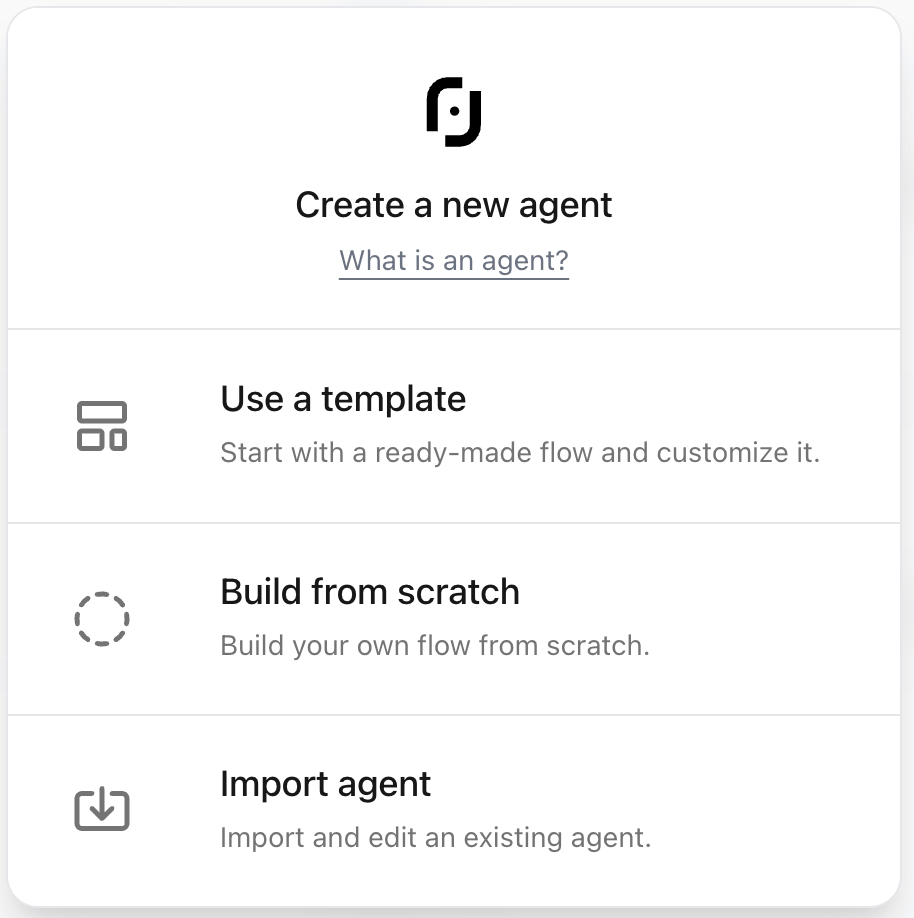 We will focus on creating an agent from scratch.
### 1. Select "Build from scratch"
When you select the **Build from scratch** option, you'll be taken to the flow editor where you can start building your agent from a blank canvas. You can add elements, customize the flow, and configure settings as needed.
We will focus on creating an agent from scratch.
### 1. Select "Build from scratch"
When you select the **Build from scratch** option, you'll be taken to the flow editor where you can start building your agent from a blank canvas. You can add elements, customize the flow, and configure settings as needed.
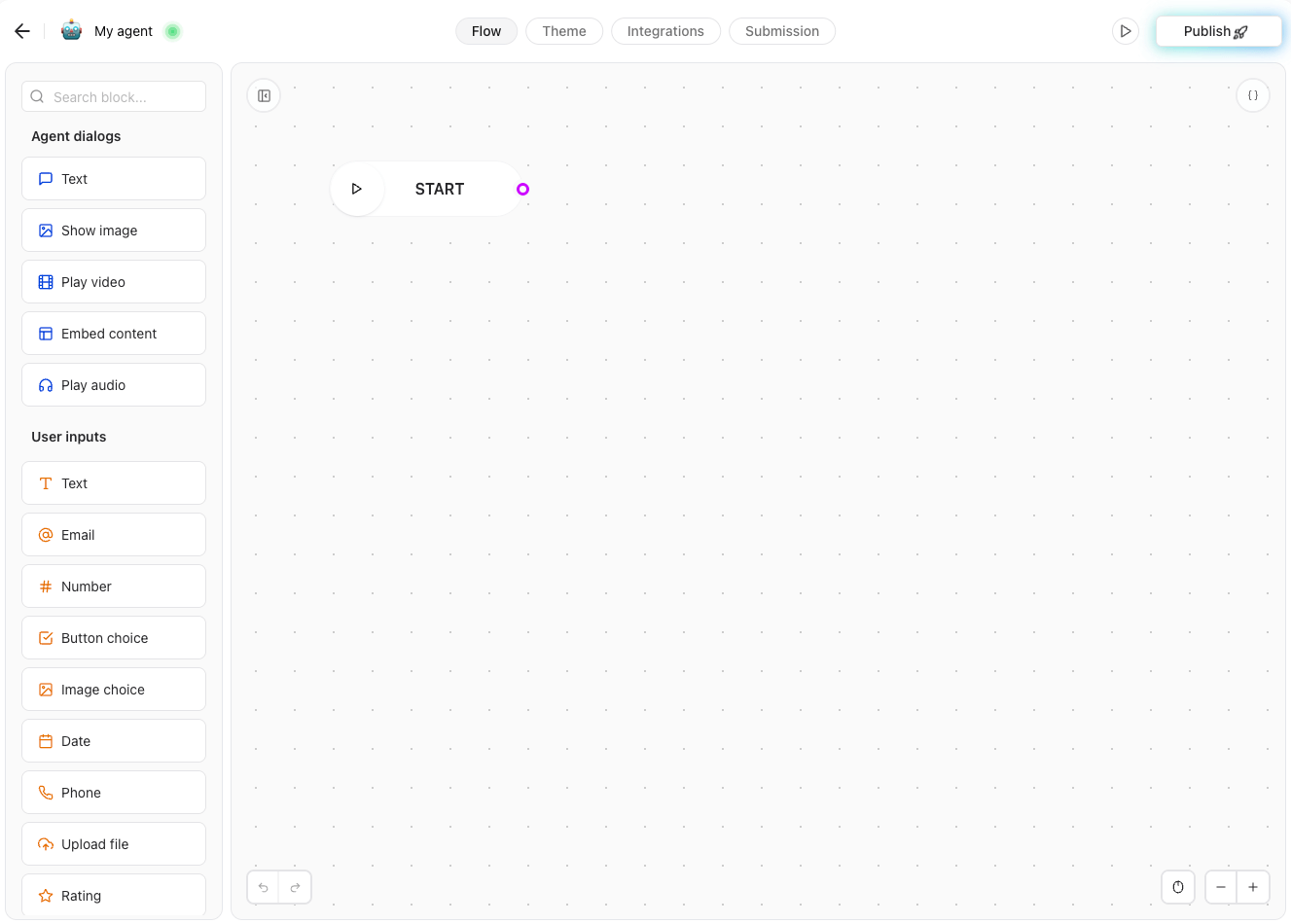 On the left side of your screen, you will see the **elements** panel. This is where you can add different types of elements to your agent flow. You can choose from a variety of elements, including:
* **Text**: Send a message to the user.
* **Input**: Collect user input (text, number, email, etc.).
* **Logic**: Create conditions and branches in your flow.
* **Integrations**: Connect to third-party services like Google Sheets, Zapier, Stripe, etc.
* **AI**: Integrate advanced AI models like OpenAI, Claude, Mistral, Groq, etc.
### 2. Add a Text element
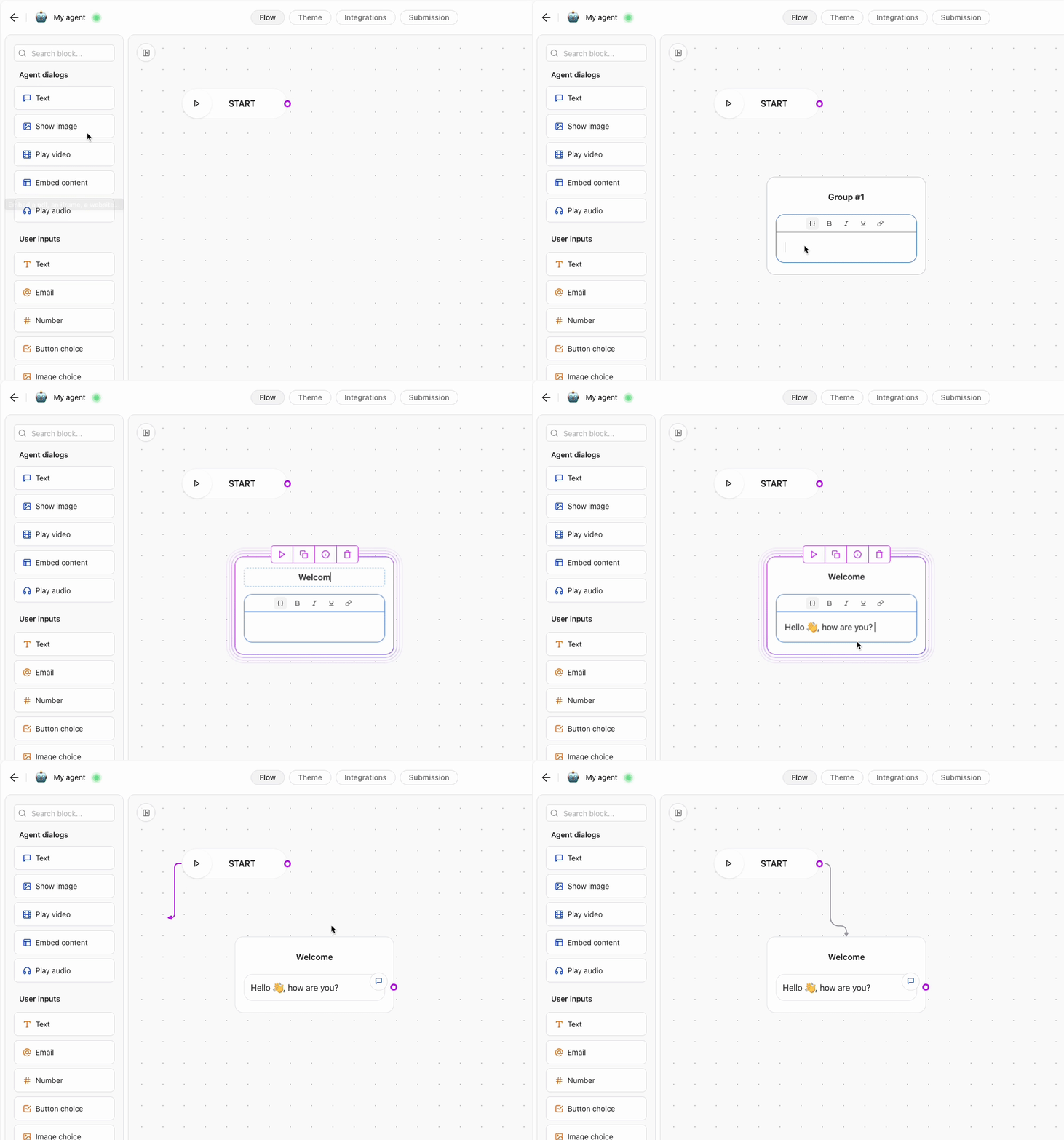
To start, drag and drop a **Text element** from the **elements** panel to the flow editor. This element will be the first message your agent sends to the user.
### 3. Configure the Text element
Click on the **Text element** you just added to open its configuration panel. Here, you can customize the message that will be sent to the user. For example, you can set the message to "Hello! How can I help you today?".
On the left side of your screen, you will see the **elements** panel. This is where you can add different types of elements to your agent flow. You can choose from a variety of elements, including:
* **Text**: Send a message to the user.
* **Input**: Collect user input (text, number, email, etc.).
* **Logic**: Create conditions and branches in your flow.
* **Integrations**: Connect to third-party services like Google Sheets, Zapier, Stripe, etc.
* **AI**: Integrate advanced AI models like OpenAI, Claude, Mistral, Groq, etc.
### 2. Add a Text element
To start, drag and drop a **Text element** from the **elements** panel to the flow editor. This element will be the first message your agent sends to the user.
### 3. Configure the Text element
Click on the **Text element** you just added to open its configuration panel. Here, you can customize the message that will be sent to the user. For example, you can set the message to "Hello! How can I help you today?".
 ### 4. Add a User Input element
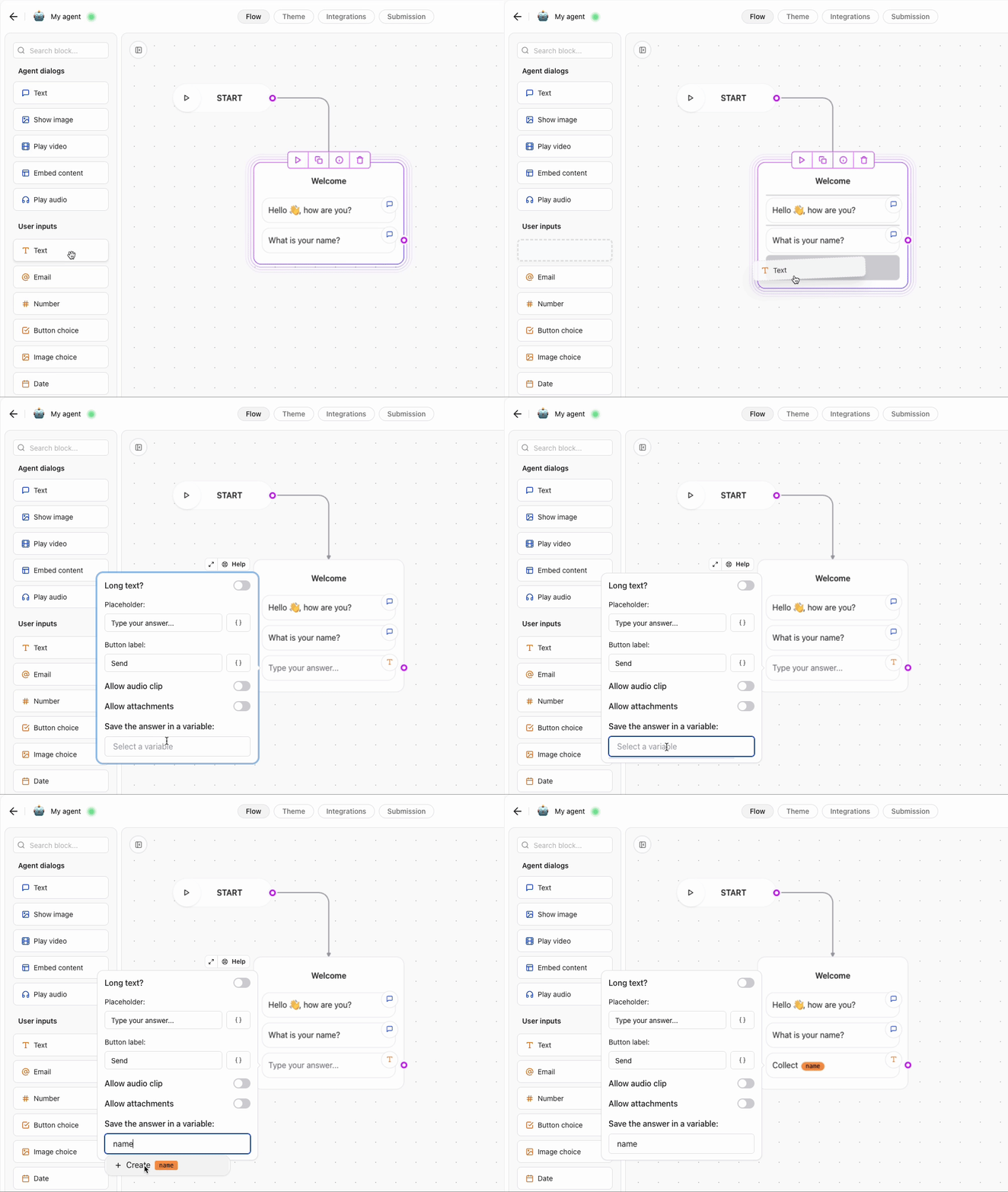
User input elements are essential for collecting information from users. After the text element, you can add an input element to ask the user for their name or any other information you need.
Next, drag and drop an **Text** Input element from the **elements** panel to the flow editor. This element will allow the user to enter their name.
### 5. Configure the Input element
Click on the **Text** Input element you just added to open its configuration panel. Here, you can customize the input and assign a [variable](/editor/variables) such as 'name' and set a label for the input.
### 4. Add a User Input element
User input elements are essential for collecting information from users. After the text element, you can add an input element to ask the user for their name or any other information you need.
Next, drag and drop an **Text** Input element from the **elements** panel to the flow editor. This element will allow the user to enter their name.
### 5. Configure the Input element
Click on the **Text** Input element you just added to open its configuration panel. Here, you can customize the input and assign a [variable](/editor/variables) such as 'name' and set a label for the input.
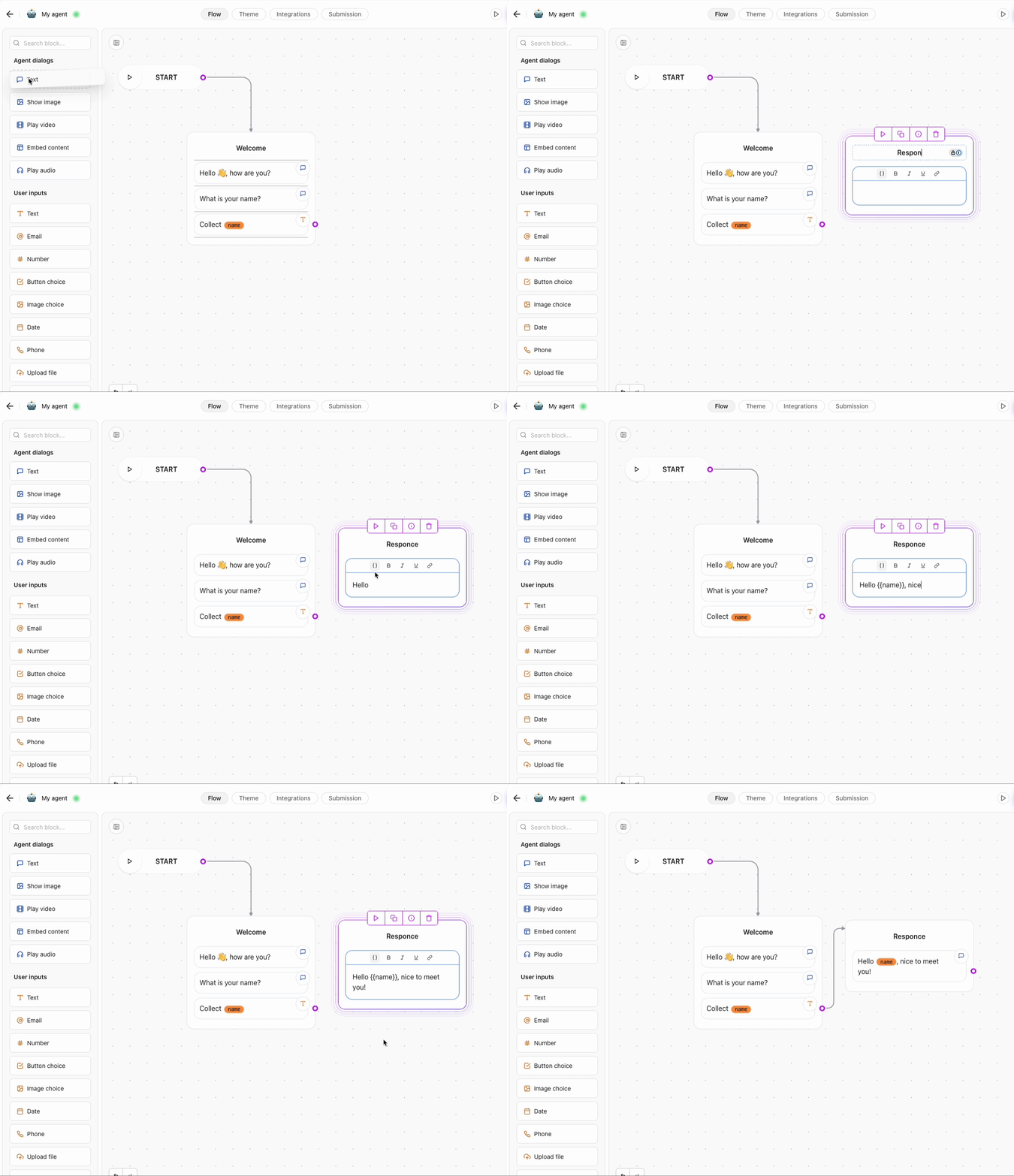
 ### 6. Read the User Input
You can use the variable you assigned to the input element to read the user's response. For example, you can use the variable `name` to greet the user by their name in the next text element.
### 6. Read the User Input
You can use the variable you assigned to the input element to read the user's response. For example, you can use the variable `name` to greet the user by their name in the next text element.
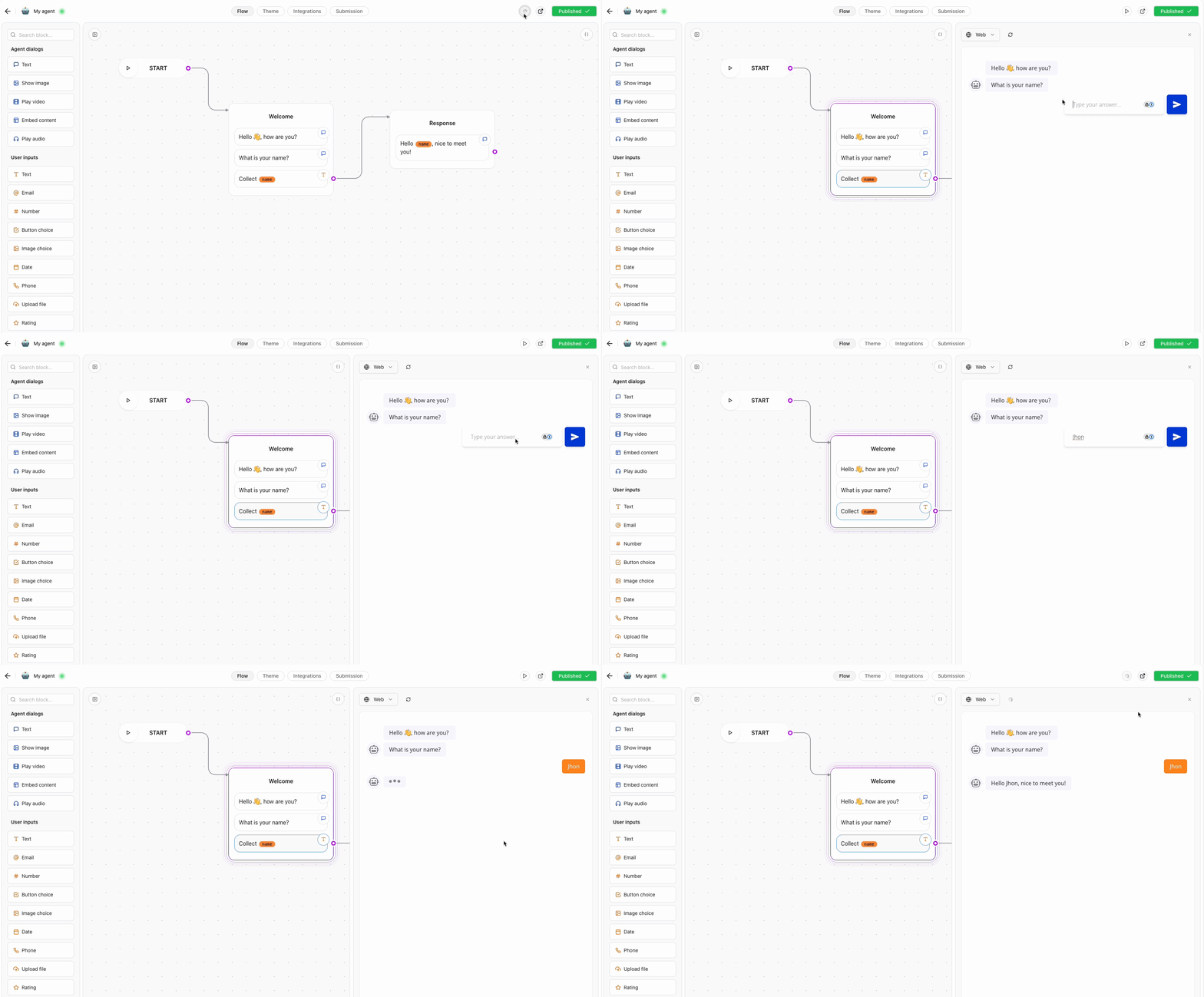
 ### 7. Test Your Agent
Once you have added the text and input elements, you can test your agent by clicking on the **Play** button in the top right corner of the flow editor. This will open a preview of your agent where you can interact with it and see how it responds to user input.
### 7. Test Your Agent
Once you have added the text and input elements, you can test your agent by clicking on the **Play** button in the top right corner of the flow editor. This will open a preview of your agent where you can interact with it and see how it responds to user input.
 ## Next Steps
This is just a simple example of how to create an agent using Release0. You can add more elements, customize the flow, and integrate with third-party services to create a more complex agent.
* For more information on how to use the different elements, check out the [elements documentation](/editor/elements/overview).
* To learn more about variables and how to use them, check out the [Variables documentation](/editor/variables).
* To learn more about how to integrate with third-party services, check out the [Integrations documentation](/integrations/overview).
* To learn more about how to customize your agent, check out the [Customization documentation](/theme/overview).
* To learn more about how to deploy your agent, check out the [Agent Configuration](/editor/agent-settings/agent-settings).
### Looking for inspiration?
See how you can build a chatbot for real estate in our [AI chatbot for real estate blog post](https://release0.com/blog/ai-chatbot-for-realestate).
If you want to step up your chatbot game, check out our [Designing High-Impact Chatbot Agents Experiences with Release0](https://release0.com/blog/designing-high-impact-chatbot-experiences-with-release0) blog post.
### Not sure if Release0 is right for you?
See how we stack up in our [ManyChat alternatives](https://release0.com/blog/manychat-alternatives) blog post.
## Next Steps
This is just a simple example of how to create an agent using Release0. You can add more elements, customize the flow, and integrate with third-party services to create a more complex agent.
* For more information on how to use the different elements, check out the [elements documentation](/editor/elements/overview).
* To learn more about variables and how to use them, check out the [Variables documentation](/editor/variables).
* To learn more about how to integrate with third-party services, check out the [Integrations documentation](/integrations/overview).
* To learn more about how to customize your agent, check out the [Customization documentation](/theme/overview).
* To learn more about how to deploy your agent, check out the [Agent Configuration](/editor/agent-settings/agent-settings).
### Looking for inspiration?
See how you can build a chatbot for real estate in our [AI chatbot for real estate blog post](https://release0.com/blog/ai-chatbot-for-realestate).
If you want to step up your chatbot game, check out our [Designing High-Impact Chatbot Agents Experiences with Release0](https://release0.com/blog/designing-high-impact-chatbot-experiences-with-release0) blog post.
### Not sure if Release0 is right for you?
See how we stack up in our [ManyChat alternatives](https://release0.com/blog/manychat-alternatives) blog post.