> ## Documentation Index
> Fetch the complete documentation index at: https://docs.release0.com/llms.txt
> Use this file to discover all available pages before exploring further.
# How to integrate your Agent with Notion
> Embed your Release0 agent in Notion pages using the embed command. This guide provides step-by-step instructions to add your agent to Notion articles and pages.
Integrating your agent with Notion is a straightforward process. Follow these steps to get started:
1. Go to the **Integrations** tab of your agent's **flow editor**.
2. Click the **Notion** button to get the embed instructions.
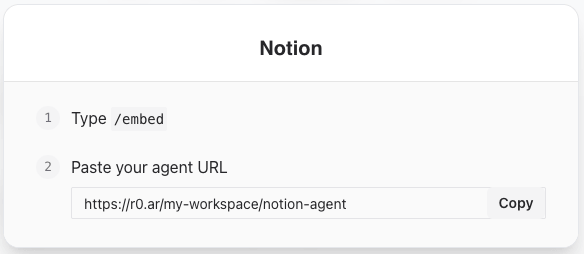 3. Copy the provided code snippet.
4. Edit your Notion Page/Article and paste the code copied in **step 3**\* into your Notion page by using **/embed** command
3. Copy the provided code snippet.
4. Edit your Notion Page/Article and paste the code copied in **step 3**\* into your Notion page by using **/embed** command
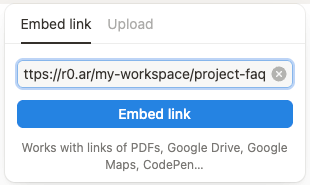 5. Save the changes to your page.
6. Your agent should now be embedded in your Notion page.
7. Test the integration by visiting your page and interacting with the agent.
5. Save the changes to your page.
6. Your agent should now be embedded in your Notion page.
7. Test the integration by visiting your page and interacting with the agent.