> ## Documentation Index
> Fetch the complete documentation index at: https://docs.release0.com/llms.txt
> Use this file to discover all available pages before exploring further.
# How to integrate Release0 with WordPress
> Embed Release0 agents in WordPress sites using the official plugin. This guide provides step-by-step instructions to add your agent to WordPress pages, including embedding options and personalization features.
The **[WordPress plugin](https://wordpress.org/plugins/release0/)** allows seamless embedding of agents into your WordPress site. Follow these steps to get started.
### Prerequisites
Before using the plugin, you need to:
1. Create and publish your first agent on [release0.com](https://release0.com).
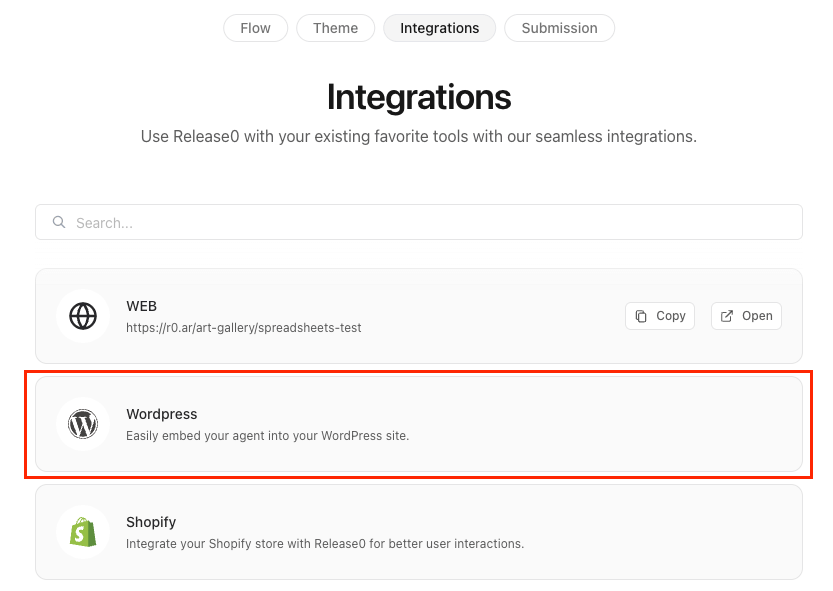
2. Generate the initialization snippet from the **Integrations** tab of your agent's **flow editor**.
 ## Agent Settings
### Embedding Options
1. **Generate Initialization Snippet**:
* Go to the **Integrations** tab of your agent's **flow editor**.
* Click on the **WordPress** button to configure the embed code.
2. **Embedding Modes**:
* **Standard Container**: Paste the shortcode anywhere on your site.
## Agent Settings
### Embedding Options
1. **Generate Initialization Snippet**:
* Go to the **Integrations** tab of your agent's **flow editor**.
* Click on the **WordPress** button to configure the embed code.
2. **Embedding Modes**:
* **Standard Container**: Paste the shortcode anywhere on your site.
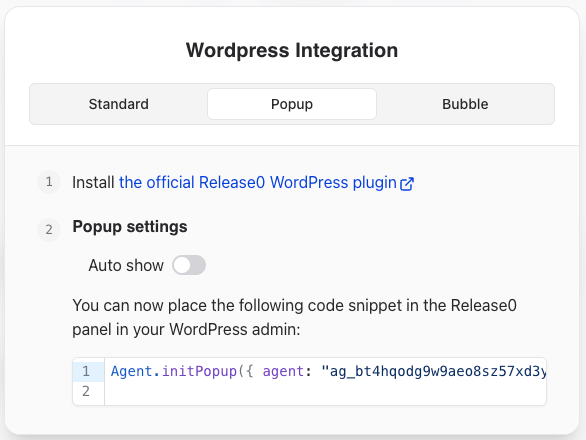
 * **Popup or agent Dialog**: Use the following format
 * **Bubble** or Chat Bubble: Use the following format
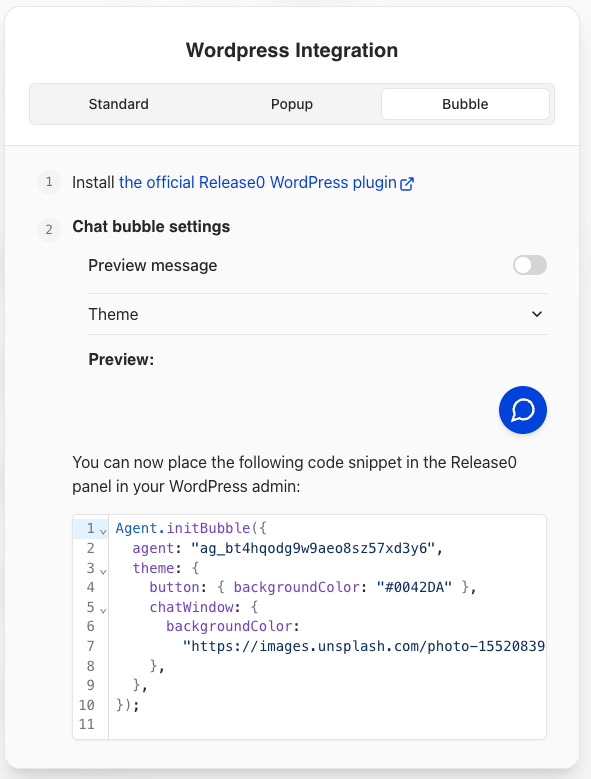 > **Note**: You can customize this snippet from the **Integrations** tab of your agent's **flow editor**.
### Excluded Pages
To exclude the a from specific pages, provide a comma-separated list of page paths.
#### Examples:
| Path | Exclusion Behavior |
| ---------------- | ------------------------------------------------------------ |
| `/app/*` | Excludes all pages starting with `/app/`. |
| `/app` | Excludes only the `/app` page. |
| `/app?param=1` | Excludes `/app` only when the query parameter is set to `1`. |
| `/app?param=*` | Excludes `/app` with any `param` query value. |
| `/app/*?param=*` | Excludes all `/app/` pages with any `param` query value. |
### Personalizing the User Experience
Enhance user experience by injecting WordPress-specific variables directly into your agent.
#### Steps:
1. Use the WordPress plugin for release0.com.
2. Declare variables in your agent with **exact syntax**.
* Example: For `WP Email`, ensure the variable is spelled as `WP Email` (case-sensitive).
> **Note**: Incorrect syntax, such as `wp Email` or `WP email`, will not work.
## Troubleshooting
#### LiteSpeed Cache Issues
1. **Localize Resources**:
* Remove the URL `https://cdn.jsdelivr.net` from LiteSpeed’s "Localize Resources" list.
2. **JS Exclusion**:
* Add `web.js` and `agent` to the **JS Excludes** and **JS Deferred Excludes** fields in LiteSpeed's **Tuning Settings**.
#### WP Rocket Cache Plugin
1. Navigate to **Settings > WP Rocket > Excluded Inline JavaScript**.
2. Add the term `agent`.
3. Save changes.
#### Script Defer Issues
* If a plugin adds the `defer` attribute to external scripts, add an exception for `agent` in the plugin's configuration.
🎉 Now that you've seen the technical steps, explore our [WordPress integration blog post](https://release0.com/blog/integrate-release0-agent-to-wordpress) to see real-world examples and creative ways to use Release0 on your site.
> **Note**: You can customize this snippet from the **Integrations** tab of your agent's **flow editor**.
### Excluded Pages
To exclude the a from specific pages, provide a comma-separated list of page paths.
#### Examples:
| Path | Exclusion Behavior |
| ---------------- | ------------------------------------------------------------ |
| `/app/*` | Excludes all pages starting with `/app/`. |
| `/app` | Excludes only the `/app` page. |
| `/app?param=1` | Excludes `/app` only when the query parameter is set to `1`. |
| `/app?param=*` | Excludes `/app` with any `param` query value. |
| `/app/*?param=*` | Excludes all `/app/` pages with any `param` query value. |
### Personalizing the User Experience
Enhance user experience by injecting WordPress-specific variables directly into your agent.
#### Steps:
1. Use the WordPress plugin for release0.com.
2. Declare variables in your agent with **exact syntax**.
* Example: For `WP Email`, ensure the variable is spelled as `WP Email` (case-sensitive).
> **Note**: Incorrect syntax, such as `wp Email` or `WP email`, will not work.
## Troubleshooting
#### LiteSpeed Cache Issues
1. **Localize Resources**:
* Remove the URL `https://cdn.jsdelivr.net` from LiteSpeed’s "Localize Resources" list.
2. **JS Exclusion**:
* Add `web.js` and `agent` to the **JS Excludes** and **JS Deferred Excludes** fields in LiteSpeed's **Tuning Settings**.
#### WP Rocket Cache Plugin
1. Navigate to **Settings > WP Rocket > Excluded Inline JavaScript**.
2. Add the term `agent`.
3. Save changes.
#### Script Defer Issues
* If a plugin adds the `defer` attribute to external scripts, add an exception for `agent` in the plugin's configuration.
🎉 Now that you've seen the technical steps, explore our [WordPress integration blog post](https://release0.com/blog/integrate-release0-agent-to-wordpress) to see real-world examples and creative ways to use Release0 on your site.