> ## Documentation Index
> Fetch the complete documentation index at: https://docs.release0.com/llms.txt
> Use this file to discover all available pages before exploring further.
# How to handle submissions in Release0
> Learn how to view and manage user submissions in Release0. This guide covers how to access, filter, and export user data collected from your chatbot agent interactions, including handling partially filled results and using analytics features.
## Viewing Results
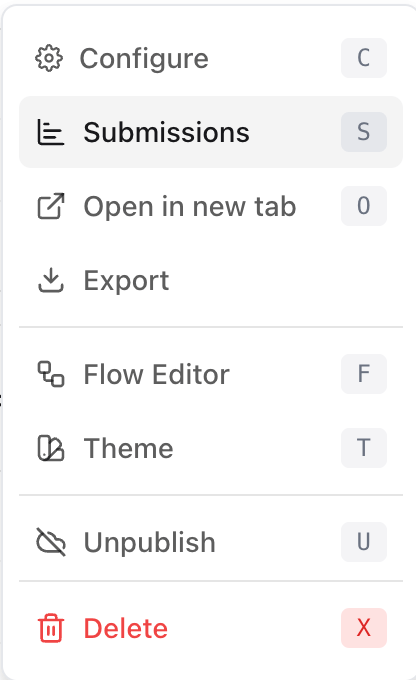
Once your **Agent** is published, you’ll start collecting results from your users. These results are accessible in the workspace view by clicking the context menu next to your agent name.
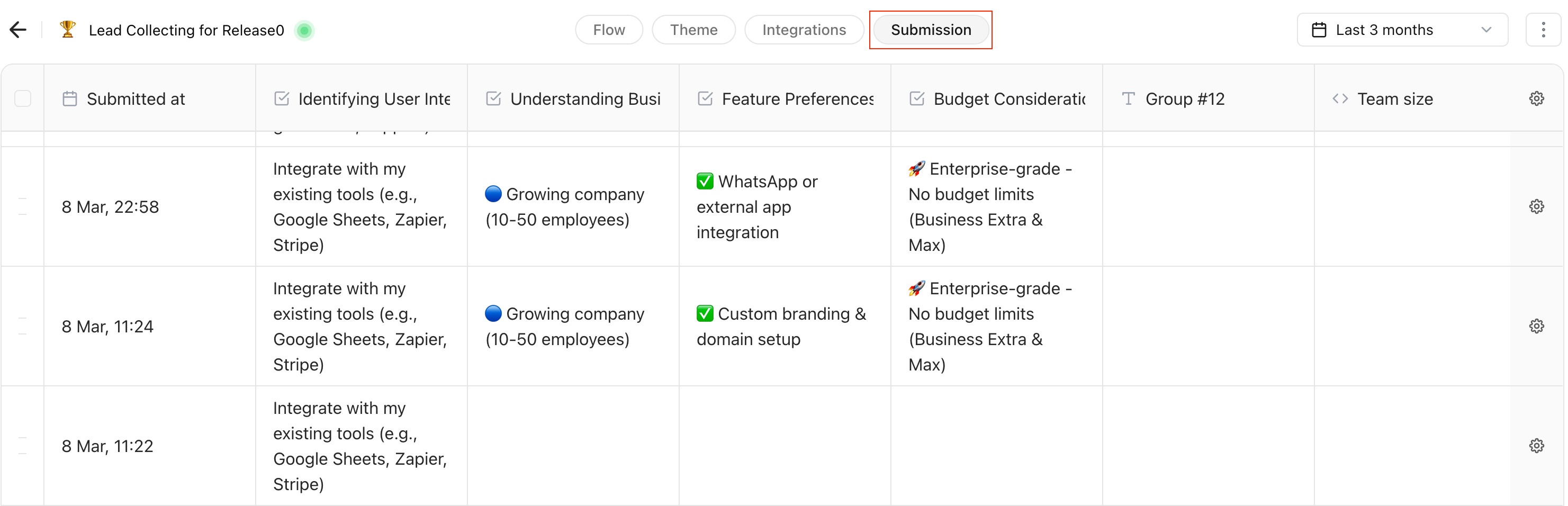
 Your Agent results can also be accessed under the **Submission tab** of your Agent flow editor.
 There is also a quick overview summary of the submissions located on the **workspace** view inside the **Agent** card.
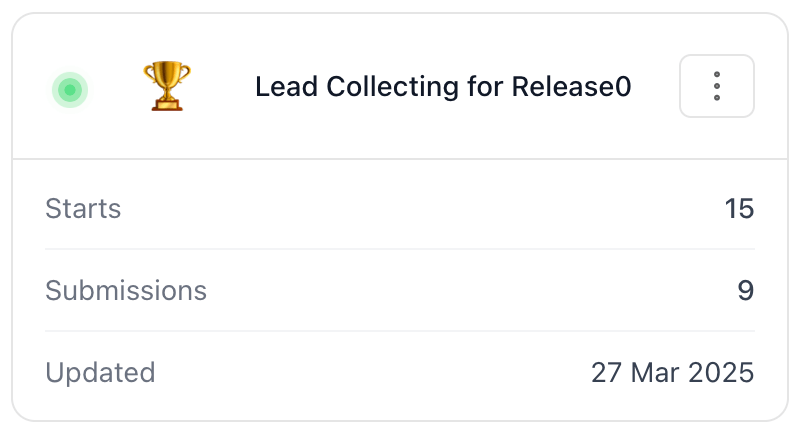 In this quick view you can see the conversation **Starts**, this refers to each time the agent is started with at least one user interaction. Also it shows the total number of **Submissions** or number of users that have completed the agent conversation flow. Lastly it shows the last update of the agent configuration.
### Partially Filled Results
You might notice some partially filled results in your data. This is **normal and expected**. Your **Agent** collects answers as soon as they are provided by the user, even if they don’t complete the entire conversation.
> **Note**: Partially filled results help you understand where users drop off, offering opportunities to improve your Agent’s performance. This is one of **release0.com’s** greatest features and it is explained in more detail in the [Analytics](/submission/analytics) section.
***
## Features in the Results Tab
### Time Filter
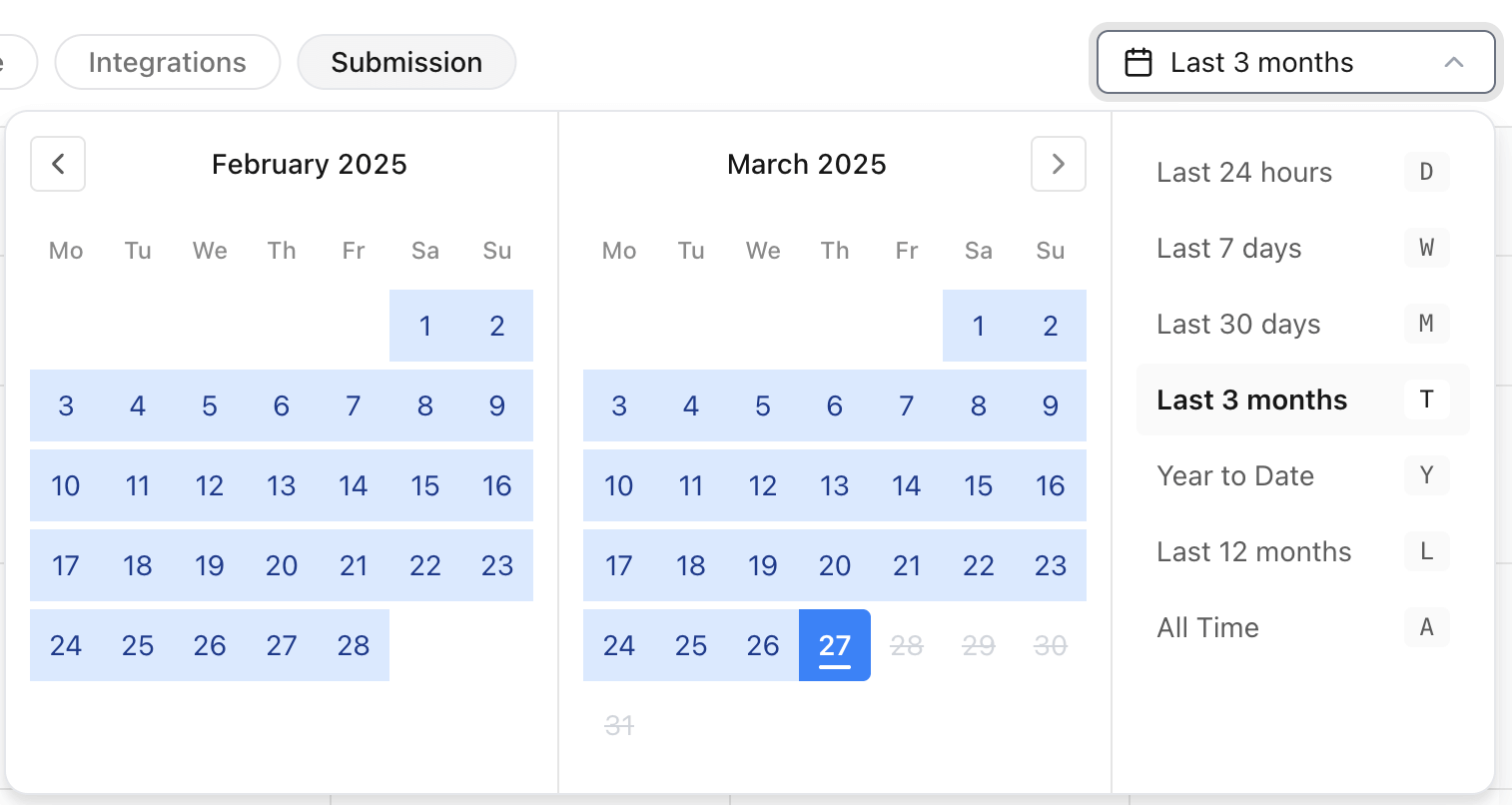
By default, results from the last 7 days are displayed. You can adjust this by using the **date filter button** located at the top right corner of the submission table.
In this quick view you can see the conversation **Starts**, this refers to each time the agent is started with at least one user interaction. Also it shows the total number of **Submissions** or number of users that have completed the agent conversation flow. Lastly it shows the last update of the agent configuration.
### Partially Filled Results
You might notice some partially filled results in your data. This is **normal and expected**. Your **Agent** collects answers as soon as they are provided by the user, even if they don’t complete the entire conversation.
> **Note**: Partially filled results help you understand where users drop off, offering opportunities to improve your Agent’s performance. This is one of **release0.com’s** greatest features and it is explained in more detail in the [Analytics](/submission/analytics) section.
***
## Features in the Results Tab
### Time Filter
By default, results from the last 7 days are displayed. You can adjust this by using the **date filter button** located at the top right corner of the submission table.
 ### Export Results to CSV
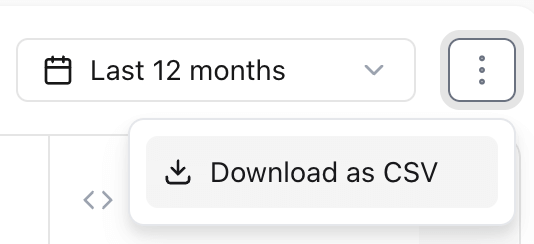
You can export all results to a CSV file by clicking on the **Export** option. This generates a CSV file containing all the current results from your Agent.
### Export Results to CSV
You can export all results to a CSV file by clicking on the **Export** option. This generates a CSV file containing all the current results from your Agent.
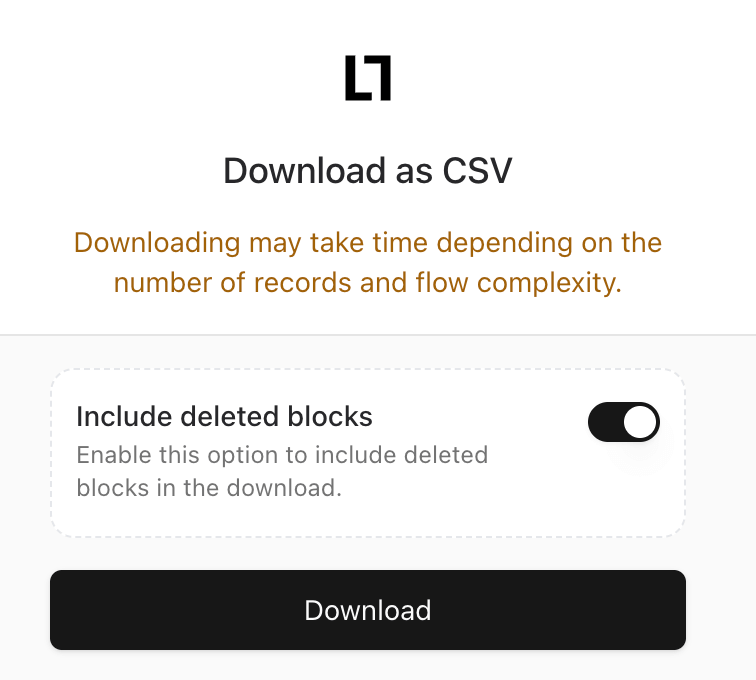
 **Include Deleted elements**: If enabled, this will include answers from elements that are no longer part of your Agent (e.g., removed in a previous version).
 ### Re-arrange and Hide Columns
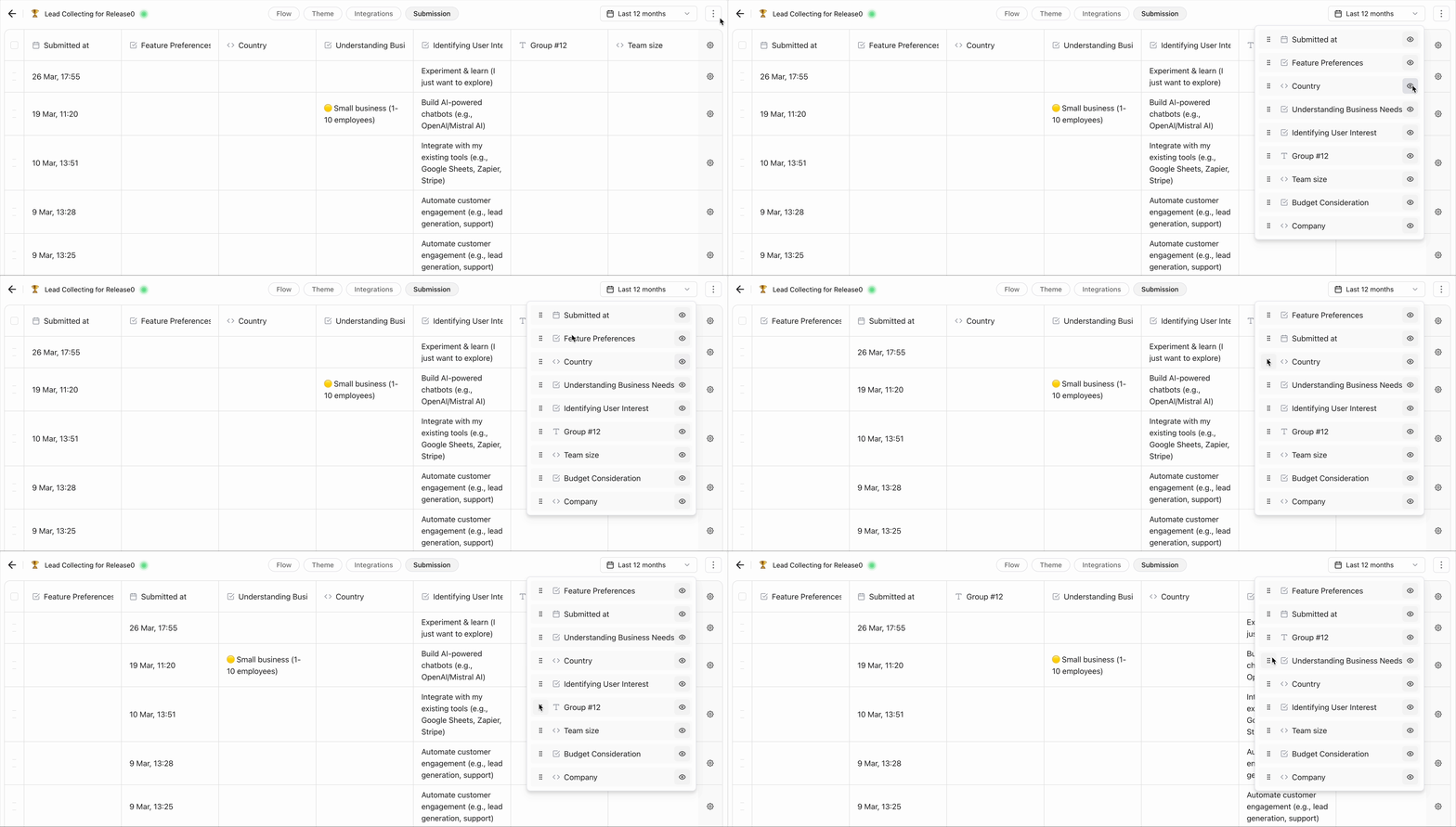
To make your results table easier to read, you can:
* Re-arrange specific columns.
* Hide columns that are not relevant.
### Re-arrange and Hide Columns
To make your results table easier to read, you can:
* Re-arrange specific columns.
* Hide columns that are not relevant.
 > **Tip**: Use exported CSV files to perform further analysis in tools like Excel or Google Sheets for insights into user behavior.