> ## Documentation Index
> Fetch the complete documentation index at: https://docs.release0.com/llms.txt
> Use this file to discover all available pages before exploring further.
# How to manage team members access
> Learn about inviting members and assigning roles in your Release0 workspace. This guide covers how to manage team members, including Admins and Members, and how to invite them to your workspace.
Members are people like team mates or customers you can invite to your workspace. You can invite members to your workspace by sending them an invitation email. Members can be assigned different roles in the workspace, such as Admins or Members.
## Roles in a Workspace
There are two roles users can have in a **release0.com** workspace:
* **Admins**: Manage workspace settings, delete a workspace, and manage other admins, members, and guests.
* **Members**: Team members who can create and edit Agents but cannot edit workspace settings or add members.
## How to Invite Admins and Members
1. Navigate to your workspace.
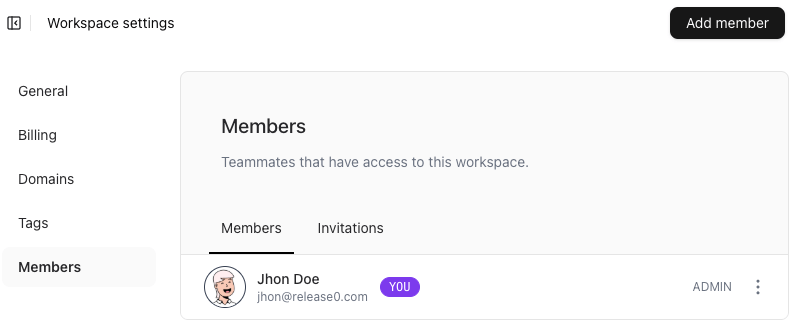
2. Click the **Settings** button and then go to the **Members** section.
3. You will see the **Workspace members list** and the invitations tab:
* Here, you can invite new admins or members.
* You can also assign admin roles to existing members.
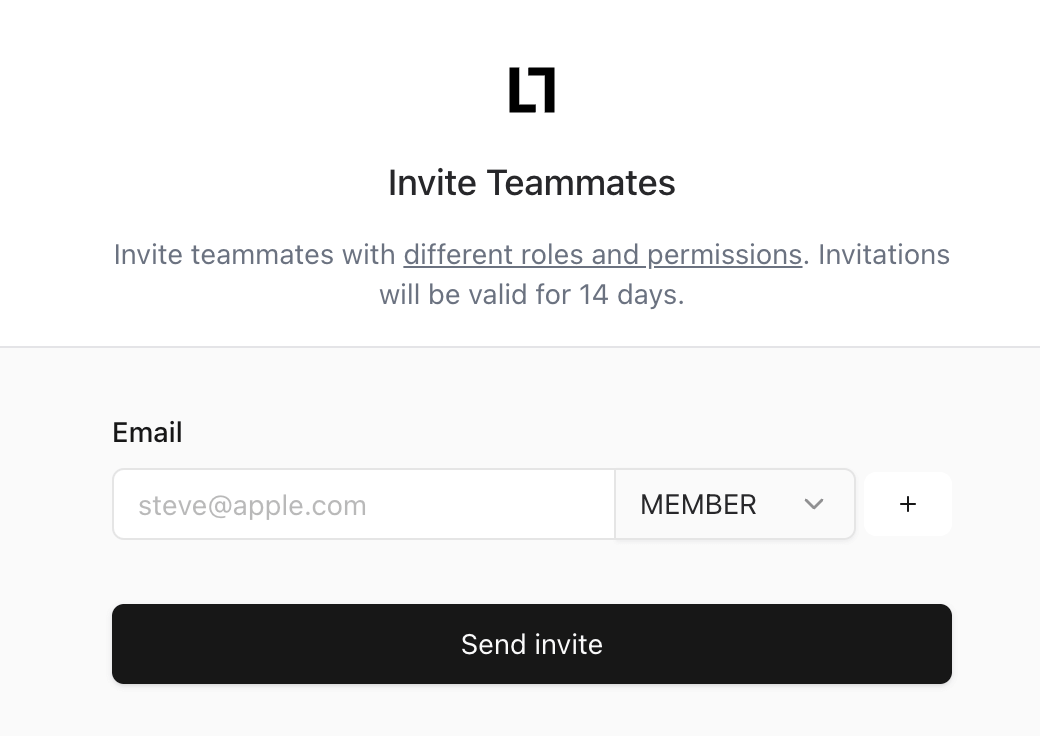
To invite a new member or admin, click the **Add Member** button and enter the email address of the person you want to invite.
 Then add the email address of the person you want to invite and select the role you want to assign to them.
 Once the invite email is sent, the person will receive an email with a link to join the workspace. They will be able to access the workspace by clicking the link and signing in or creating a new account. While the invitation is pending, you can see its status in the **Invitations** tab.
Keep in mind that there is a limit to how many members you can add to your workspace. Please check out our [pricing page](https://release0.com/pricing) for details on the limits per plan.
Once the invite email is sent, the person will receive an email with a link to join the workspace. They will be able to access the workspace by clicking the link and signing in or creating a new account. While the invitation is pending, you can see its status in the **Invitations** tab.
Keep in mind that there is a limit to how many members you can add to your workspace. Please check out our [pricing page](https://release0.com/pricing) for details on the limits per plan.