> ## Documentation Index
> Fetch the complete documentation index at: https://docs.release0.com/llms.txt
> Use this file to discover all available pages before exploring further.
# How to manage billing and subscriptions
> Manage your subscription and billing information in Release0, including plan upgrades and invoices. This guide provides an overview of how to handle billing for your workspace, including upgrading plans, changing payment methods, and canceling subscriptions.
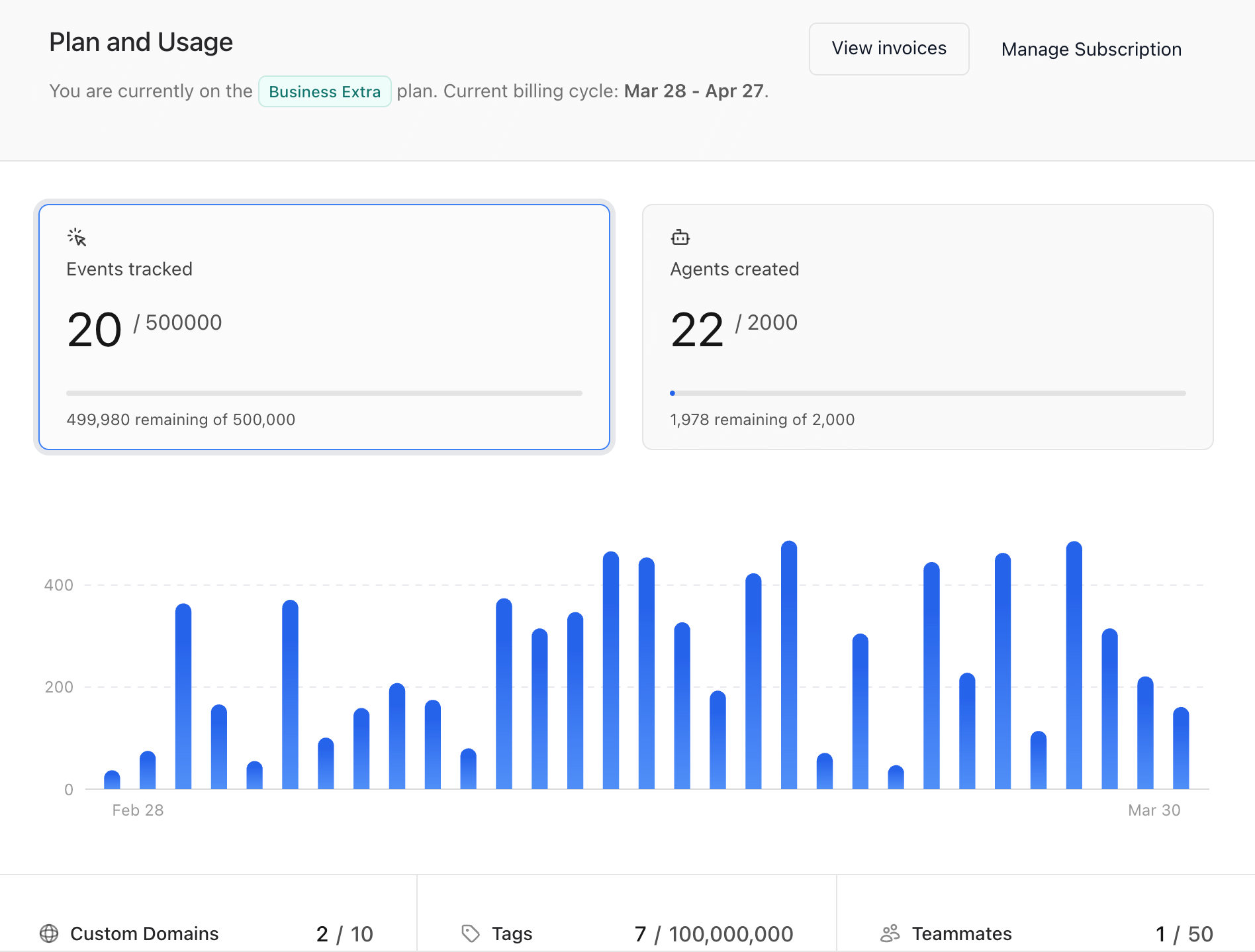
This is where you manage your subscription and billing information. Subscriptions are a way to manage your workspace's usage and access to features. You can upgrade, downgrade, or cancel your subscription at any time. Each new workspace starts with a **Hobby** plan that has plenty of features to get you started. When needed, you can extend your workspace’s capabilities by upgrading to a **Professional** or **Business** plan.
* Your workspace's total usage and limits
* Your current plan.
* Paid invoices.
 ## Upgrade Plan
To upgrade your workspace plan and increase your monthly limits, open the Workspace **Settings** and scroll down to the Upgrade section.
## Upgrade Plan
To upgrade your workspace plan and increase your monthly limits, open the Workspace **Settings** and scroll down to the Upgrade section.
 This will show the next available tier for your workspace. You can select the plan you want to upgrade to and click the **Upgrade** button.
This will take you to the billing portal where you can complete the upgrade process.
***
## Change Payment Method
To update your payment information for your workspace:
1. Open the **Settings** and scroll down to the **Payment methods**
2. Click the button to access the billing portal, where you change your payment method.
This will show the next available tier for your workspace. You can select the plan you want to upgrade to and click the **Upgrade** button.
This will take you to the billing portal where you can complete the upgrade process.
***
## Change Payment Method
To update your payment information for your workspace:
1. Open the **Settings** and scroll down to the **Payment methods**
2. Click the button to access the billing portal, where you change your payment method.
 ## Cancel Plan
To cancel your workspace plan:
1. Open the **Settings** and scroll down to the **Payment methods**
2. Click the button to access the billing portal, where you can manage and cancel your subscription.
> **Note**: Ensure to save any necessary data before canceling your plan, as access may be limited afterward.
## Cancel Plan
To cancel your workspace plan:
1. Open the **Settings** and scroll down to the **Payment methods**
2. Click the button to access the billing portal, where you can manage and cancel your subscription.
> **Note**: Ensure to save any necessary data before canceling your plan, as access may be limited afterward.