> ## Documentation Index
> Fetch the complete documentation index at: https://docs.release0.com/llms.txt
> Use this file to discover all available pages before exploring further.
# How to set up custom domains in Release0
> Discover how to use custom domains for your Release0 agents to enhance brand recognition. This guide provides step-by-step instructions to set up custom domains, including using Release0's free domain or your own, and configuring SSL certificates for secure connections.
Whenever you're creating an Agent for marketing purposes, support or lead generation, it is important to use a custom domain for better brand recognition.
At **Release0** we offer our own domain **'release0.ar'** for your agents for free.
However, you can also use your own custom domain for your agents. Check out our [pricing page](https://release0.com/pricing) for details about custom domain limits per plan.
### Premium Short Domain Now Available
Starting with the **Business plan and above**, you can now publish your Release0 agents using the premium short domain: `r0.ar`
This feature unlocks:
* A **clean and professional** URL for your agents
* **Shorter, more memorable** links (e.g., `https://r0.ar/your-slug/agent`)
* **Simplified QR codes** for easier scanning and better aesthetics
* Improved branding and shareability across platforms
> **Available from Pro plan onwards** — no additional setup needed.
## SSL Certificates
* When you use **our provided domains**, we automatically **generate and manage SSL certificates for you**. This means that your agents will always be served over HTTPS, ensuring a secure connection for your users.
* When you bring **your own custom domain**, we also automatically **generate and manage SSL certificates for you**. This means that your agents will always be served over HTTPS, ensuring a secure connection for your users.
* We use **Let's Encrypt** as our certificate authority to issue these SSL certificates.
* **Certificate generation may take a few minutes**, especially right after connecting a custom domain. Please allow some time for the setup to complete.
## Prerequisites
1. A Release0 Workspace. If you don't have one, you can create one for free.
2. A custom domain that you own. If you don't have one, you can purchase one from a domain registrar like [GoDaddy](https://www.godaddy.com/), [Namecheap](https://www.namecheap.com/), or [Google Squarespace](https://domains.squarespace.com/).
3. Access to your domain registrar's DNS settings.
## Step 1 Add a Custom Domain
1. Go to the **Settings** menu in your workspace.
2. Click on **Domains**.
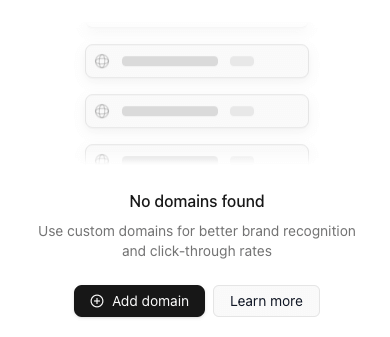 3. Click on **Add Domain** button
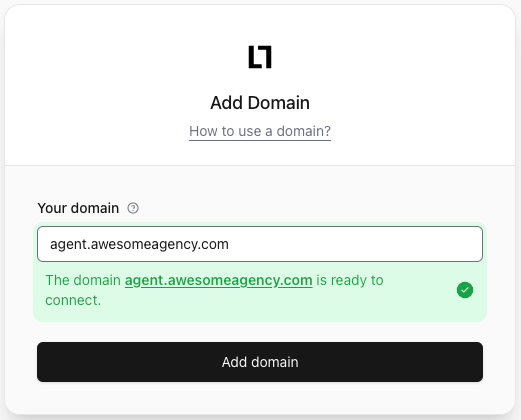 4. Enter your custom domain name in the *Your domain*\* field and click **Add Domain**.
> **Note:** If you are bringing your own custom domain, your agent link do not use a **[workspace slug](/workspace/general#workspace-slug)**. The slug is only used for the domains provided by Release0 (e.g. `release0.ar/your-slug/agent`).
## Step 2 Configure your domain
After adding your domain, you will see a new domain in the entry list, click on the config gear and you'll be presented with a DNS record that you'll need to add to your domain's DNS settings.
4. Enter your custom domain name in the *Your domain*\* field and click **Add Domain**.
> **Note:** If you are bringing your own custom domain, your agent link do not use a **[workspace slug](/workspace/general#workspace-slug)**. The slug is only used for the domains provided by Release0 (e.g. `release0.ar/your-slug/agent`).
## Step 2 Configure your domain
After adding your domain, you will see a new domain in the entry list, click on the config gear and you'll be presented with a DNS record that you'll need to add to your domain's DNS settings.
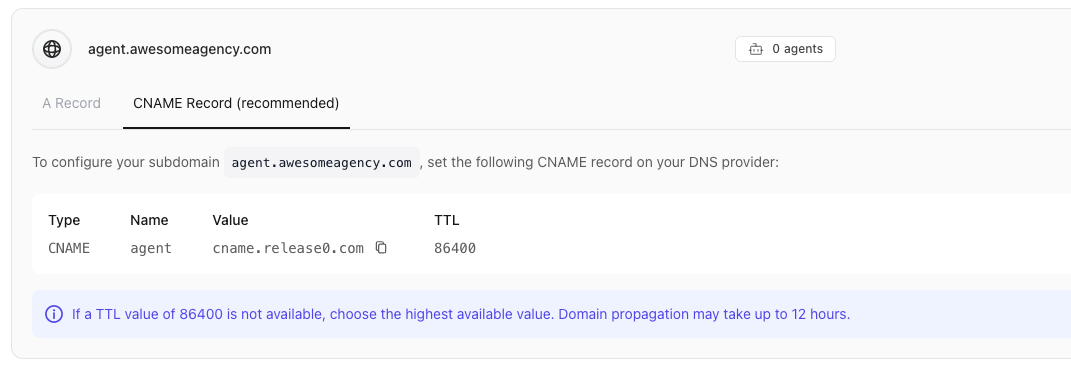 Use the information provided to add a new A record or CNAME record to your domain registrar's DNS settings. The CNAME record should point to the provided value.
## Step 2a: Adding an Apex Domain
If you're adding an apex domain (e.g. `example.com`), you'll need to add an **A record** with the following values:
```plaintext theme={null}
Name: @ (or leave it blank)
Value: 76.76.21.21
TTL: 86400 (or the highest value possible)
```
## Step 2b: Adding a Subdomain
If you're adding a subdomain (e.g. `my-agent.mycompany.com`), you'll need to add a **CNAME record** with the following values:
```plaintext theme={null}
Name: my-agent (or whatever subdomain you want to use)
Value: cname.r0.ar
TTL: 86400 (or the highest value possible)
```
> **Note:** We do not support using `www.` as a subdomain, since the `www.` subdomain will always redirect to the apex domain instead.
## How long do I have to wait for my domain to work?
Domain configuration can take anywhere between 1 to 24 hours to complete. If your domain still doesn't work after 24 hours, please [reach out to us](https://agent.r0.ar/support) and we'll be happy to help you out.
### Recommended Subdomain Variations
We recommend using the following variations for your subdomains:
* `agent.example.com`
* `support.example.com`
* `nps.example.com`
* `salesbot.example.com`
Use the information provided to add a new A record or CNAME record to your domain registrar's DNS settings. The CNAME record should point to the provided value.
## Step 2a: Adding an Apex Domain
If you're adding an apex domain (e.g. `example.com`), you'll need to add an **A record** with the following values:
```plaintext theme={null}
Name: @ (or leave it blank)
Value: 76.76.21.21
TTL: 86400 (or the highest value possible)
```
## Step 2b: Adding a Subdomain
If you're adding a subdomain (e.g. `my-agent.mycompany.com`), you'll need to add a **CNAME record** with the following values:
```plaintext theme={null}
Name: my-agent (or whatever subdomain you want to use)
Value: cname.r0.ar
TTL: 86400 (or the highest value possible)
```
> **Note:** We do not support using `www.` as a subdomain, since the `www.` subdomain will always redirect to the apex domain instead.
## How long do I have to wait for my domain to work?
Domain configuration can take anywhere between 1 to 24 hours to complete. If your domain still doesn't work after 24 hours, please [reach out to us](https://agent.r0.ar/support) and we'll be happy to help you out.
### Recommended Subdomain Variations
We recommend using the following variations for your subdomains:
* `agent.example.com`
* `support.example.com`
* `nps.example.com`
* `salesbot.example.com`