

Features
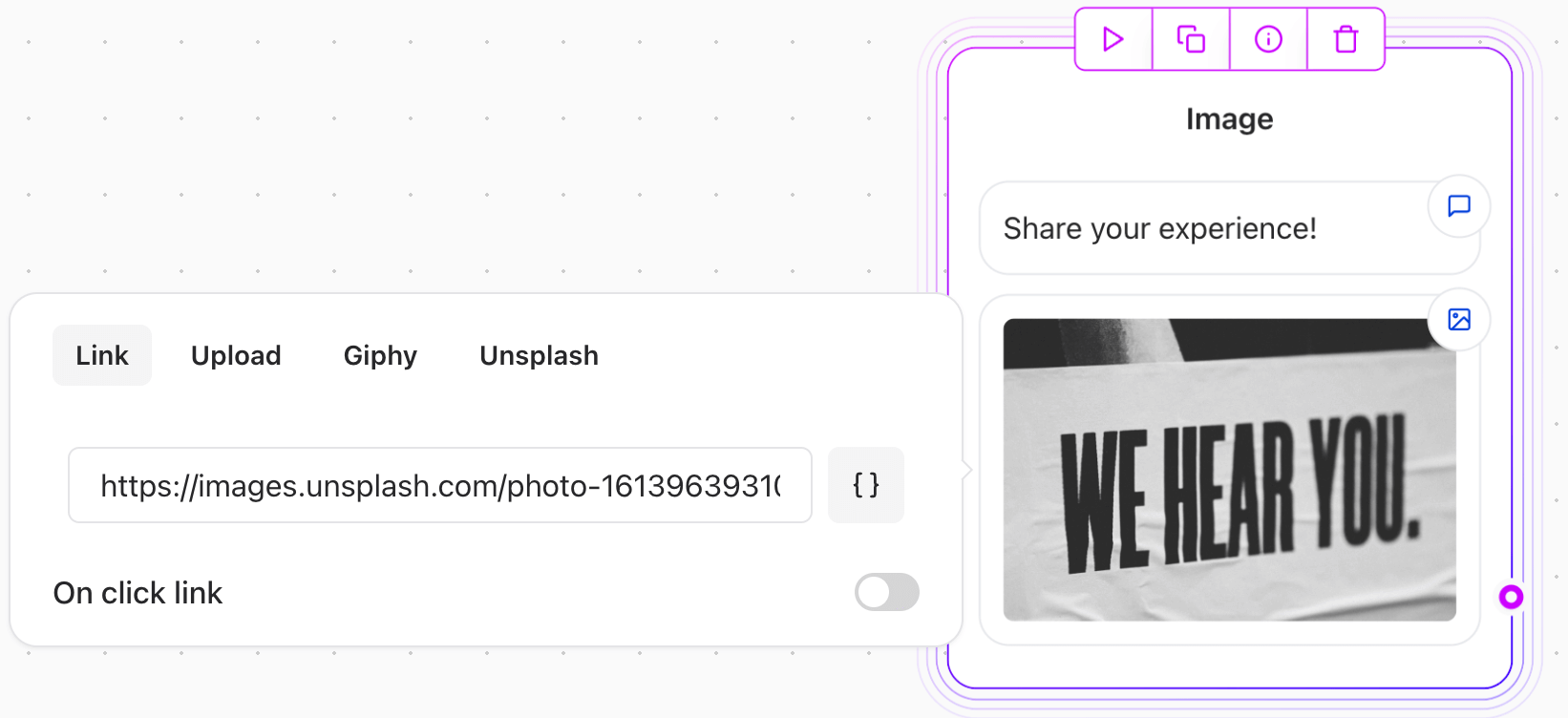
- Upload an Image: Directly upload an image from your device.
- Paste a URL: Add an image by pasting its URL.
- GIF Integration: Choose a GIF using the native Giphy integration.
- Stock Images: Search and select images from Unsplash directly within the interface.
Use Cases
- Display visual content to enhance user engagement.
- Provide graphical explanations or illustrations.
- Use GIFs for dynamic and interactive messaging.
Example Configuration
-
Uploading an Image:
- Click on the “Upload” button.
- Select an image from your device.
- The image will appear in the Agent Dialog element.
-
Pasting a URL:
- Copy the URL of the desired image.
- Paste it into the provided field.
- Ensure the URL points to a valid image format (e.g.,
.jpg,.png,.gif).
-
Using Giphy or Unsplash:
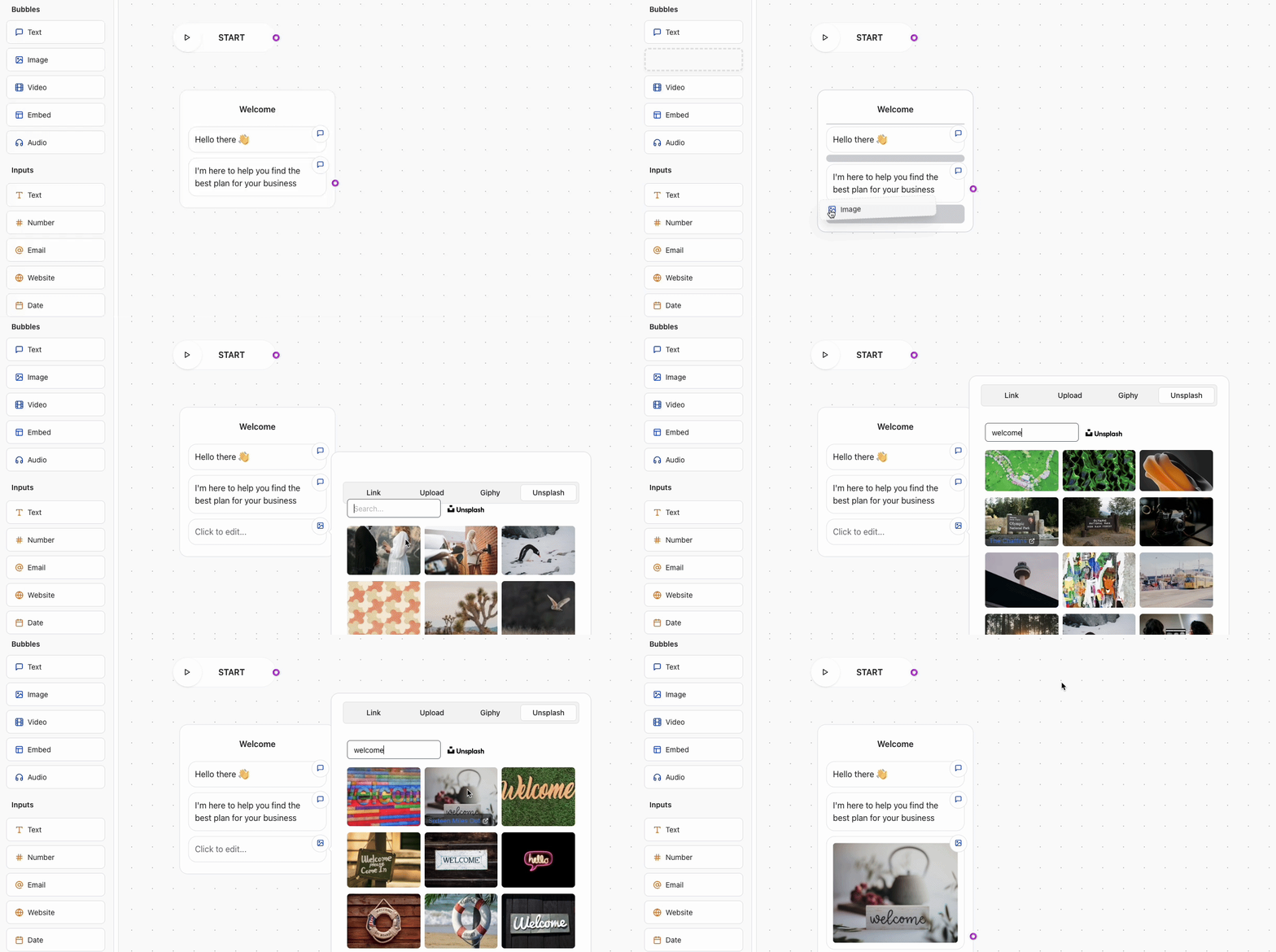
- Click on the Giphy or Unsplash option.
- Search for a keyword (e.g., “celebration”).
- Select the desired image or GIF to include