

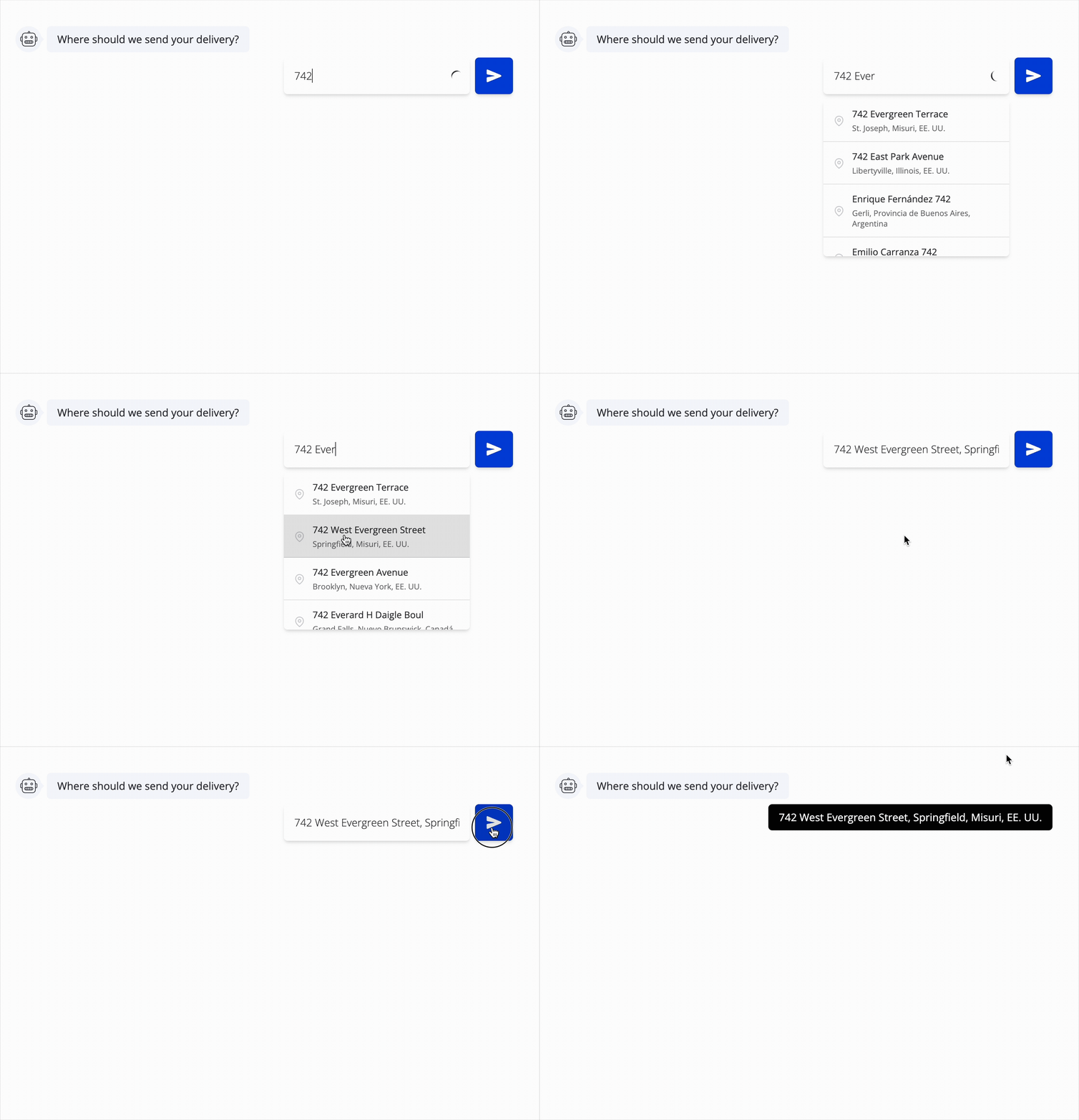
Key Features
- Required field: Ensures users provide a valid address before proceeding.
- Restrict to list only: When enabled, users can only select addresses suggested by Google Maps. Typing custom addresses will not be allowed and the element will prevent submission until a valid suggestion is selected.
- Placeholder Text: Customizable prompt to guide users (e.g., “Enter your address”).
- Include postal code: When enabled, the postal code will be included in the address returned by Google Maps. This is useful if you need more accurate location data.
- Language: Selects the language used to fetch results from Google Maps.
- Button label: Customizable button text for the search action.
- Save answers in Variable: Save the selected address in your desired variable.
How It Works
- The element renders a text input powered by Google Places Autocomplete.
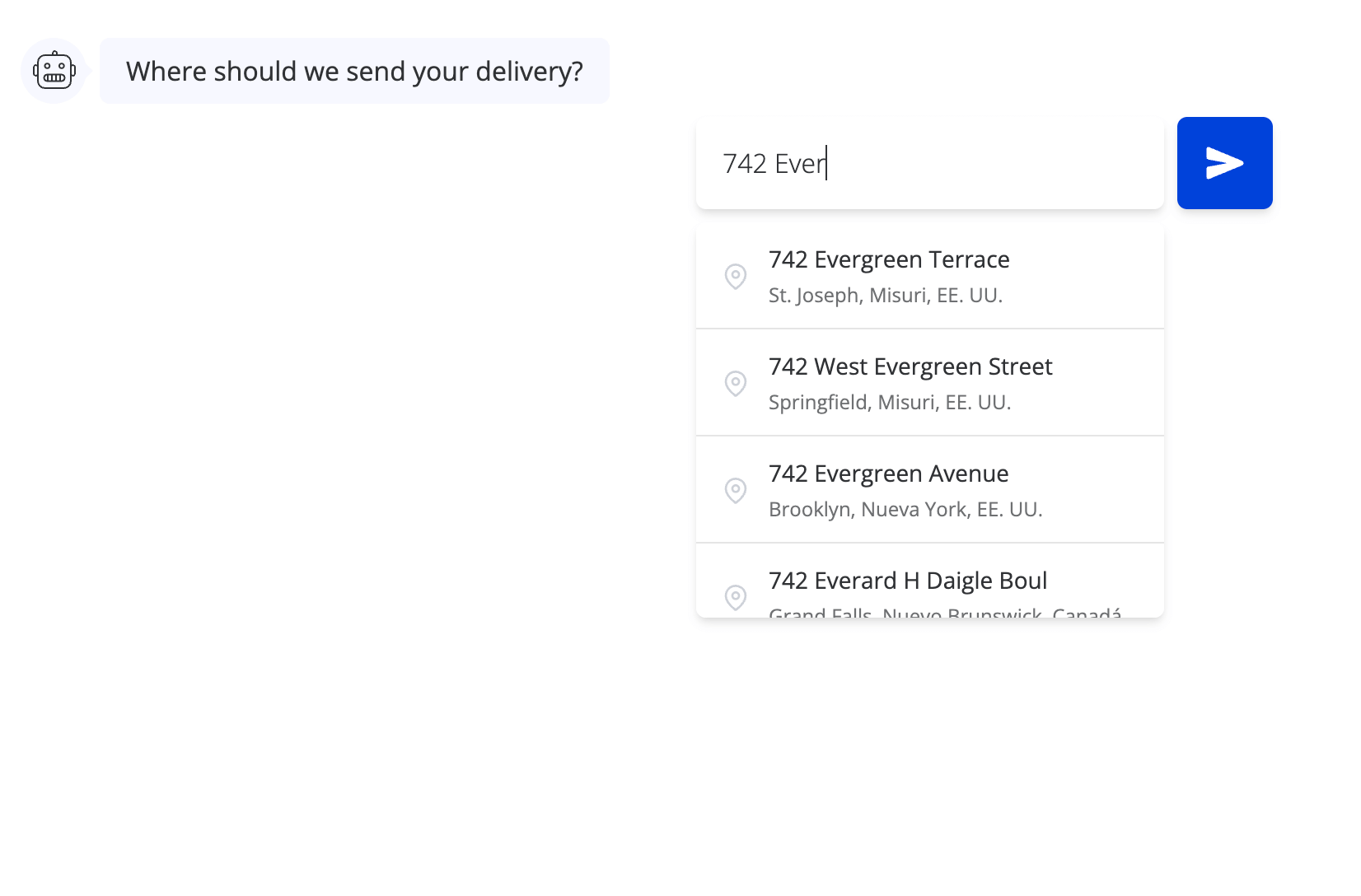
- As the user types, location suggestions appear.
- When the user selects a suggestion, the formatted address is saved in the specified variable.
Setup Instructions
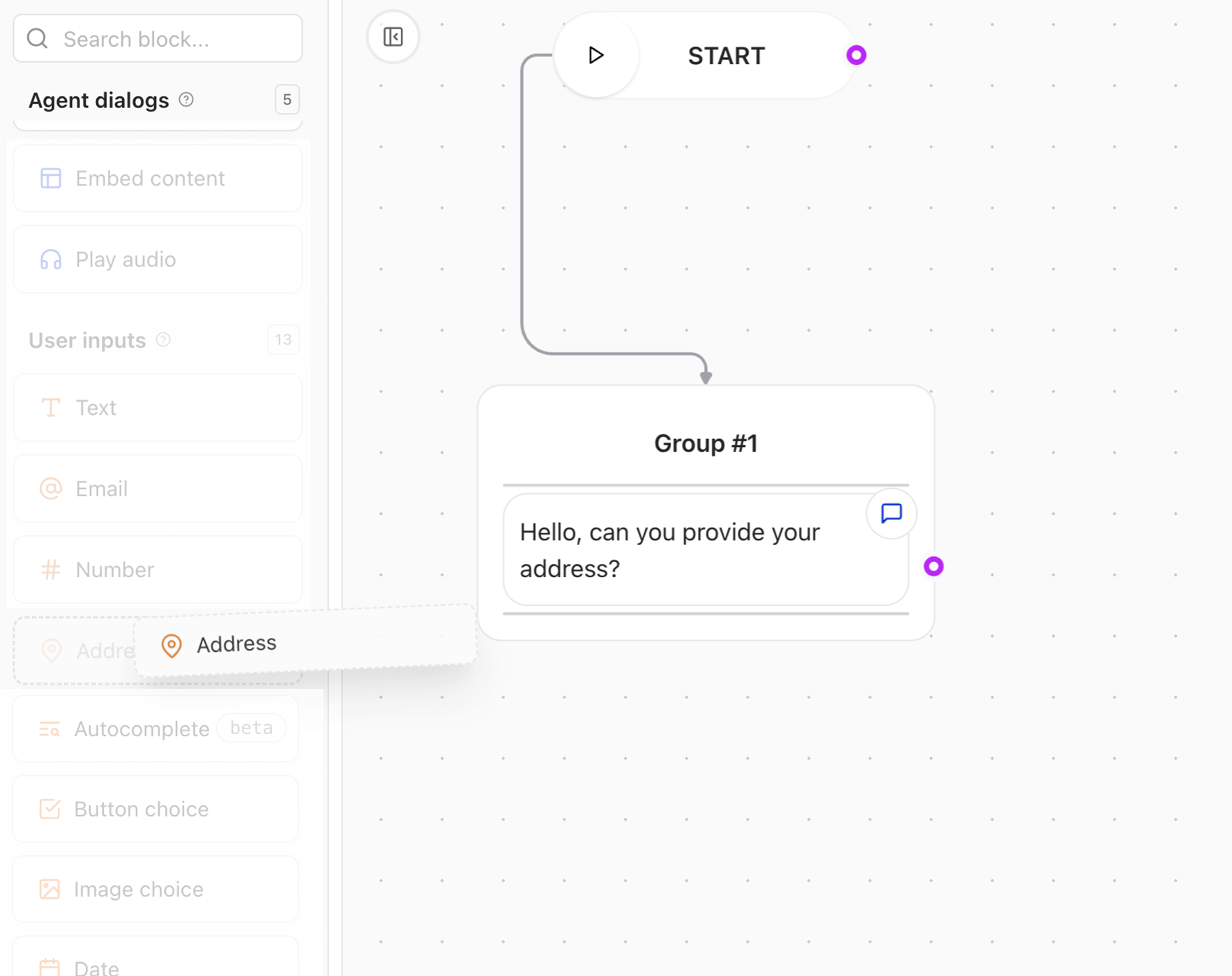
1. Add the Address Input element
- Drag and drop the Address input element into your flow.
- Configure the Prompt to ask users for their location (e.g., “Can you provide your address?“).
2. Google Maps API Key
- This element requires a valid Google Maps JavaScript API key. We provide a limited number of free requests, but you will need to set up your own key for production use.
- Go to the Google Cloud Console to generate an API key.
- Ensure your key has the Places API enabled.
- Add your key to the environment or agent settings under Google Maps API Key.
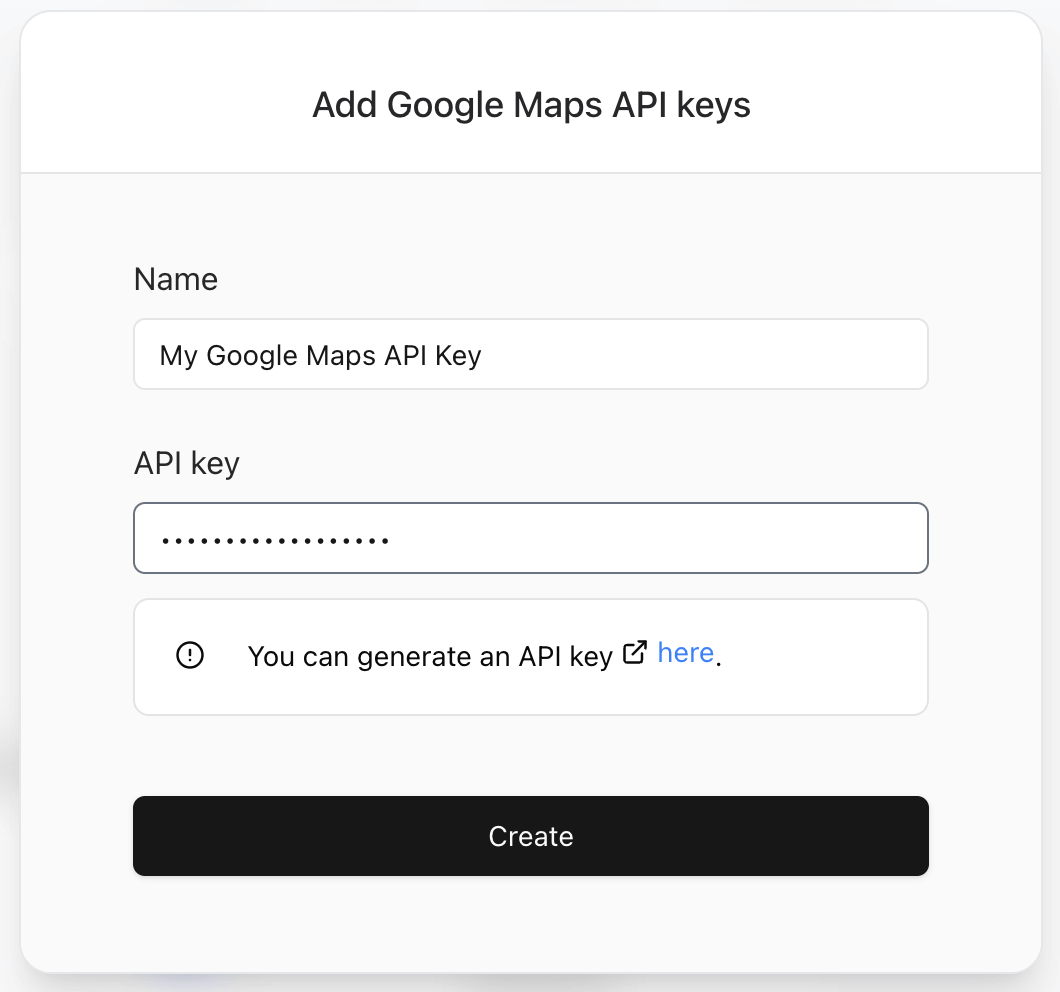
Note: After changing your Google Maps API key, you need to wait for 5 minutes for the changes to take effect.
3. Save Address to a Variable
- Assign a variable name to store the selected address.
- This variable will contain the full address string returned by Google.
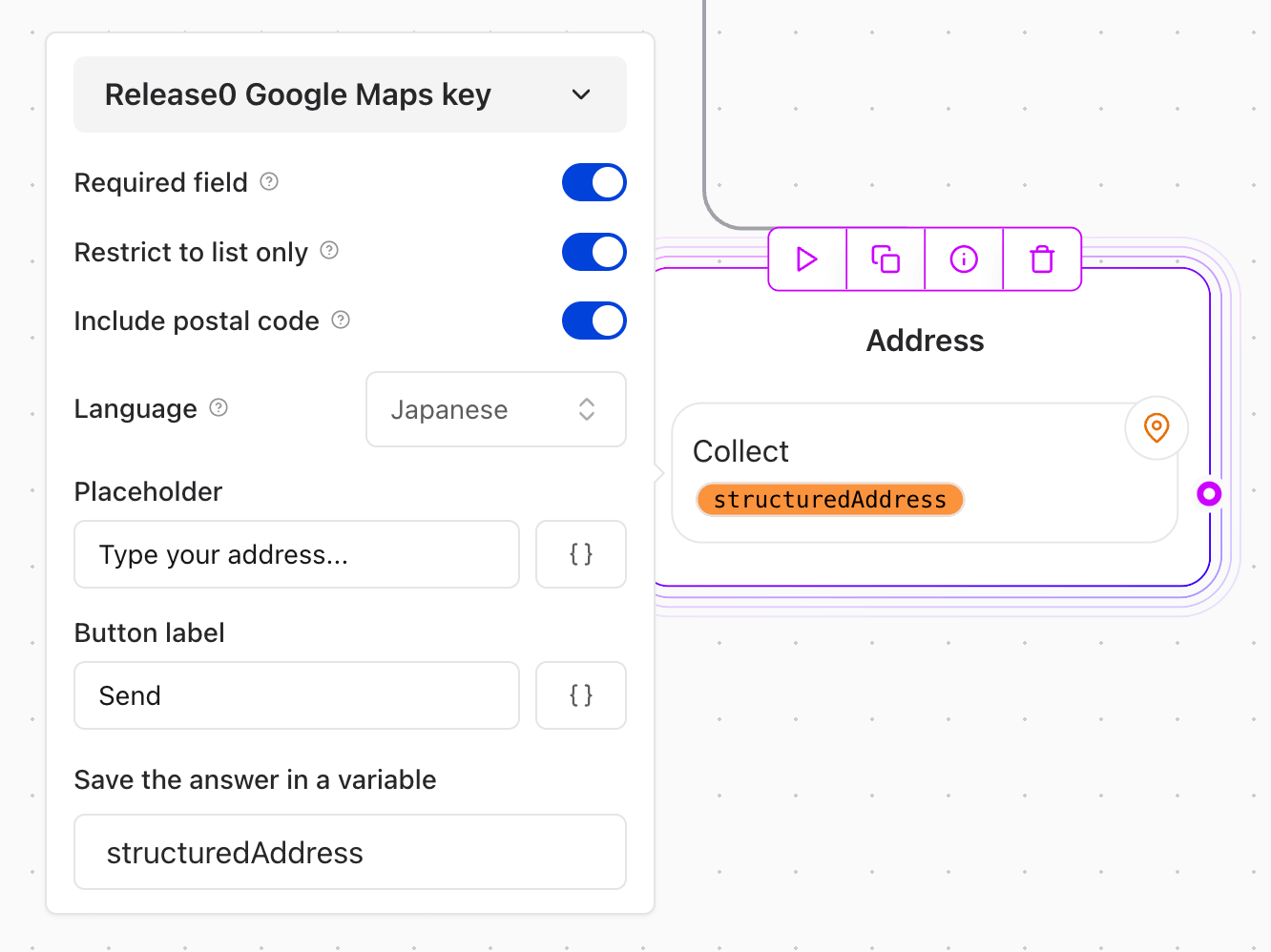
Example Configuration
- Prompt:
"Where should we send your delivery?" - Variable:
user_address
user_address will store something like:"742 West Evergreen Street, Springfield, Misuri, EE. UU."
Use Cases
- Delivery address collection
- Event location input
- Property lookup
- Booking/reservation systems
Limitations
- Requires an active Google Maps API key.
- The accuracy and format of address results depend on Google’s database.
- Not suited for offline or custom location lists.