

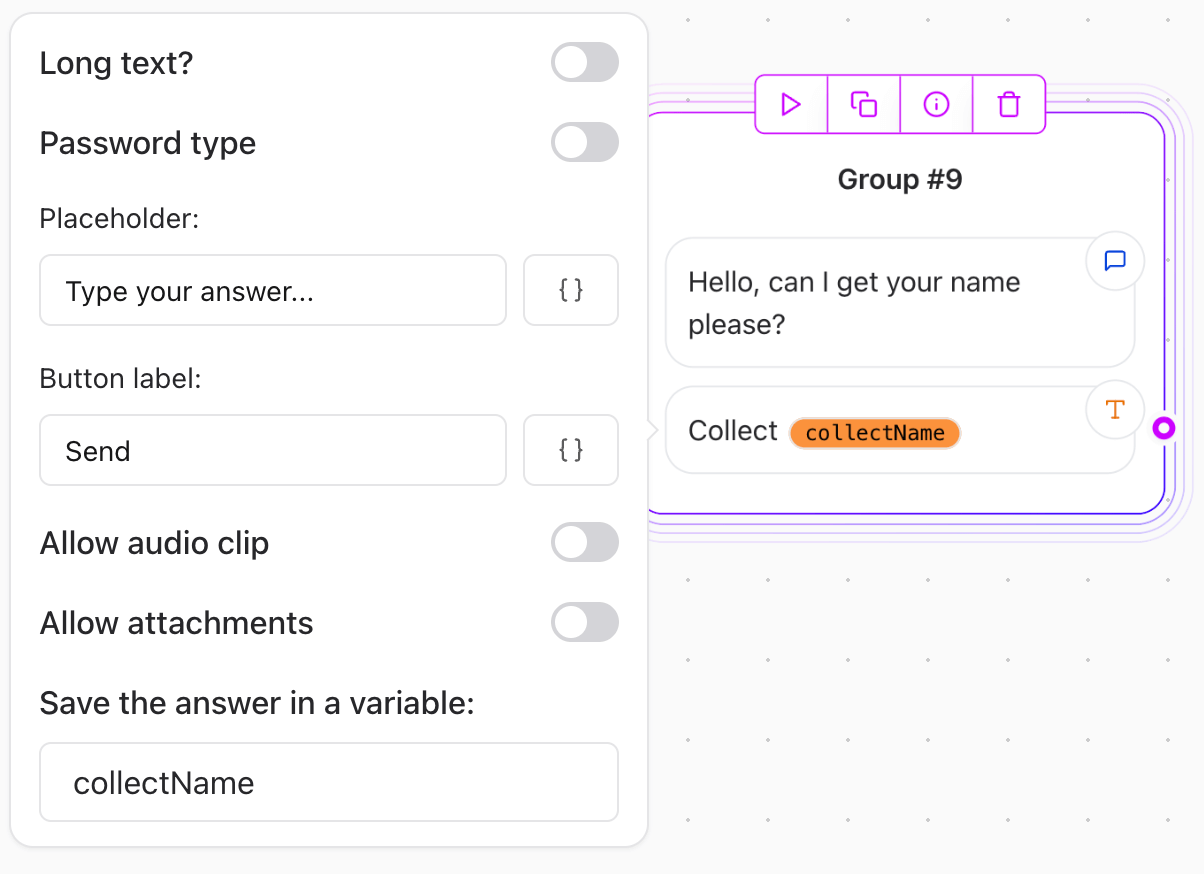
Key Features
Short Text Input
- Default Behavior: The element is configured to expect short text answers by default.
- Use Case: Suitable for concise responses, such as names, email addresses, or brief feedback.
Long Text Input
- Configuration: Enable long text input in the element’s settings.
- Use Case: Ideal for detailed responses, such as descriptions, opinions, or open-ended questions.
Password Type Input
- Purpose: Allows users to enter sensitive information securely, such as passwords. The text entered is masked (e.g., shown as dots) to protect user privacy.
- Configuration: Set the input type to “password” in the element settings.
- Use Case: Useful for scenarios where users need to provide confidential information, like account credentials or secure notes.
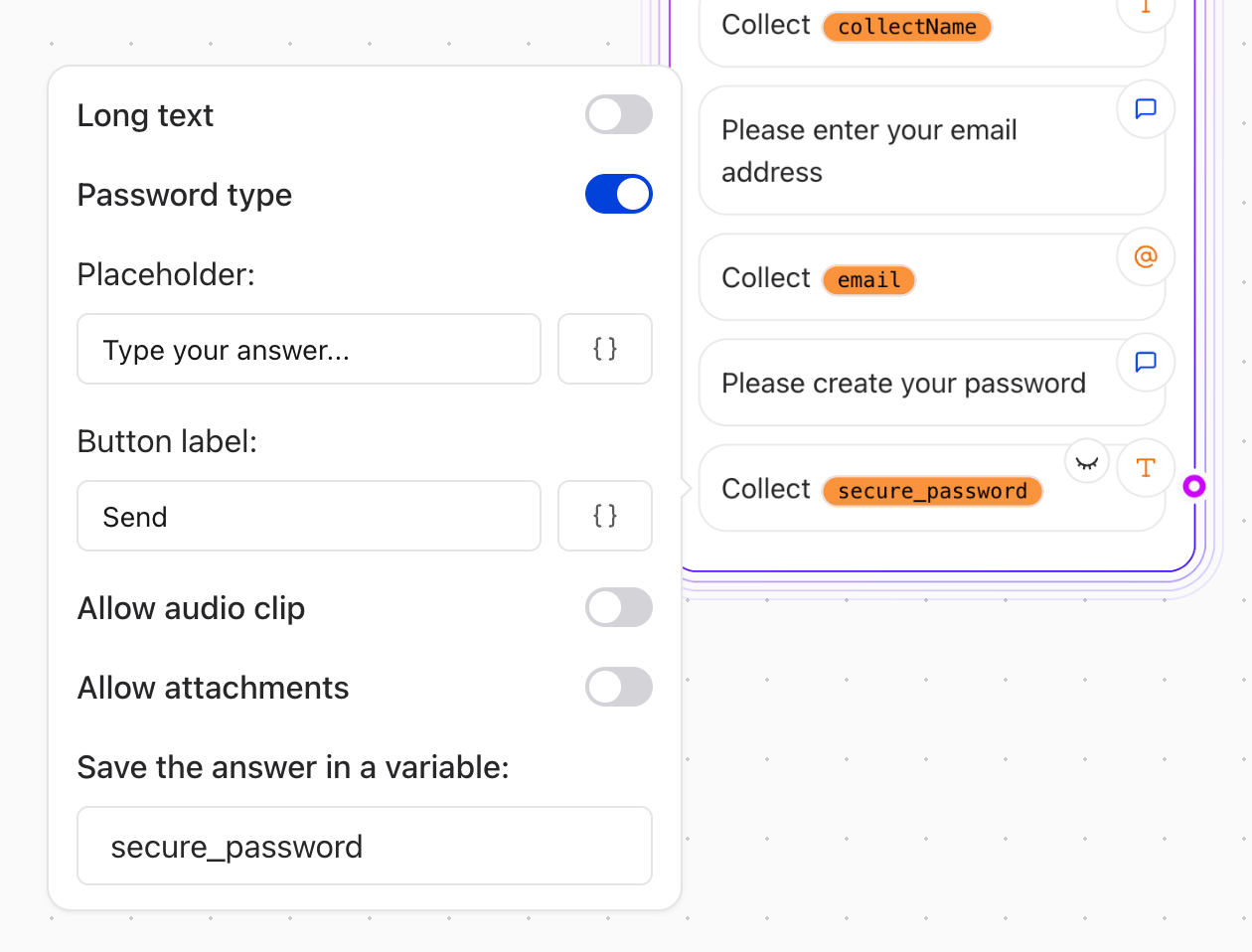
Note: When using the password input type (or any other input types), you can define the variable in a way that it will not be stored in the results table, ensuring that sensitive information is not exposed. In order to do this just start the variable name with secure_. Any variables that start with this prefix will not be stored in the results table. For example secure_password will not be stored in the results table, but you can still use it in your flow logic.
Allow Attachments
- Purpose: Lets users attach files (e.g., documents, images) to their responses.
- How It Works:
- Attachments are uploaded, and a URL is generated for each file.
- The URL is stored in the variable defined in the element configuration.
- Use Case: Useful for collecting supporting documents or images.
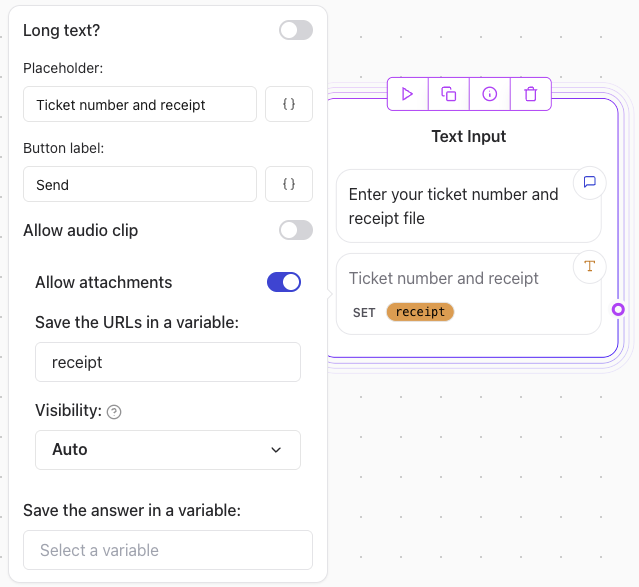
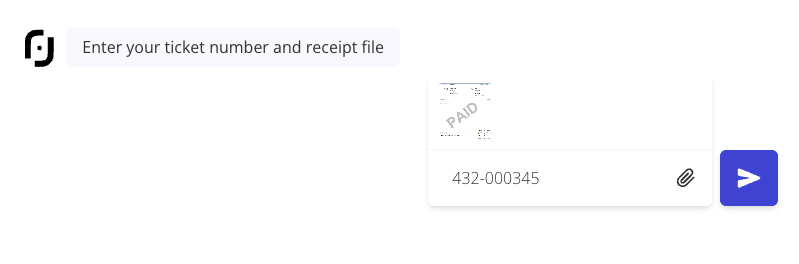
Note: For this method to work make sure you add a variable in the Save the URLs in a variable option.
Allow Audio Clips
- Purpose: Adds a microphone button to the input field for users to record and send voice messages.
- File Format:
- The recorded file is a WebM file if supported.
- If not (e.g., Safari), the file is in MP4 format.
- Use Case: Perfect for scenarios where users prefer or need to respond via audio.
Example Use Cases
-
Short Text Input:
- “What is your name?”
- “Enter your email address.”
-
Long Text Input:
- “Describe your experience with our product.”
- “Provide any additional details about your request.”
-
Password Input:
- “Please enter your account password.”
- “Set a new password for your account.”
-
Attachments:
- “Please upload a copy of your resume.”
- “Attach a photo of the issue.”
-
Audio Clips:
- “Record and send us your feedback.”
- “Describe the problem using voice notes.”
Considerations
- Testing: Ensure the element is configured correctly for the desired input type.
- Compatibility: Confirm that attachment uploads and audio recordings are supported across user devices and browsers.
- Variable Storage: Define and verify the variable for storing URLs of attachments or audio files.