

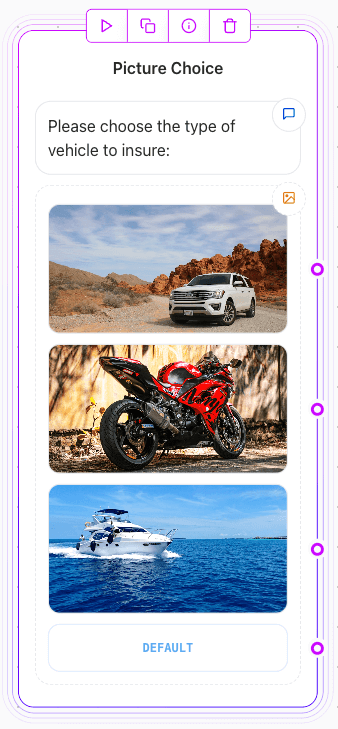
Key Features
- Predefined Options: Use static images with labels and values for manual configurations.
- Dynamic Items: Populate images, labels, and descriptions dynamically using variables.
- Single/Multiple Choice: Enable users to select one or more options.
- Customizable Submit Button: Change the label of the submission button to fit your workflow.
Configuration Steps
1. Static Configuration
To manually set up static choices:- Add the Picture Choice Input element to your workflow.
- Upload images and assign title and description to represent options. You can leave the description and/or title empty if not needed.
2. Enabling Multiple Choice
To allow users to select multiple options:- Toggle the Multiple Choice? option in the settings panel.
- When enabled, users can select multiple items before submitting their choices.
3. Dynamic Items
To dynamically populate images, titles, and descriptions:- Toggle the Dynamic Items? option in the settings.
- Link Images, Titles, and Descriptions to variables in your database or API response.